Getting started
Signing in
Authentication uses your corporate account (Keycloak). On the login page, click Se connecter: you are redirected to the platform's Keycloak form, then back to the dashboard once signed in.
Note
Your rights in the Control Panel (visible namespaces, allowed actions) depend on the roles you have been granted — see Access and permissions. An empty screen on first login usually means no role has been assigned to you yet.
The interface at a glance
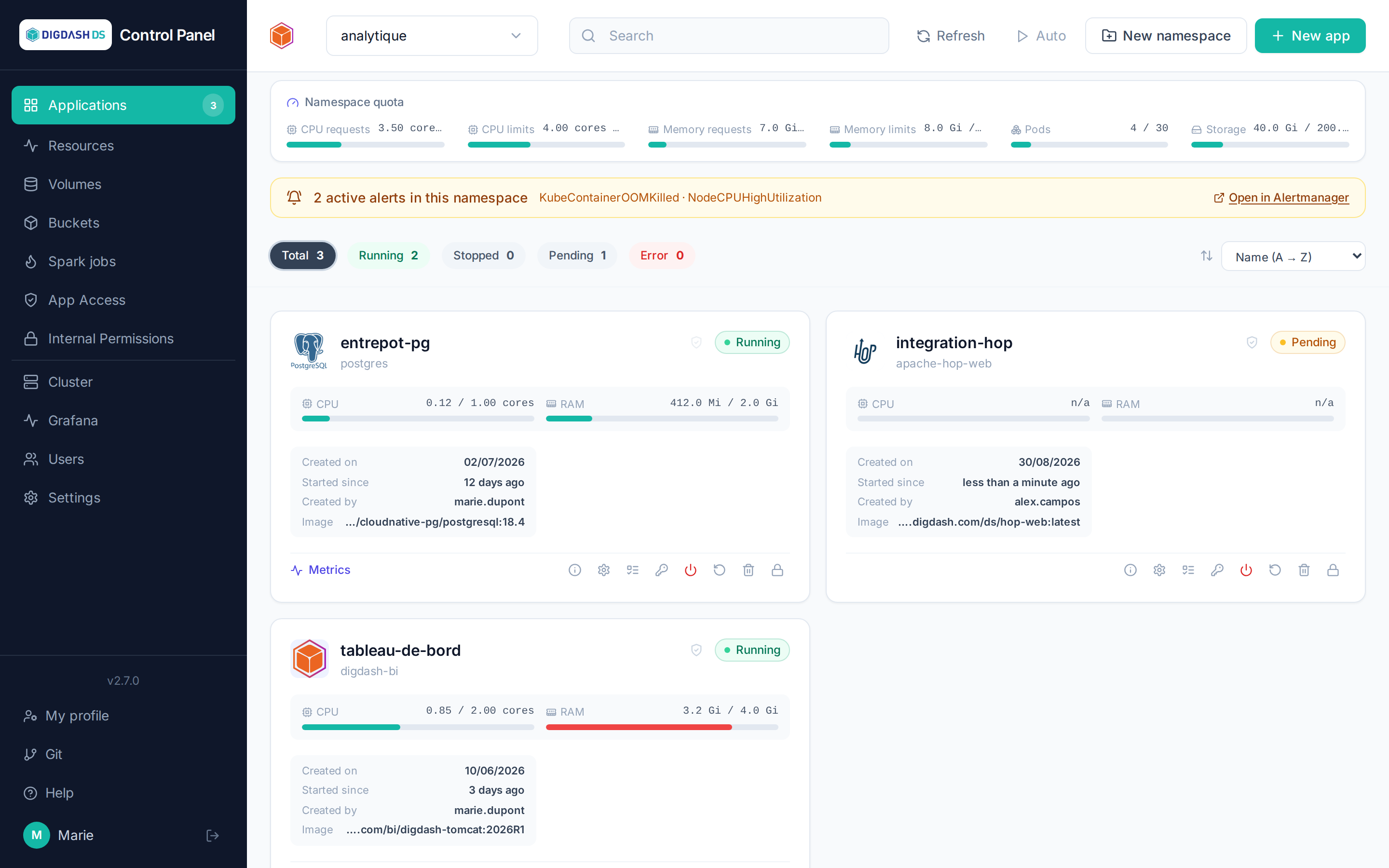
- Sidebar (left): main navigation — Applications, Resources, Volumes, Buckets, Spark jobs, App Access, Internal Permissions, then Cluster (followed by the Grafana link if monitoring is installed), Users, Settings. At the bottom: your profile, your Git account and sign-out.
- Header: the namespace selector (your current workspace — every list on the page relates to it), search, manual or automatic refresh ("Auto", every 5 seconds), and the New namespace / New app buttons.
- Back: on the left of the header, the button takes you back to the screen you came from, with its namespace, tab and selection; its tooltip shows where it leads. A screen that no longer exists is skipped; with no previous screen, the button leads to Applications.
- Quota gauge: below the header, the current namespace's consumption (CPU, memory, pods, storage) against its quotas — see Namespaces and quotas.
- Application cards: one card per deployed application, with its status (
Running,Pending,Stopped,Error), CPU/RAM gauges and actions.
Your first deployment
- Pick your namespace in the header selector.
- Click New app and choose a template — for example PostgreSQL, the fastest to start.
- Give it a name (lowercase letters, digits and dashes), keep the defaults, then Deploy the application.
- The card appears as
Pendingthen turnsRunning— from a few seconds to several minutes depending on the template (Digdash BI is the longest).
The configuration specific to each application is documented in the Applications section, one page per application; the fields common to every deployment are described in Deploying an application.
Changing the interface language
From My profile (bottom of the sidebar), a Language selector lets you choose French, English or Spanish. An administrator can also set each account's language from the Users page.