PostgreSQL administration
The Administer button on a PostgreSQL card (chart/postgres) — visible once the application is Running, restricted to users with the admin role on the namespace.
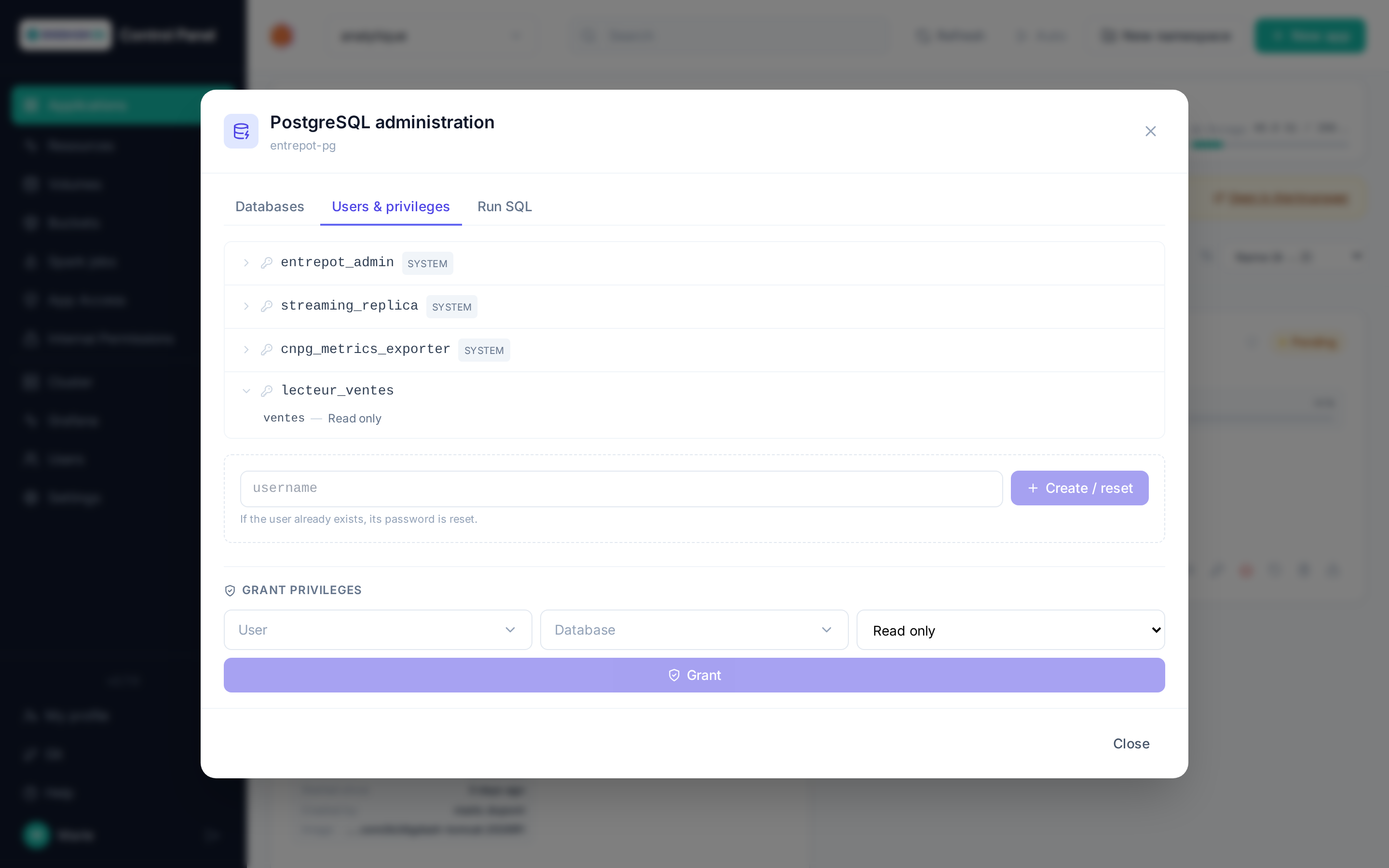
The modal connects live to the application's database (no copy or cache on the Control Panel side) using the administrator account the chart created at deployment. Three tabs:
Databases
Lists existing databases (excluding technical ones) and lets you create a new one by name.
Users & rights
- Create / reset a user: if it doesn't exist yet, it is created; if it already exists, its password is regenerated. The generated password is shown only once, right after the operation — Postgres never stores it in plaintext, so it can't be read back afterward. Note it down or copy it immediately.
- Roles flagged System (
streaming_replica,cnpg_metrics_exporter, and the administrator account the chart itself created) are technical platform roles: they don't appear in the Grant rights field, and their password can't be reset from this interface. - Clicking a user expands their current rights, database by database (screenshot above). The level shown is inferred from the privileges actually present on the public schema's tables — not from a history of grants: Access to the database means CONNECT was granted but no table exists yet (an
ALTER DEFAULT PRIVILEGESwaiting for a future table leaves no trace before it exists), and Custom rights means a set of privileges that doesn't match any of the three levels below (hand-edited through the Run SQL tab). - Grant rights applies a level — Read-only, Read-write or All rights — to a user on a database, including for objects created afterward (
ALTER DEFAULT PRIVILEGES).
Run SQL
A free-form SQL command against the chosen database, with syntax highlighting. A SELECT returns a result table; any other command (DDL/DML) shows the status Postgres returns (e.g. CREATE TABLE, number of affected rows).
Warning
This tab runs any SQL command, including destructive ones (DROP TABLE, DELETE without a WHERE…). There is no intermediate confirmation: check the command and the selected database before running it.
Tip
There is no dedicated delete button for a database or a user: use the Run SQL tab instead (DROP DATABASE, or DROP OWNED BY followed by DROP ROLE for a user that was granted rights). A database can't be dropped while connected to it — select another database before running DROP DATABASE.
External access
The External access button on a PostgreSQL card — shown once the application is Running, restricted to users with the admin role on the namespace.
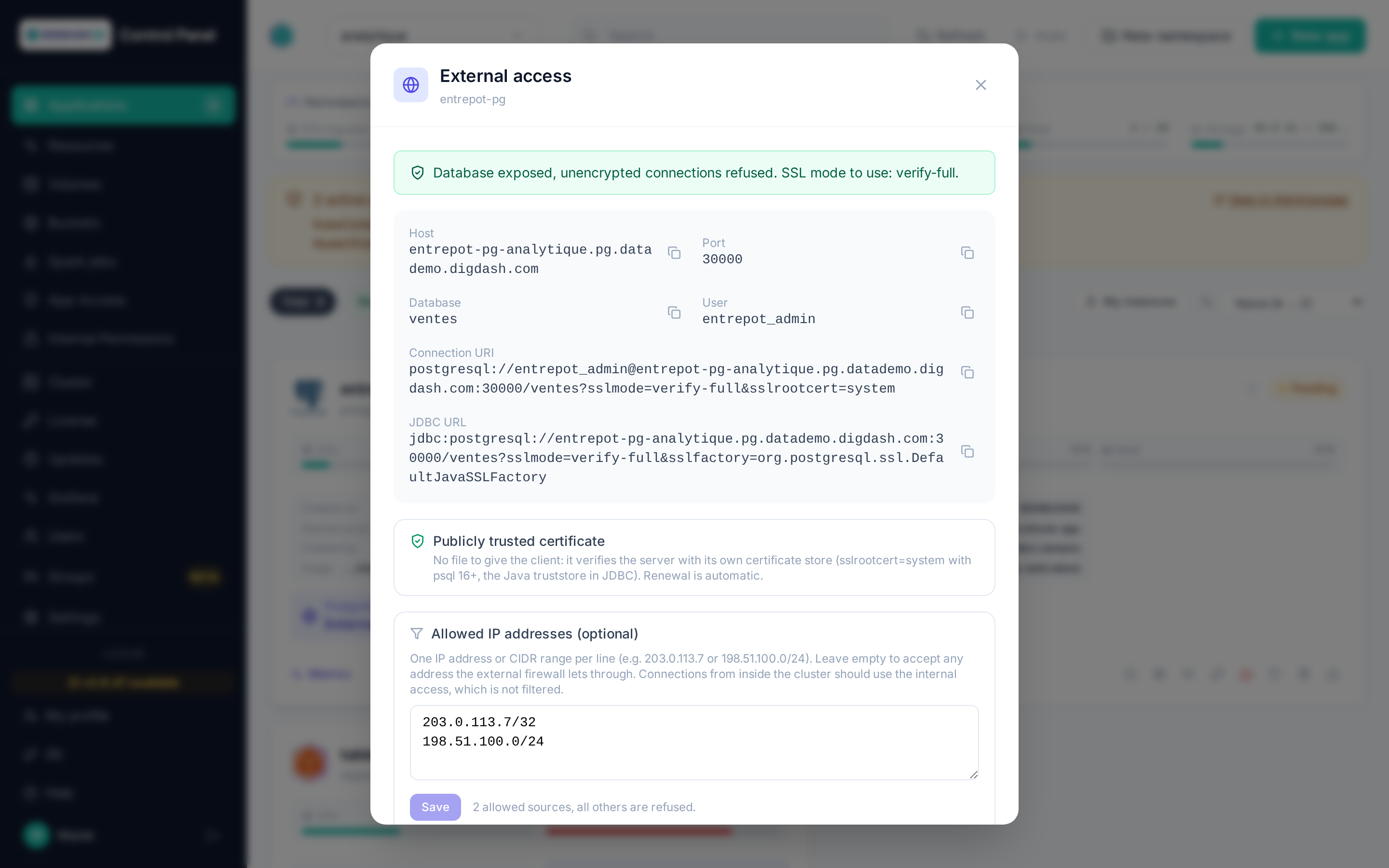
By default a database is only reachable from inside the cluster (<app-name>-rw.<namespace>.svc.cluster.local). Expose the database assigns it a TCP port on the shared Gateway, picked automatically from a reserved range (cluster setting CUSTOM_PORT_AUTO_RANGE, default 30000-35000): no port number to type in, and no way to take over a port the platform already uses. The database's public name is <app-name>-<namespace>.pg.<domain> when the platform has a public certificate for databases (see below), <app-name>-<namespace>.<domain> otherwise.
Exposing requires TLS by default:
- unencrypted connections to this database are refused, including from inside the cluster (a
hostnossl … rejectrule added topg_hba); - the database serves a certificate covering its public name, which makes
sslmode=verify-fullpossible; - the modal shows the matching connection URI and JDBC URL.
Publicly trusted certificate (normal case). When a Let's Encrypt wildcard certificate is configured for databases (cluster setting POSTGRES_PUBLIC_TLS_SECRET), the database serves it instead of CNPG's certificate. The client verifies the server with its own certificate store: no file to give it, and renewal is automatic with no downtime. The URLs shown account for it: sslrootcert=system for psql and libpq 16 or later (with an older version, point sslrootcert to the system bundle, e.g. /etc/ssl/certs/ca-certificates.crt), sslfactory=org.postgresql.ssl.DefaultJavaSSLFactory in JDBC to use the Java truststore.
Without a public certificate configured, the public name is added to the certificate generated by CNPG, signed by a CA of the database's own. The modal then lets you download the CA certificate — to be given to the client (sslrootcert) to verify the server. CNPG rotates that CA periodically (expiry date shown): the downloaded file will have to be replaced then. For verify-full, the URI refers to that file under its download name (sslrootcert=<app-name>-ca.crt): put it in the client's working directory, or adjust the path.
What \"Require TLS\" changes for existing clients
Most clients negotiate TLS on their own as soon as the server offers it — which CNPG always does — and therefore see no difference at all: psql, psycopg, and the JDBC driver DigDash ships (pgjdbc 42.7, sslmode=prefer by default since 42.2.9). The connections DigDash creates automatically towards a database in the same namespace fall in that case: they are already encrypted and keep working.
Only a client that explicitly disables encryption (sslmode=disable) is refused. To enforce encryption client-side without relying on negotiation, use ?sslmode=require; in JDBC, don't use ssl=true on its own, which means verify-full and fails without a CA certificate.
Warning
As for any exposed port, the external firewall forward is not automated: point the displayed port to the cluster's Load Balancer, whose addresses are shown in the modal.
Restricting source addresses
The Allowed IP addresses field limits external connections to a list of IP addresses or CIDR ranges, one per line (203.0.113.7, 198.51.100.0/24, IPv6 accepted). It can be filled in when exposing, or later on an exposed database with Save. Left empty, any address the external firewall lets through is accepted.
Filtering is applied by the shared Gateway's proxy, before the connection reaches the database: a refused source has its connection closed without any exchange with PostgreSQL. It applies to the client's public address as it reaches the cluster (the egress address of a VPN or a corporate NAT, for instance).
Note
A change applies to new connections; a session already open from a removed address is not cut. Applications inside the cluster (DigDash…) should use the internal access, which doesn't go through this filter — through the public name, they would show up with the firewall's address.
Remove the exposure deletes the port and the route. The TLS requirement stays in place — clients may have adapted to it in the meantime — and is changed from Configure, category Security.
A PostgreSQL database's volumes can't be resized or copied from the Volumes page: see Volumes.