Control Panel — Documentation
| Description | Guide d'utilisation du DigDash Control Panel |
Control Panel
The DigDash Control Panel is the management portal for the data platform: deploy, monitor and administer applications (PostgreSQL, Digdash BI, Apache Hop, nginx…) on the platform's Kubernetes cluster, without touching Kubernetes directly.
What you can do
| Need | Where to go |
|---|---|
| Deploy an application from the catalog | Deploying an application |
| Adjust CPU, memory, environment variables | Configuring an application |
| Back up and restore a database | Backup and restore |
| Manage persistent volumes and S3 buckets | Volumes · S3 buckets |
| Grant a colleague access to an application | Access and permissions |
| Create user accounts | Users |
| Host and share Git code internally | Git |
| Administer namespaces, quotas and settings | Settings |
First steps
New to the platform? Start with Getting started: sign-in, interface tour and your first deployment in five minutes.
Search
Use the search bar at the top of this documentation to jump straight to a page or concept (e.g. "quota", "snapshot", "OIDC").
Getting started
Signing in
Authentication uses your corporate account (Keycloak). On the login page, click Se connecter: you are redirected to the platform's Keycloak form, then back to the dashboard once signed in.
Note
Your rights in the Control Panel (visible namespaces, allowed actions) depend on the roles you have been granted — see Access and permissions. An empty screen on first login usually means no role has been assigned to you yet.
The interface at a glance
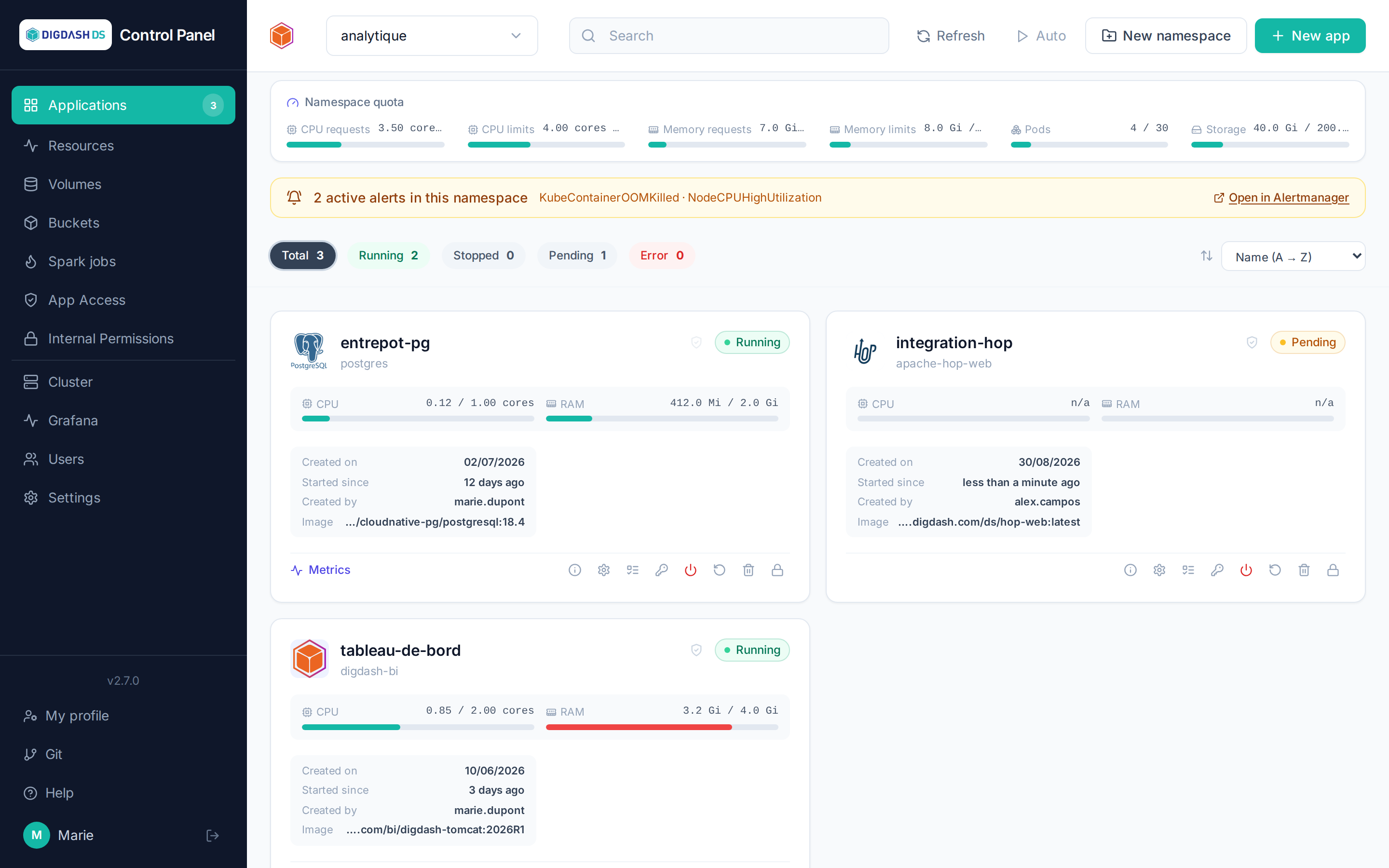
- Sidebar (left): main navigation — Applications, Resources, Volumes, Buckets, Spark jobs, App Access, Internal Permissions, then Cluster (followed by the Grafana link if monitoring is installed), Users, Settings. At the bottom: your profile, your Git account and sign-out.
- Header: the namespace selector (your current workspace — every list on the page relates to it), search, manual or automatic refresh ("Auto", every 5 seconds), and the New namespace / New app buttons.
- Quota gauge: below the header, the current namespace's consumption (CPU, memory, pods, storage) against its quotas — see Namespaces and quotas.
- Application cards: one card per deployed application, with its status (
Running,Pending,Stopped,Error), CPU/RAM gauges and actions.
Your first deployment
- Pick your namespace in the header selector.
- Click New app and choose a template — for example PostgreSQL, the fastest to start.
- Give it a name (lowercase letters, digits and dashes), keep the defaults, then Deploy the application.
- The card appears as
Pendingthen turnsRunning— from a few seconds to several minutes depending on the template (Digdash BI is the longest).
The configuration specific to each application is documented in the Applications section, one page per application; the fields common to every deployment are described in Deploying an application.
Changing the interface language
From My profile (bottom of the sidebar), a Language selector lets you choose French, English or Spanish. An administrator can also set each account's language from the Users page.
Cluster
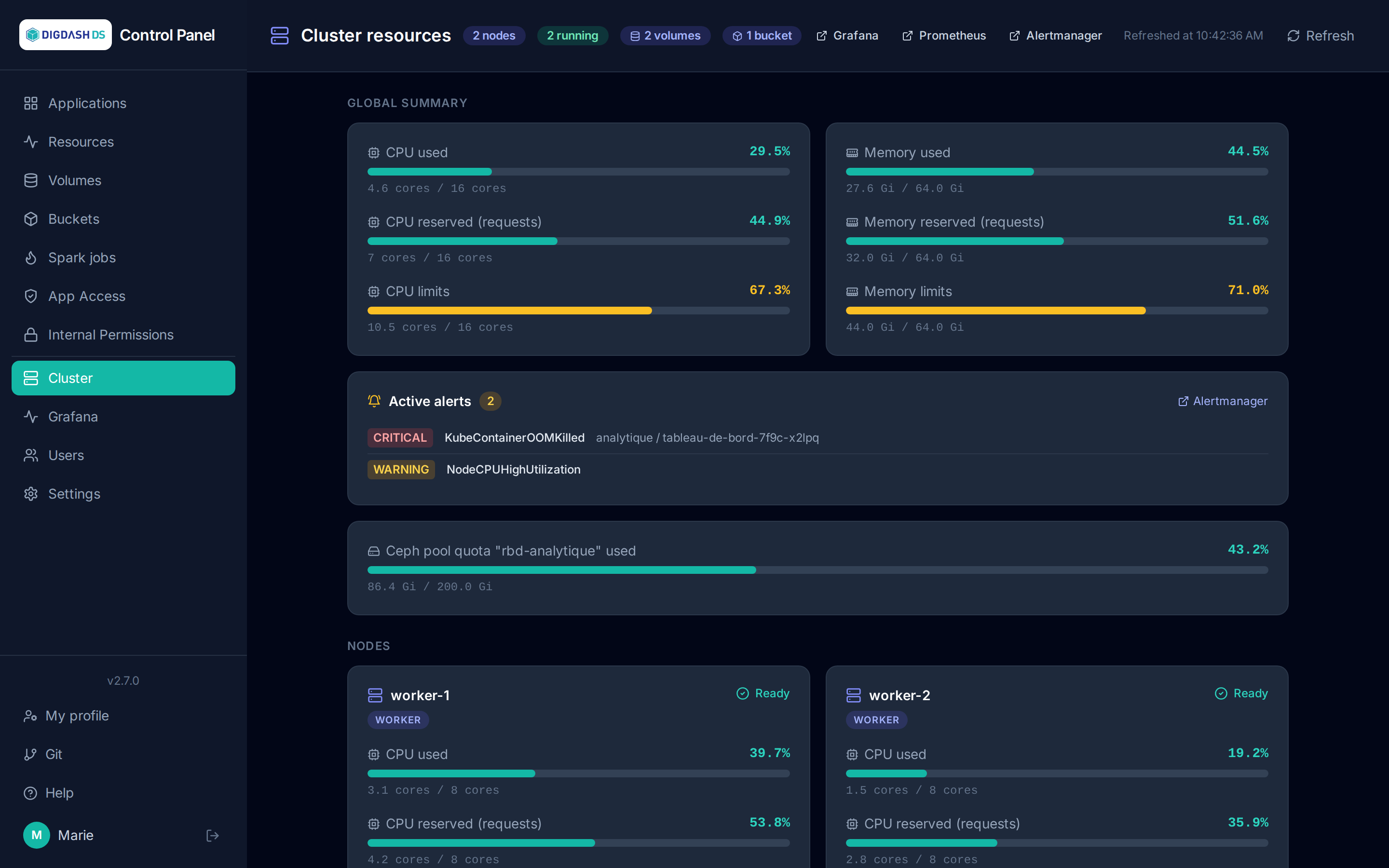
The Cluster page (restricted to platform administrators) gives a live, platform-wide overview of Kubernetes resources — across all namespaces. It refreshes automatically every 30 seconds, or immediately via Refresh.
The header shows four quick indicators: the node count, the number of running pods, and the platform-wide total of volumes and buckets, across all namespaces.
Global summary
Three indicators per resource (CPU and memory), measured against the cluster's total capacity:
| Indicator | Meaning |
|---|---|
| Used | Actual consumption, as measured by the metrics server |
| Reserved (requests) | Sum of the quantities requested by all pods — what Kubernetes guarantees |
| Limits | Sum of the configured caps — can exceed actual capacity (over-allocation), worth watching |
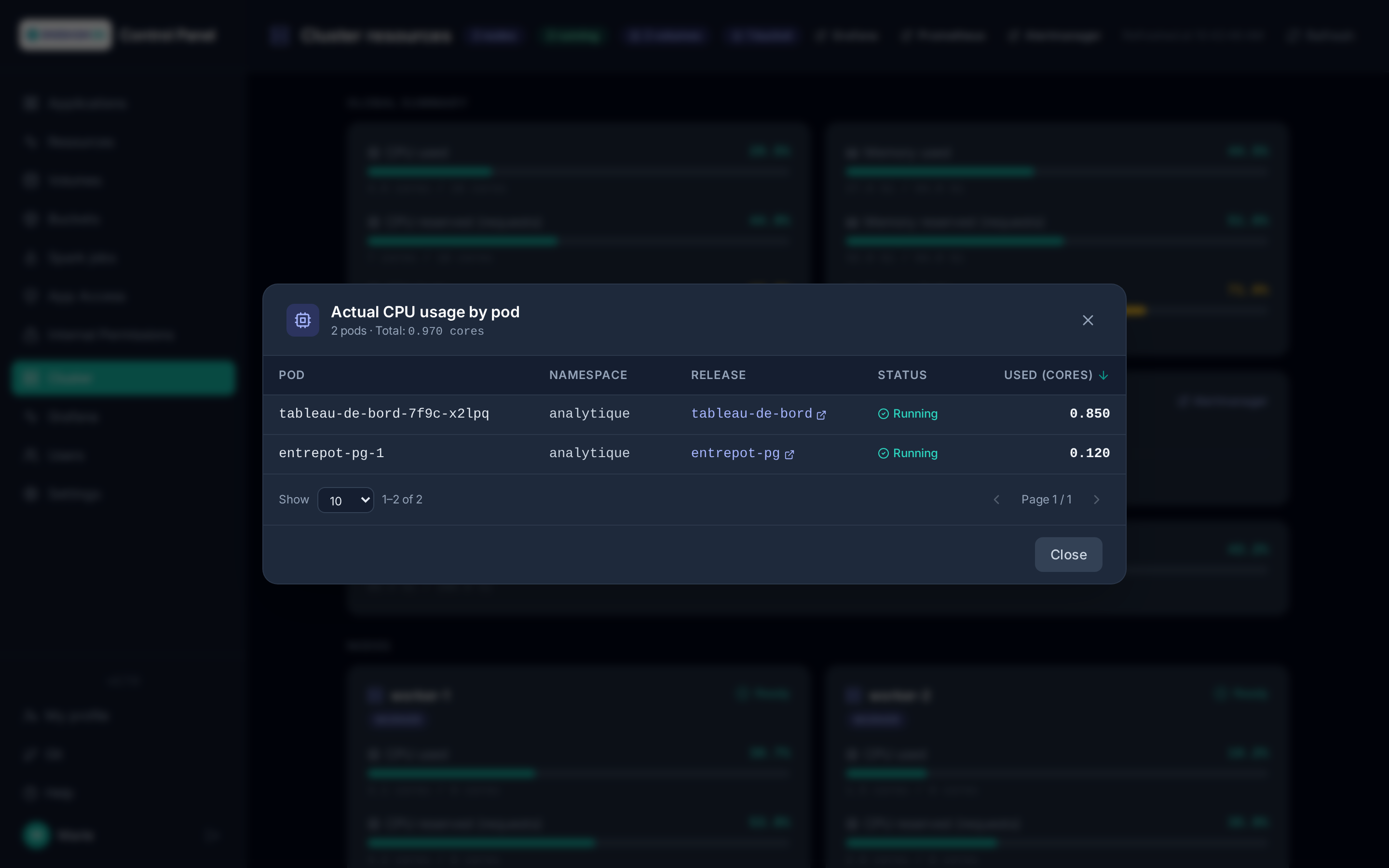
Clicking an indicator's label opens the breakdown by pod: the list of every pod in the cluster sorted by consumption, with a direct link to the corresponding application when the pod belongs to a release managed by the Control Panel.
Storage
A Ceph storage card completes the global summary when the information is available. Depending on what could be determined, it shows:
- the quota of the application Ceph RBD pool and its usage, if that pool has a quota set;
- otherwise, the pool's usage against the total capacity of the Ceph cluster, if the pool has no quota;
- as a last resort, the overall capacity of the Ceph cluster (Rook), if the application pool could not be determined.
The card is absent if none of this information is available (for example, if the ceph CLI is unreachable).
S3 buckets
The S3 buckets section lists every bucket of the platform, largest first: namespace, object count, size, size stored after compression and compression savings, with the totals above. Clicking a namespace opens its buckets. If the object storage admin API (RGW) is unreachable, the section says so.
Only the buckets created on this platform are counted: when several platforms share the same Ceph storage, the other platforms' buckets are not shown.
Monitoring
When the platform monitoring stack (Prometheus, Grafana, Alertmanager) is installed, the page header offers three external links, Grafana, Prometheus and Alertmanager (authenticated with the usual platform account), and an Active alerts card lists the Prometheus alerts currently firing, most severe first, with their namespace and the affected pod.
The same stack also feeds, elsewhere in the Control Panel:
- the Used column of the Volumes page;
- the Metrics link on application cards (Grafana dashboard of the pod or namespace) — see Applications;
- the n active alerts banner above a namespace dashboard;
- the Grafana link in the sidebar.
If Prometheus is unreachable from the Control Panel, the links stay visible but the card says so and the derived values (alerts, volume usage) are shown as unavailable (n/d). The public URLs (GRAFANA_URL, PROMETHEUS_PUBLIC_URL, ALERTMANAGER_URL) and the internal Prometheus address (PROMETHEUS_URL) can be overridden in Cluster settings.
Nodes
Each node in the cluster is shown with its status (Ready or not), its roles, and the same six gauges (CPU/memory × used/reserved/limits) measured against its own capacity — useful for spotting an unbalanced node before the Kubernetes scheduler struggles to place new pods on it.
Note
These gauges give a complete platform-wide view, including workloads that are not catalog applications (system components, other cluster services). For the resource detail of a single namespace, see the corresponding application card on the dashboard.
License
License menu — access restricted to platform administrators.
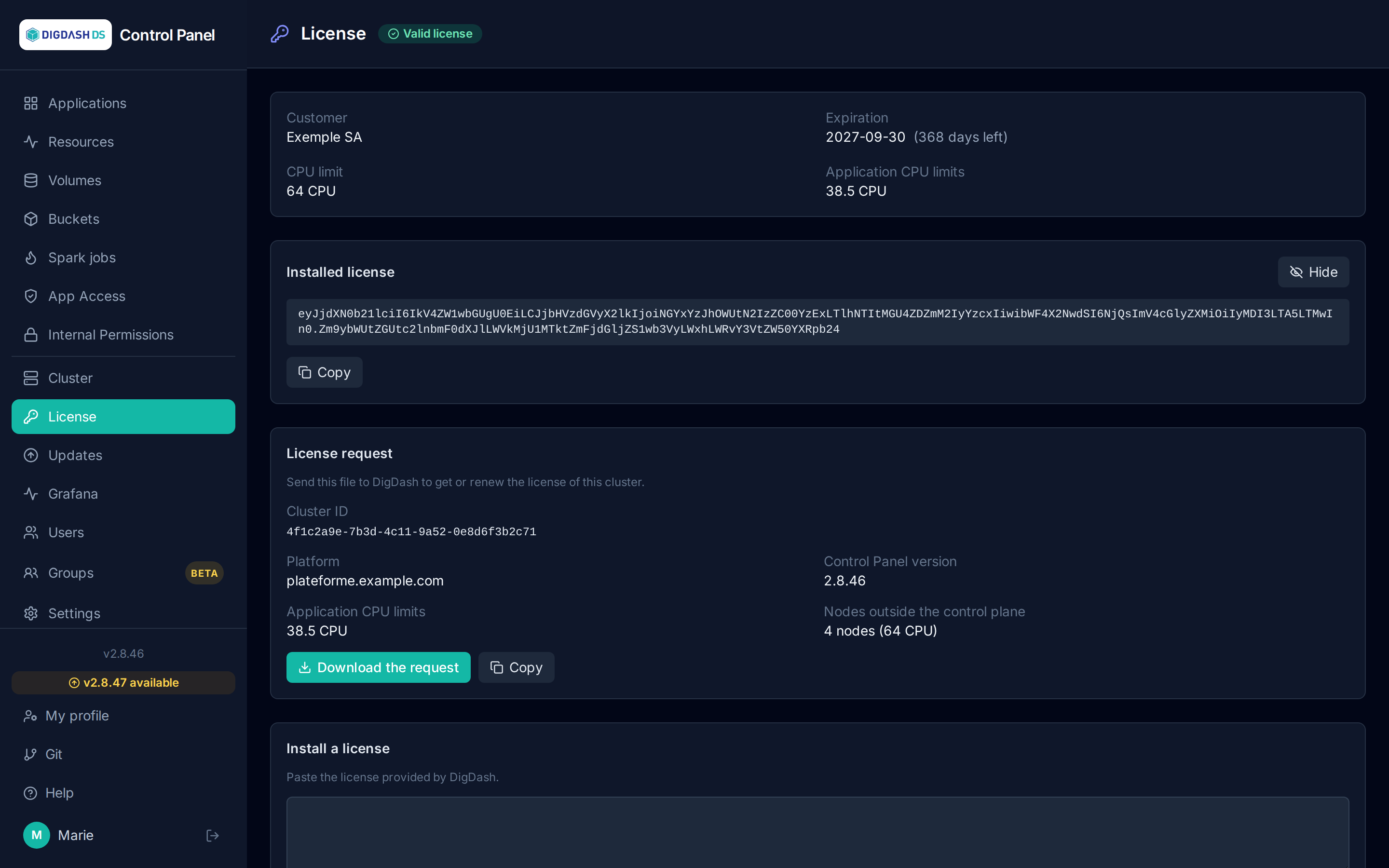
The Control Panel runs with a license issued by DigDash for one specific cluster. It sets a customer, an expiry date and a CPU cap. The License page shows its status, prepares a license request and installs the license you receive.
What is counted
The cap applies to the sum of the CPU limits (limits.cpu) of the deployed applications, not to the nodes' cores or to actual consumption:
- only pods in application namespaces (the ones listed in the Control Panel) are counted;
- only pods that are running or waiting to start: a stopped application (0 replicas) no longer counts;
- pods scheduled on Kubernetes control-plane nodes are not counted;
- infrastructure (storage, monitoring, gateway, the Control Panel itself) is not counted.
Example: an application with 2 pods limited to 1.5 CPU each counts for 3 CPU, whether it uses 0.1 or 3 cores. An application's CPU limit is set in its configuration (see Configuring an application).
The total is measured every minute. A measurement older than 10 minutes is treated as unknown and never blocks anything.
Rolling 30 days
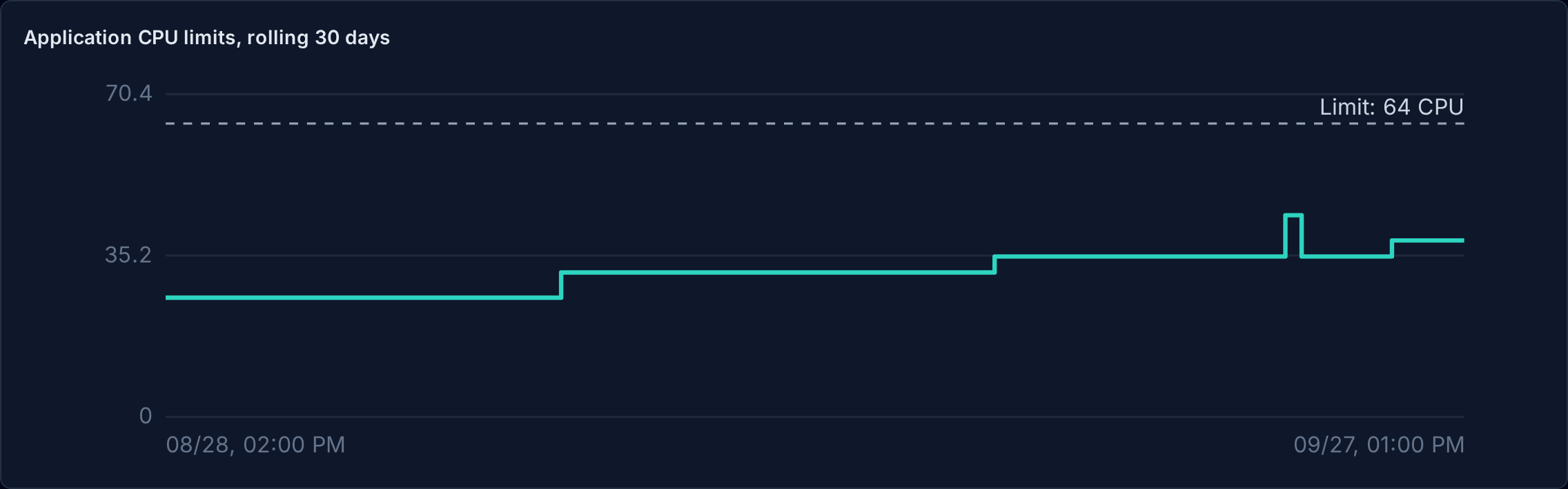
The chart shows the sum of the applications' CPU limits over the last 30 days, one point per hour (the highest value of the hour, so peaks stay visible). The dashed line is the license cap. Hovering shows the value at a given date.
Warnings and blocking
| Situation | Effect |
|---|---|
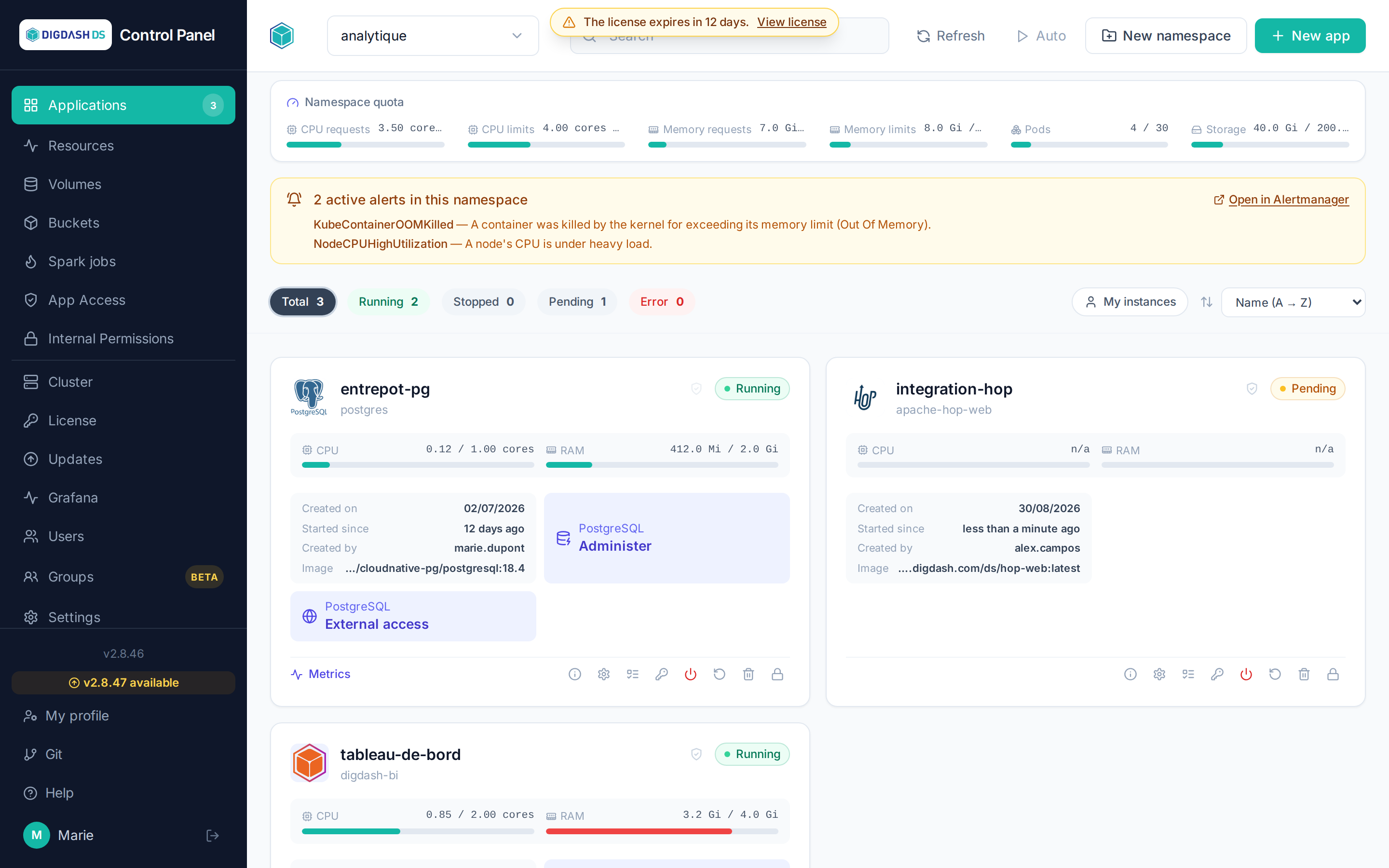
| Expiry in 15 days or less | Banner at the top of every page, with the number of days left. |
| CPU cap exceeded | Banner, and new deployments are refused as long as the total stays above the cap. Existing applications keep running. |
| No license, or an expired, invalid or other-cluster license | The Control Panel is blocked: every page redirects to the License page. Applications already deployed keep running. |
Without a valid license, users who are not platform administrators only see the license status and a prompt to contact an administrator.
Getting or renewing a license
The License request section gathers the information DigDash needs:
- the cluster identifier (the license is only valid on this cluster);
- the platform name and the Control Panel version;
- the current sum of the applications' CPU limits;
- the number of non-control-plane nodes and their CPU capacity;
- the current license, if any.
Download the request produces a JSON file to send to DigDash; Copy puts the same content in the clipboard.
Installing a license
Paste the license provided by DigDash into Install a license, then click Install. It is checked immediately and refused if it has been altered or was issued for another cluster. An accepted license replaces the previous one and unblocks the Control Panel without a restart.
Viewing the installed license
Show the license displays the text of the installed license, for instance to check it or send it to DigDash; Copy puts it in the clipboard. Each view is recorded in the audit logs.
Updates
The Updates menu — access restricted to platform administrators.
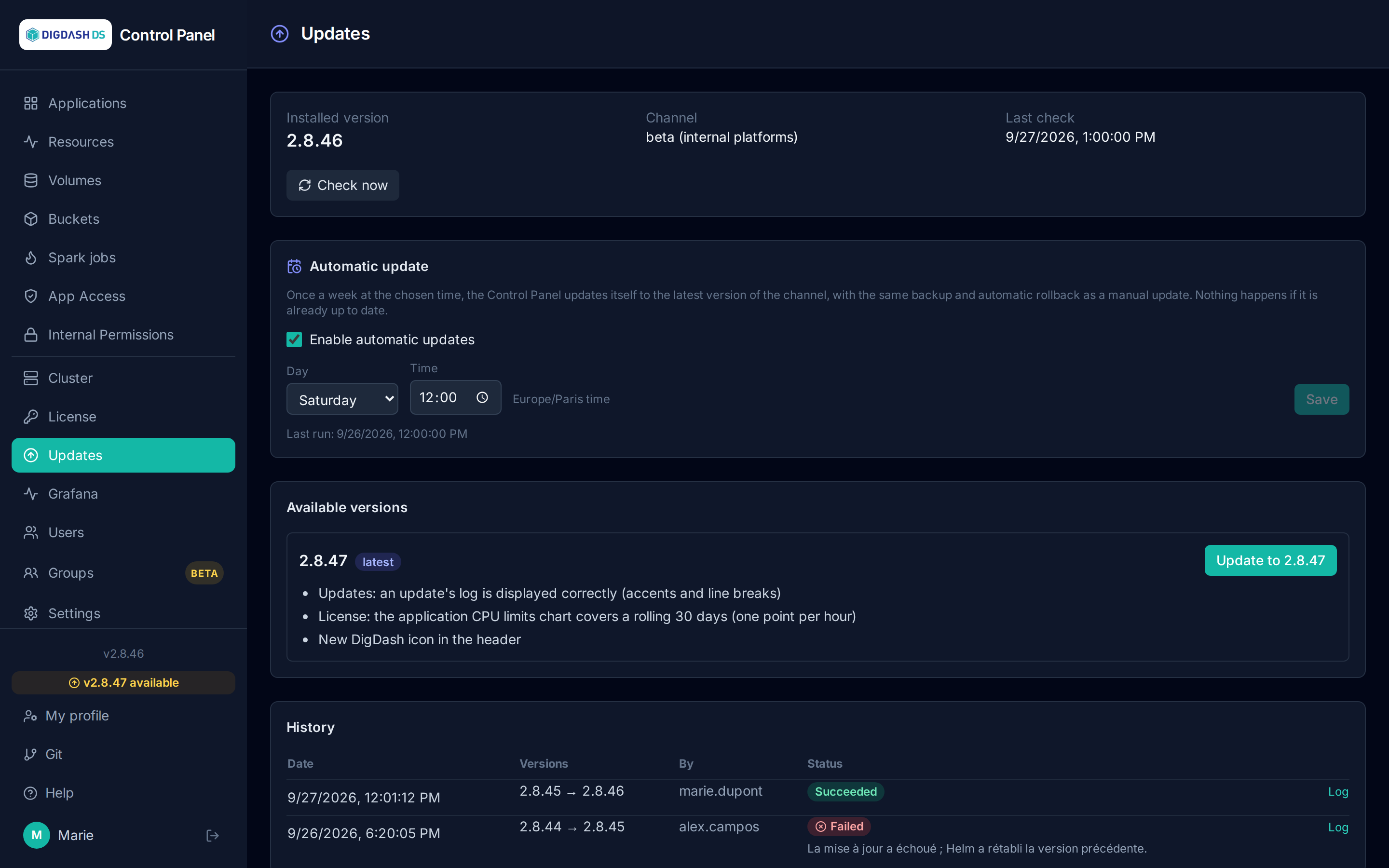
The Updates page shows the installed Control Panel version, the newer versions available with their release notes, and installs a new version in one click.
Channel
Each platform follows a release channel:
| Channel | For | Content |
|---|---|---|
| stable (default) | customer platforms | versions validated by the end-to-end tests before release |
| beta | internal platforms | every new version, as soon as it is published |
The channel is set with the UPDATE_CHANNEL parameter in the cluster settings (stable or beta).
Checking for new versions
The Control Panel checks the channel every hour. Check now runs the check immediately; the date of the last check is shown at the top of the page. When a newer version exists, a vX.Y.Z available badge appears at the bottom of the menu, on every page.
Each available version is shown with its release notes; the newest one carries the latest badge.
Automatic update

The Automatic update section installs the latest version available on the channel once a week, at the chosen time. It is disabled by default; the suggested slot is Saturday at 12:00, Paris time.
- Tick Enable automatic updates, choose the day and time, then Save.
- At that time, the Control Panel checks the channel: if it is up to date, or if an update is already running, nothing happens. Otherwise the update runs exactly like a manual update (backup, installation, automatic rollback on failure). It appears in the history with automatique as its author.
- The same setting exists in Settings → Scheduled tasks (task
auto_update_controlpanel), where a finer crontab expression can also be entered. In that case the Updates page says so; saving from the page replaces the expression with a weekly slot.
Every change of this setting is recorded in the audit logs.
Updating
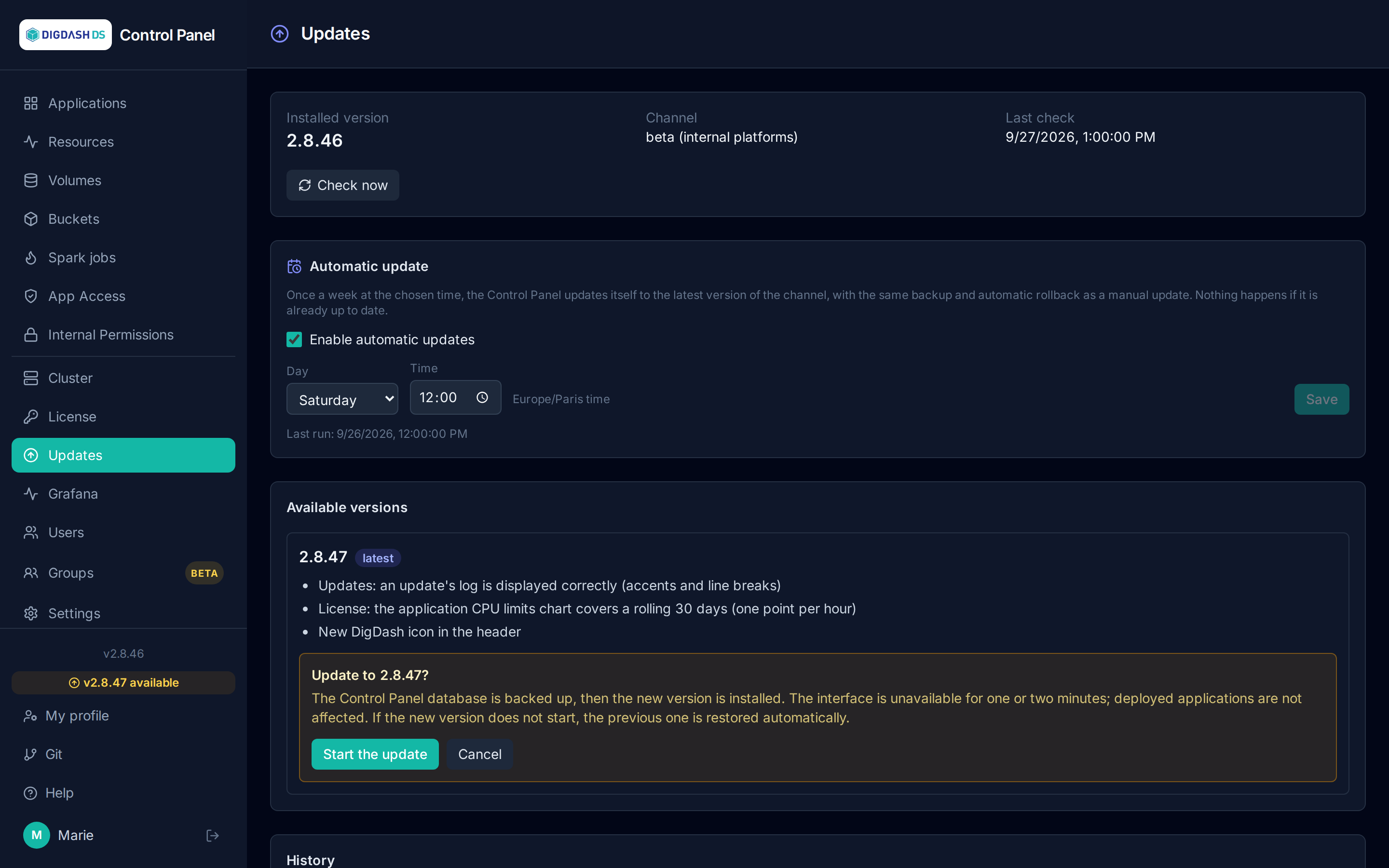
Update to X.Y.Z asks for confirmation, then:
- Backup: the Control Panel database is backed up (CloudNativePG backup by volume snapshot, restorable). If the backup fails, the update is abandoned and nothing is changed.
- Installation: the new version is installed.
- Check: if the new version does not start, the previous version is restored automatically.
The interface is unavailable for one or two minutes during the installation; the page refreshes by itself. Deployed applications are not affected. Once the new version is running, a button offers to reload the page to load the new interface.
The backups of the last three updates are kept; older ones are deleted automatically.
Note
Updating is only possible from the Control Panel deployed in the cluster, not from a development installation.
History
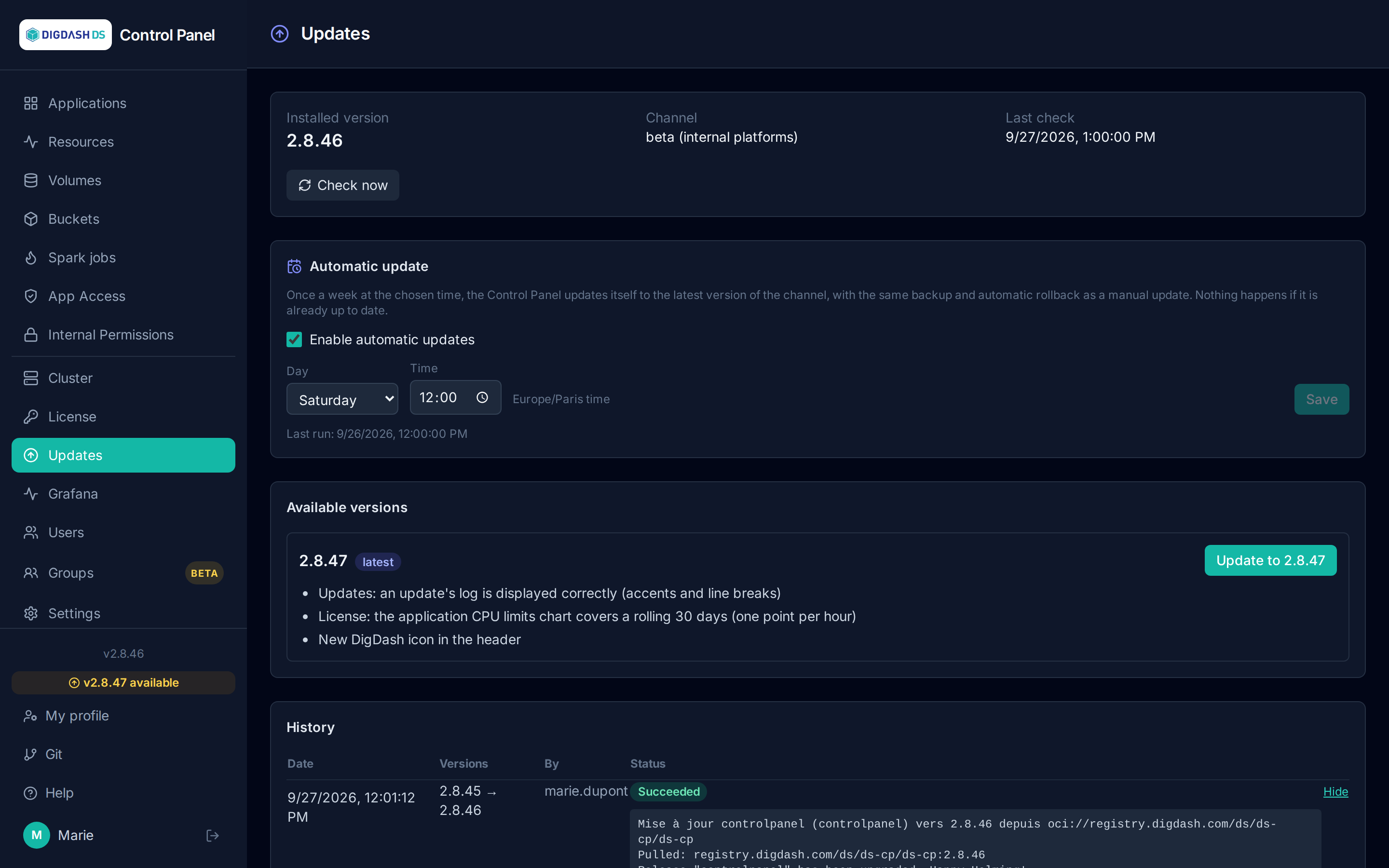
The history lists past updates: date, source and target versions, author and result (Succeeded or Failed, with the reason). Log shows the installation output, useful to understand a failure.
Applications
Applications
The dashboard lists the applications in the current namespace, one card per application.
The catalog
The New app button opens the catalog of available templates, by category:
| Category | Templates |
|---|---|
| Processing | Apache Hop (GUI), Apache Hop Server, Trino, Spark Connect, Apache NiFi |
| Storage | PostgreSQL, SFTP server |
| Visualization | Digdash BI |
| Governance | Apache Iceberg (Polaris catalog), OpenMetadata |
| Data science | JupyterHub, MLflow |
| DevOps | Nginx (static site) |
The Apache Iceberg, Trino and JupyterHub templates combine into a lakehouse on the platform's S3 buckets — see Lakehouse.
Forgejo, a special case
The Forgejo Git server doesn't appear in this catalog: it's a platform-wide application (a single instance for the whole cluster), managed from Settings → Git — see Git.
Anatomy of a card
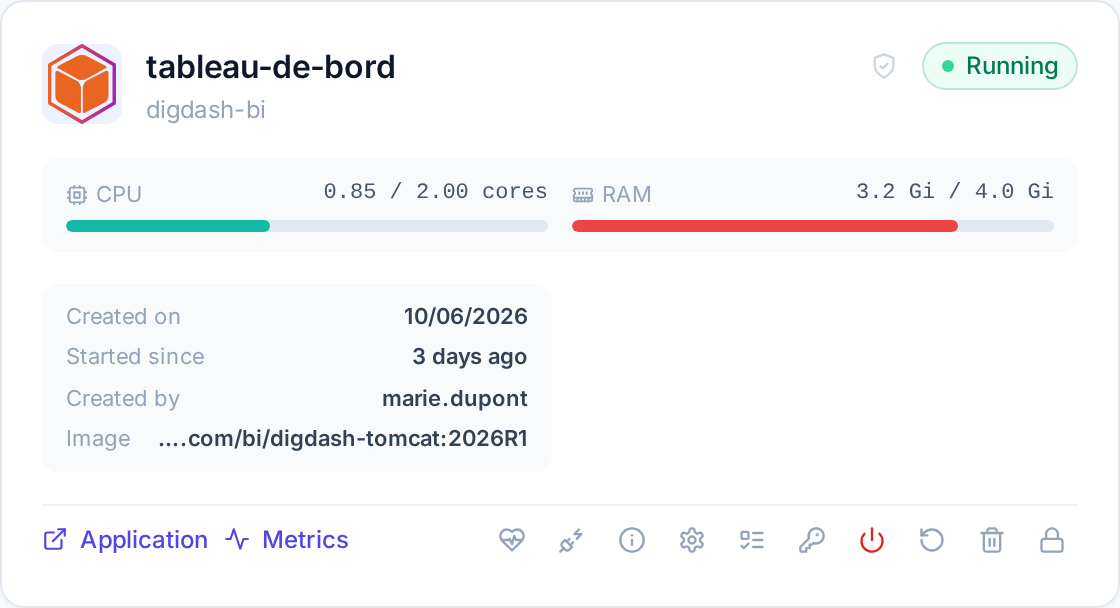
Each card shows:
- the name (or the display name if it has been customized), the template and the deployed image;
- the status:
Running,Pending(starting up),Stopped,Error; - the CPU and RAM gauges: actual consumption against the requested resources;
- the creation date and the author of the deployment.
Understanding the CPU and RAM gauges
Each gauge shows the pod's actual consumption (reported by the cluster's metrics server) measured against its limit if the application has one, otherwise against its requested quantity — see Configuring an application for the difference between the two.
0.85 / 2.00 cores: 0.85 core consumed out of a 2-core limit.3.2 Gi / 4.0 Gi: 3.2 GiB of RAM consumed out of a 4 GiB limit.n/a: the cluster's metrics server doesn't have a measurement for this pod yet (a recent restart, for example) — the gauge stays greyed out.
The bar's color indicates the consumption level against that ceiling:
| Color | Threshold | Meaning |
|---|---|---|
| 🟢 Teal | < 60% | Normal consumption |
| 🟠 Amber | 60% – 79% | Approaching the ceiling — worth watching |
| 🔴 Red | ≥ 80% | Near or at the ceiling — the application risks being throttled (CPU) or killed by the kernel (memory, OOMKill) |
In the screenshot above, CPU (42.5% of the limit) stays teal while RAM (80% of the limit) turns red — the signal to raise the application's memory limit from Configure.
Available actions
Depending on the template and the application's state:
| Action | Effect |
|---|---|
| Open (external link) | Access the deployed application in a new tab |
| Metrics (external link) | Open the application's Grafana dashboard (pod or namespace) — shown when the platform monitoring is installed, see Cluster |
| Stop / Start | Stop or restart the application without deleting it |
| Restart | Restart the pods (rollout) |
| Configure | Change the display name, resources, environment variables… — see Configure |
| View details | Pods, services, routes, internal connection information |
| Manage access | Authorize other users — see Access and permissions |
| Delete | Uninstall the release (confirmed by retyping the name, irreversible) |
Actions specific to certain templates
- API compatibility test (Digdash BI, Apache Hop Server, Forgejo): checks end-to-end that the application's API responds, with a detailed result per checkpoint (Healthy or Degraded badge).
- Resync Hop connections (Apache Hop GUI): immediately regenerates the Hop project's metadata files (connections to PostgreSQL databases, to Hop servers and to the namespace's buckets), without waiting for the periodic sync.
- Resync DigDash connections (Digdash BI): reprovisions the internal Audit / Comments / Form connections to the embedded PostgreSQL.
- Hop Jobs (Apache Hop Server): monitoring and launching of scheduled pipelines and workflows — see Apache Hop Server: jobs and scheduling for details.
Deploying an application
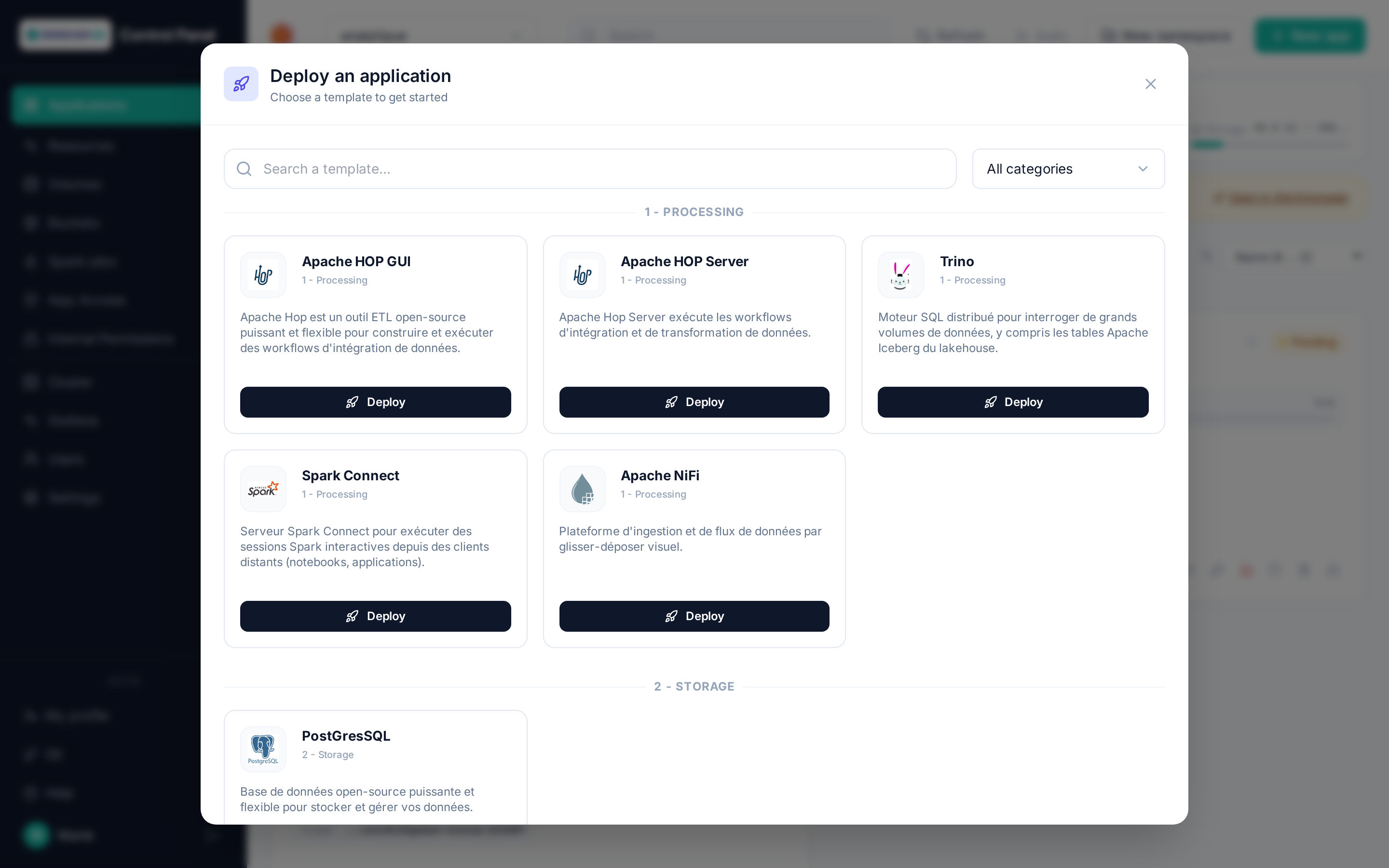
- Check the namespace selected in the header — the application will be deployed there.
- Click New app, then Deploy under the desired template.
- Fill in the configuration form, then Deploy the application.
Common fields
- Application name (required): lowercase letters, digits and dashes only. It identifies the release and can't be changed afterwards (the display name, on the other hand, stays editable — see Configure).
- Namespace: pre-filled with the current namespace.
- Version: the image tag, loaded dynamically from the platform's registry.
- Capacity (CPU / memory / storage): each template has reasonable default values; lower them if the namespace quota is tight. Memory, disk and CPU are entered as a whole number + unit:
Mi,GiorTifor memory and disks,m(millicores) orcoresfor CPU,morgfor JVM sizes (NiFi heap, Spark memory).
The remaining fields vary by template: admin credentials, application properties, volumes, Git source (for Apache Hop), backups (for PostgreSQL and Digdash BI)…
Insufficient quota
If the deployment fails with an exceeded quota message, the namespace no longer has enough CPU, memory or storage available. Reduce the requested capacity, remove unused resources, or ask an administrator for a quota increase.
After deployment
The card immediately appears as Pending. Moving to Running takes:
- a few tens of seconds for nginx or PostgreSQL;
- one to two minutes for Apache Hop;
- several minutes for Digdash BI (JVM + embedded PostgreSQL database).
Some templates (Apache Hop, Digdash BI) also automatically create an OIDC client in Keycloak: access to the deployed application then goes through enterprise authentication, and authorized users are managed from Manage access on the card.
Restoring from a backup at creation time
For PostgreSQL and Digdash BI, the Restore section of the form lets you create the application directly from an existing S3 backup — see Backup and restore.
Configuring an application
The Configure button on a card opens the configuration of the current deployment. If the application has several pods (for example Digdash BI and its embedded PostgreSQL), a pod selector is shown first.
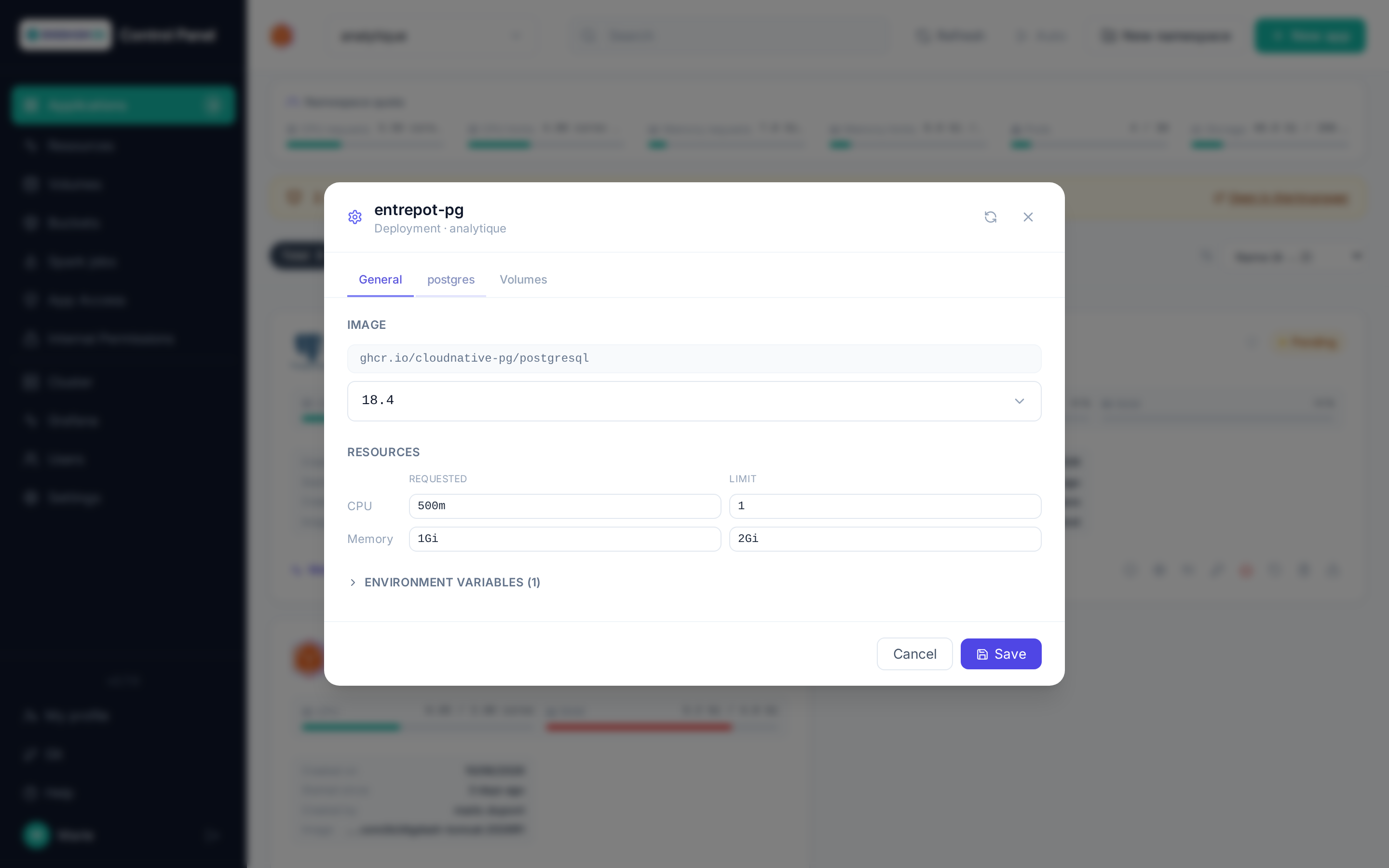
General tab
- Display name: the label shown on the card, editable at any time (unlike the technical name).
- Replicas: number of pod instances.
Container tab
For each container of the application:
- Image: the tag is editable (list loaded from the registry) — changing the version redeploys the application.
-
Resources: CPU and memory, each with two distinct values:
- Requested — the guaranteed reservation on the cluster (counted against the namespace quota);
- Limit — the ceiling beyond which the container is throttled (CPU) or restarted (memory).
Each value is entered as a whole number + unit (
morcoresfor CPU,Mi/Gi/Tifor memory). The limit must be greater than or equal to the requested value. Changing these values triggers a pod restart. -
Environment variables: shown read-only (name and value of the standard containers) — not editable from this modal.
Volumes tab
The persistent volumes mounted by the application, with the option to point a mount to another existing PVC (for example a clone or a volume restored from a snapshot — see Volumes).
Advanced settings
The template-specific fields (Digdash properties, backup scheduling, Hop Git source…) that stay editable after deployment. Fields marked with a lock icon are frozen — their tooltip explains why (for example: "Changing the database engine requires a reinstall").
Tip
After a Save, if resources or the image have changed, the application restarts: the card briefly goes back to Pending before returning to Running.
PostgreSQL
PostgreSQL: deployment options
The PostgreSQL template deploys a database managed by the CloudNativePG (CNPG) operator on the cluster.
These settings are chosen in the New app form, before deploying:
- Number of instances:
1by default (no high availability). From 2 onward, CNPG automatically fails over to a replica if the primary goes down. Editable at any time from Configure, even after deployment: CNPG adds or removes replicas accordingly. - PostGIS (geospatial data): a single checkbox. The PostgreSQL image that ships the extension is picked automatically (cluster setting
POSTGIS_DEFAULT_IMAGE) and the extension is created in the database at deployment time — nothing else to fill in. A hidden PostGIS image (advanced) field lets you force another version, which must then match the CNPG operator's PostgreSQL major version. - Prometheus metrics: enabled by default, exposes CNPG's metrics to the platform's Prometheus.
- Connection pooling (PgBouncer): disabled by default; useful for workloads with many short-lived connections. Once enabled, apps that want to use it connect to the
<app-name>-postgres-poolerservice instead of the usual-rwservice.
Warning
Like the database name or the admin user, PostGIS only takes effect when the application is created (CNPG bootstrap): enabling it on an already-deployed application has no effect.
See also
- PostgreSQL administration — databases, users and rights, running SQL, external access from a workstation or a third-party tool.
- Backup and restore — continuous WAL archiving to S3, restore into a new application, point-in-time restore.
PostgreSQL administration
The Administer button on a PostgreSQL card (chart/postgres) — visible once the application is Running, restricted to users with the admin role on the namespace.
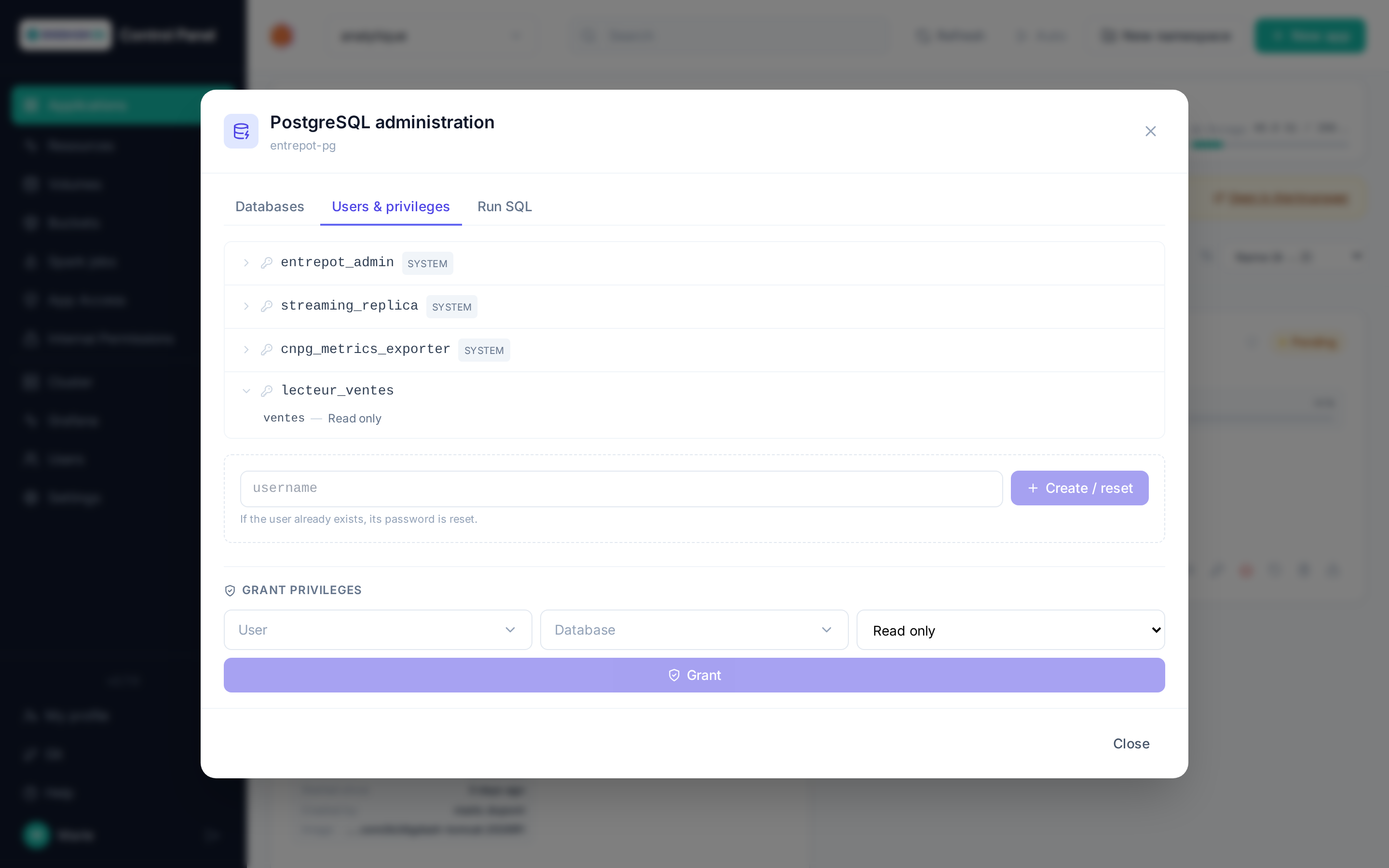
The modal connects live to the application's database (no copy or cache on the Control Panel side) using the administrator account the chart created at deployment. Three tabs:
Databases
Lists existing databases (excluding technical ones) and lets you create a new one by name.
Users & rights
- Create / reset a user: if it doesn't exist yet, it is created; if it already exists, its password is regenerated. The generated password is shown only once, right after the operation — Postgres never stores it in plaintext, so it can't be read back afterward. Note it down or copy it immediately.
- Roles flagged System (
streaming_replica,cnpg_metrics_exporter, and the administrator account the chart itself created) are technical platform roles: they don't appear in the Grant rights field, and their password can't be reset from this interface. - Clicking a user expands their current rights, database by database (screenshot above). The level shown is inferred from the privileges actually present on the public schema's tables — not from a history of grants: Access to the database means CONNECT was granted but no table exists yet (an
ALTER DEFAULT PRIVILEGESwaiting for a future table leaves no trace before it exists), and Custom rights means a set of privileges that doesn't match any of the three levels below (hand-edited through the Run SQL tab). - Grant rights applies a level — Read-only, Read-write or All rights — to a user on a database, including for objects created afterward (
ALTER DEFAULT PRIVILEGES).
Run SQL
A free-form SQL command against the chosen database, with syntax highlighting. A SELECT returns a result table; any other command (DDL/DML) shows the status Postgres returns (e.g. CREATE TABLE, number of affected rows).
Warning
This tab runs any SQL command, including destructive ones (DROP TABLE, DELETE without a WHERE…). There is no intermediate confirmation: check the command and the selected database before running it.
Tip
There is no dedicated delete button for a database or a user: use the Run SQL tab instead (DROP DATABASE, or DROP OWNED BY followed by DROP ROLE for a user that was granted rights). A database can't be dropped while connected to it — select another database before running DROP DATABASE.
External access
The External access button on a PostgreSQL card — shown once the application is Running, restricted to users with the admin role on the namespace.
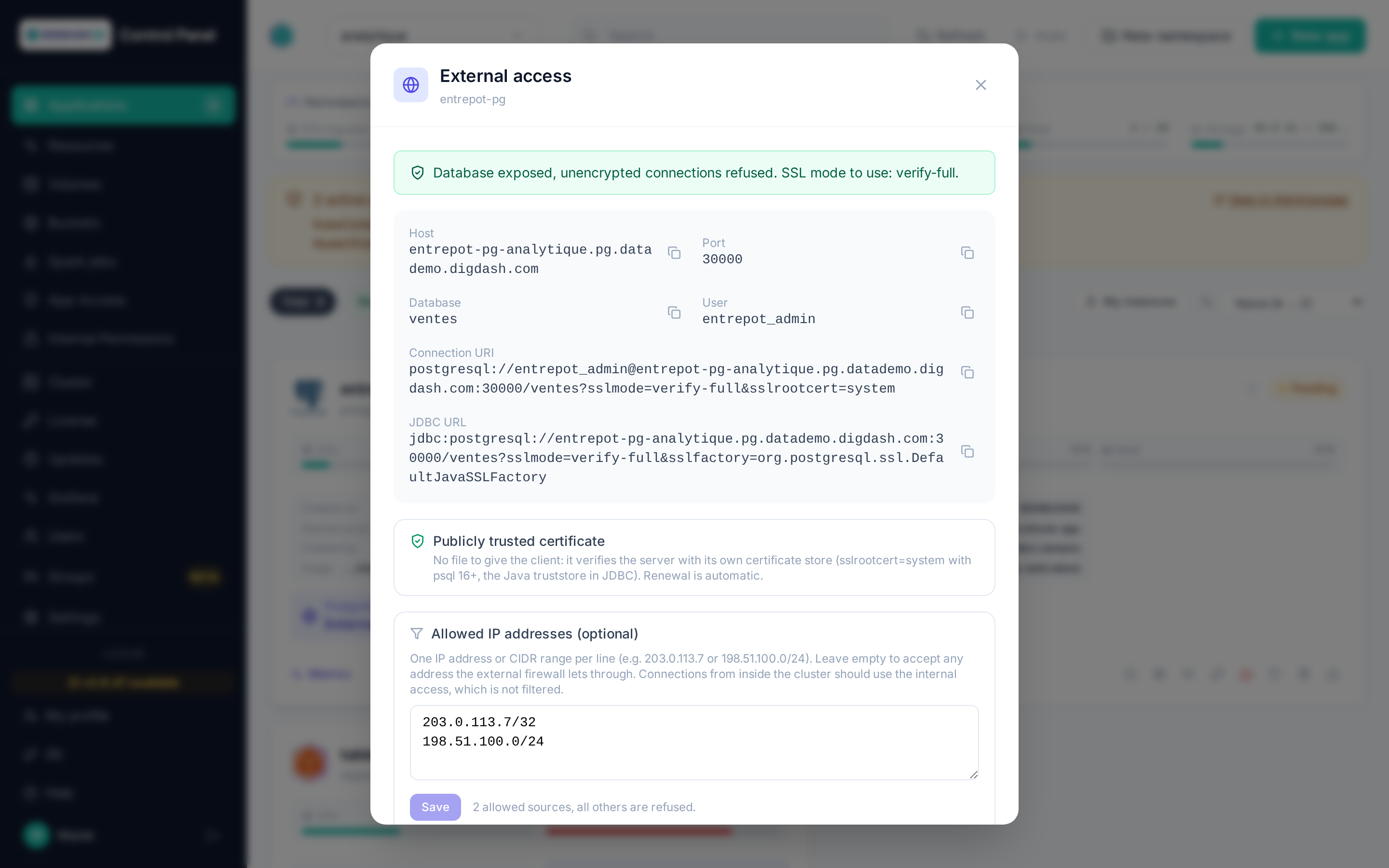
By default a database is only reachable from inside the cluster (<app-name>-rw.<namespace>.svc.cluster.local). Expose the database assigns it a TCP port on the shared Gateway, picked automatically from a reserved range (cluster setting CUSTOM_PORT_AUTO_RANGE, default 30000-35000): no port number to type in, and no way to take over a port the platform already uses. The database's public name is <app-name>-<namespace>.pg.<domain> when the platform has a public certificate for databases (see below), <app-name>-<namespace>.<domain> otherwise.
Exposing requires TLS by default:
- unencrypted connections to this database are refused, including from inside the cluster (a
hostnossl … rejectrule added topg_hba); - the database serves a certificate covering its public name, which makes
sslmode=verify-fullpossible; - the modal shows the matching connection URI and JDBC URL.
Publicly trusted certificate (normal case). When a Let's Encrypt wildcard certificate is configured for databases (cluster setting POSTGRES_PUBLIC_TLS_SECRET), the database serves it instead of CNPG's certificate. The client verifies the server with its own certificate store: no file to give it, and renewal is automatic with no downtime. The URLs shown account for it: sslrootcert=system for psql and libpq 16 or later (with an older version, point sslrootcert to the system bundle, e.g. /etc/ssl/certs/ca-certificates.crt), sslfactory=org.postgresql.ssl.DefaultJavaSSLFactory in JDBC to use the Java truststore.
Without a public certificate configured, the public name is added to the certificate generated by CNPG, signed by a CA of the database's own. The modal then lets you download the CA certificate — to be given to the client (sslrootcert) to verify the server. CNPG rotates that CA periodically (expiry date shown): the downloaded file will have to be replaced then. For verify-full, the URI refers to that file under its download name (sslrootcert=<app-name>-ca.crt): put it in the client's working directory, or adjust the path.
What \"Require TLS\" changes for existing clients
Most clients negotiate TLS on their own as soon as the server offers it — which CNPG always does — and therefore see no difference at all: psql, psycopg, and the JDBC driver DigDash ships (pgjdbc 42.7, sslmode=prefer by default since 42.2.9). The connections DigDash creates automatically towards a database in the same namespace fall in that case: they are already encrypted and keep working.
Only a client that explicitly disables encryption (sslmode=disable) is refused. To enforce encryption client-side without relying on negotiation, use ?sslmode=require; in JDBC, don't use ssl=true on its own, which means verify-full and fails without a CA certificate.
Warning
As for any exposed port, the external firewall forward is not automated: point the displayed port to the cluster's Load Balancer, whose addresses are shown in the modal.
Restricting source addresses
The Allowed IP addresses field limits external connections to a list of IP addresses or CIDR ranges, one per line (203.0.113.7, 198.51.100.0/24, IPv6 accepted). It can be filled in when exposing, or later on an exposed database with Save. Left empty, any address the external firewall lets through is accepted.
Filtering is applied by the shared Gateway's proxy, before the connection reaches the database: a refused source has its connection closed without any exchange with PostgreSQL. It applies to the client's public address as it reaches the cluster (the egress address of a VPN or a corporate NAT, for instance).
Note
A change applies to new connections; a session already open from a removed address is not cut. Applications inside the cluster (DigDash…) should use the internal access, which doesn't go through this filter — through the public name, they would show up with the firewall's address.
Remove the exposure deletes the port and the route. The TLS requirement stays in place — clients may have adapted to it in the meantime — and is changed from Configure, category Security.
A PostgreSQL database's volumes can't be resized or copied from the Volumes page: see Volumes.
Backup and restore
PostgreSQL databases — whether the standalone PostgreSQL template or the PostgreSQL instance embedded in Digdash BI — can be continuously backed up to S3 storage, then restored into a new application.
Enabling backups
In the deployment form (Backup section), or afterwards via Configure → Advanced settings:
- Enable scheduled backups: enables both continuous log archiving (WAL) and scheduled base backups — both are required to be able to restore.
- Retention policy: how long backups are kept, for example
7d,4w. - S3 path (destinationPath): the target bucket. Choose Existing bucket to select a platform bucket — the
s3://…path and the endpoint are filled in automatically. - Access Key / Secret Key: the bucket's credentials (provided by the Buckets page).
Immediate backup
The default schedule is daily. To produce a first backup without waiting, an immediate-backup option is available in the backup settings.
Restoring
Restoring creates a new application whose database starts from the backup — the original application is not modified.
- New app → the same template as the source (PostgreSQL or Digdash BI).
- In the Restore section:
- enable restore;
- Source app name: the exact name of the application the backup was written from (as shown on its card);
- S3 path of the backup to restore: the same bucket as the backup;
- the bucket's S3 credentials.
- Deploy: the new application starts by replaying the backup, then moves to
Running.
Warning
If the S3 source is empty, unreachable or corrupted, the new application won't start (crash-restart loop). Check the bucket's contents from the Buckets page before starting the restore.
Restoring to a specific date
By default, a restore replays the backup up to the most recent available point (the end of the WAL log stream). It's also possible to restore the database exactly as it was at a given moment in the past — useful, for example, to undo the effects of a deletion or a failed migration that happened after the last valid backup.
Example: daily backups, restoring to yesterday 11:59 PM
A source application has scheduled backups enabled with a daily schedule (0 0 0 * * *, i.e. midnight every day) and a 7-day retention. An error is discovered today, and you want to recover the database exactly as it was yesterday at 11:59 PM, just before the midnight backup:
- New app → the same template as the source.
- Restore section: enable it, fill in Source app name and S3 path of the backup to restore as for a regular restore.
- Restore to a specific date (optional): enter
2024-06-24 23:59:00+02(adjust the date and time zone). - Deploy: CNPG restores the backup, then replays the archived WAL logs up to the given moment, without going further.
Tip
The time zone is part of the value (+02, +00…) — without it, the time is interpreted in the PostgreSQL server's own time zone. The chain of WAL logs between the backup and the target moment must be intact: too short a retention, or a missing backup in between, will prevent the restore from reaching the requested date.
Volume snapshots
Independently of S3 backups, any persistent volume can be point-in-time snapshotted and cloned — see Volumes.
Digdash BI
Digdash BI: deployment options
The Digdash BI template (category Visualization) exposes its options at deployment (form) and, for most of them, afterwards via Configure → Advanced — see Configuring an application for the general per-category tab mechanism.
General
| Field | Role |
|---|---|
| Digdash version | Tag of the bi/digdash-tomcat image. Defaults to the latest stable version of the chosen major release (<major>_latest) — a "bare" tag (e.g. 2026R1) stays frozen on that major's very first build and becomes stale quickly (license rejected in practice). |
| License key | Digdash key to use for this instance. |
| Memory limit, CPU limit | Resources for the main container (Tomcat/JVM). |
Authentication and environment
| Field | Role |
|---|---|
| DIGDASH_AUTH_TYPE | Authentication mode: OIDC (default) — platform SSO (Keycloak) plus LDAP directory — LDAP — LDAP directory only, sign-in with a DigDash username and password — or SAML2 — platform SSO over SAML 2.0: a SAML client is created in the platform Keycloak at deployment, and an external identity provider plugs in through relay authentication. SAML2 is chosen at creation: switching from OIDC or LDAP to SAML2, or from SAML2 to another mode, requires reinstalling the application. In every case DigDash users and roles are stored in the OpenLDAP directory of the dedicated sidecar, which is always deployed: DigDash cannot run without it, it is not an option. |
| File Browser | Enables an accessory file manager (upload/download), can be disabled if unused. |
| JVM CATALINA_OPTS, DIGDASH_SYSTEM, DIGDASH_PROPERTIES | Advanced settings (raw JVM flags, Digdash system properties, Digdash.properties) — one setting per line, # to comment out. Reserved for cases with no dedicated field elsewhere in this form. |
Debug mode
A toggle reserved for the DigDash team (Environments tab, at the top of the list), available only on this template — see the dedicated page Debug mode (Digdash BI) (enabling, JDWP/LDAP ports, temporary external exposure).
Database
| Field | Role |
|---|---|
| Database type (Environments tab, at the top of the list) | cnpg (managed PostgreSQL, default) or an already-existing external engine. Fixed at creation: switching engines requires a reinstall. |
Backup and restore
A toggle enables continuous WAL archiving and a scheduled backup (S3, cnpg engine only); restoring happens when creating a new application, from another one's backup — the shared mechanics and fields are detailed in Backup and restore. Digdash BI-specific fields: separate WAL/data compression (gzip/bzip2/snappy), the scheduled backup's owner reference, and an immediate backup at creation.
Environment backup
Independently of the database, the DigDash environment itself — users, roles, dashboards, data models, data sources and LDAP directory — is backed up to an S3 bucket with the official backuptools tool: see Environment backup.
Superadmin profile
The DigDash superadmin profile, given to the admin account and to whoever deploys the instance, receives every role of the instance, with read, write and execute rights. A role created later in DigDash is added to it automatically:
- right after deployment;
- by the schedulable task Give the DigDash superadmin profile every role of its instance (Settings → Scheduled tasks), for instance every hour;
- on demand, with the card's "Give the DigDash superadmin profile every role of the instance" button (admin role), for instance right after creating a role.
The API compatibility test checks that the superadmin profile does hold every role, as well as the API calls used to give them to it.
Volumes
In the Capacity tab, alongside memory and CPU: sizes for the appdata (application data) and openldap (directory of the OpenLDAP sidecar, always present) volumes, plus attaching an already-orphaned existing volume to each. Fixed at creation: resizing or swapping a volume afterwards is done from the Volumes tab, not this form.
Custom CA certificates
For an instance that needs to trust an internal certificate authority (e.g. a third-party HTTPS service with a corporate certificate): enables mounting an additional set of CAs into the container's truststore, either as filename: PEM entries (YAML) or from an already-existing Kubernetes Secret.
OpenID
SSO_LOGOUT (Environments tab, at the end of the list): redirect URL after logout — defaults to the platform's own, only adjust for a custom logout flow.
DigDash environment backup
See also the Digdash BI deployment options.
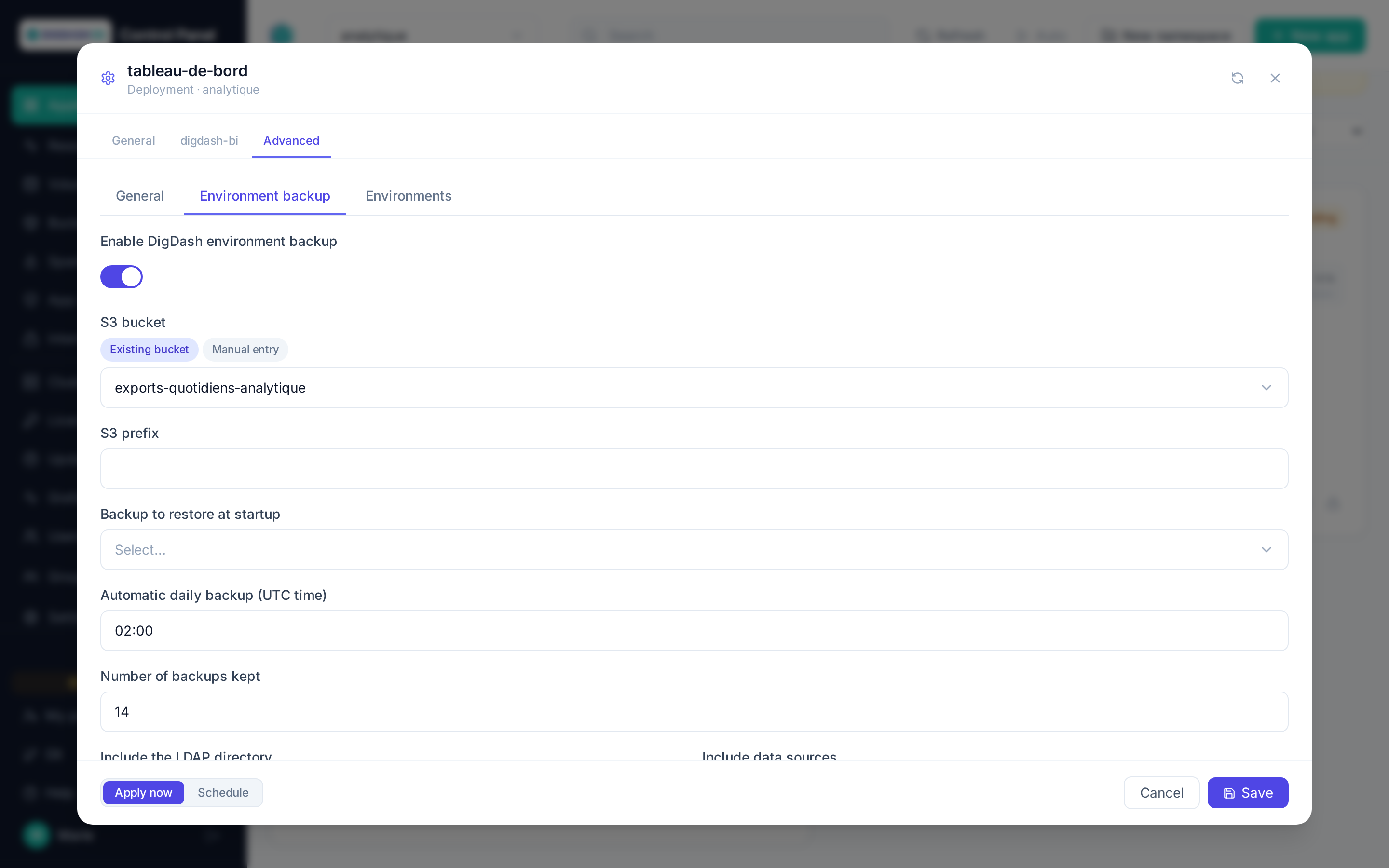
Independently of the database, the Environment backup category backs up the DigDash environment itself — users, roles, dashboards, data models, data sources and LDAP directory — with DigDash's official backuptools, to an S3 bucket. It works whatever the database type.
| Field | Role |
|---|---|
| Enable DigDash environment backup | Adds a container dedicated to backup and restore to the pod — also required for on-demand backup and restore from the card. |
| S3 bucket | Destination bucket. A bucket of this namespace is used with its own credentials; for another S3, switch to manual entry and fill in the endpoint and keys. |
| S3 prefix | Backup folder in the bucket. Empty = application name. |
| Backup to restore at startup | List of the backups in the chosen bucket (all applications of the namespace). The chosen backup is imported at the first startup of a new instance, only once: a restart does not import it again. Lets you create an instance from another one's backup. |
| Automatic daily backup (UTC time) | One backup per day at the given time (02:00 by default). Empty = no automatic backup, on demand from the card only. |
| Number of backups kept | The oldest are deleted from S3 after each backup (0 = keep all). |
| Include the LDAP directory / Include data sources | Content of backups and restores. |
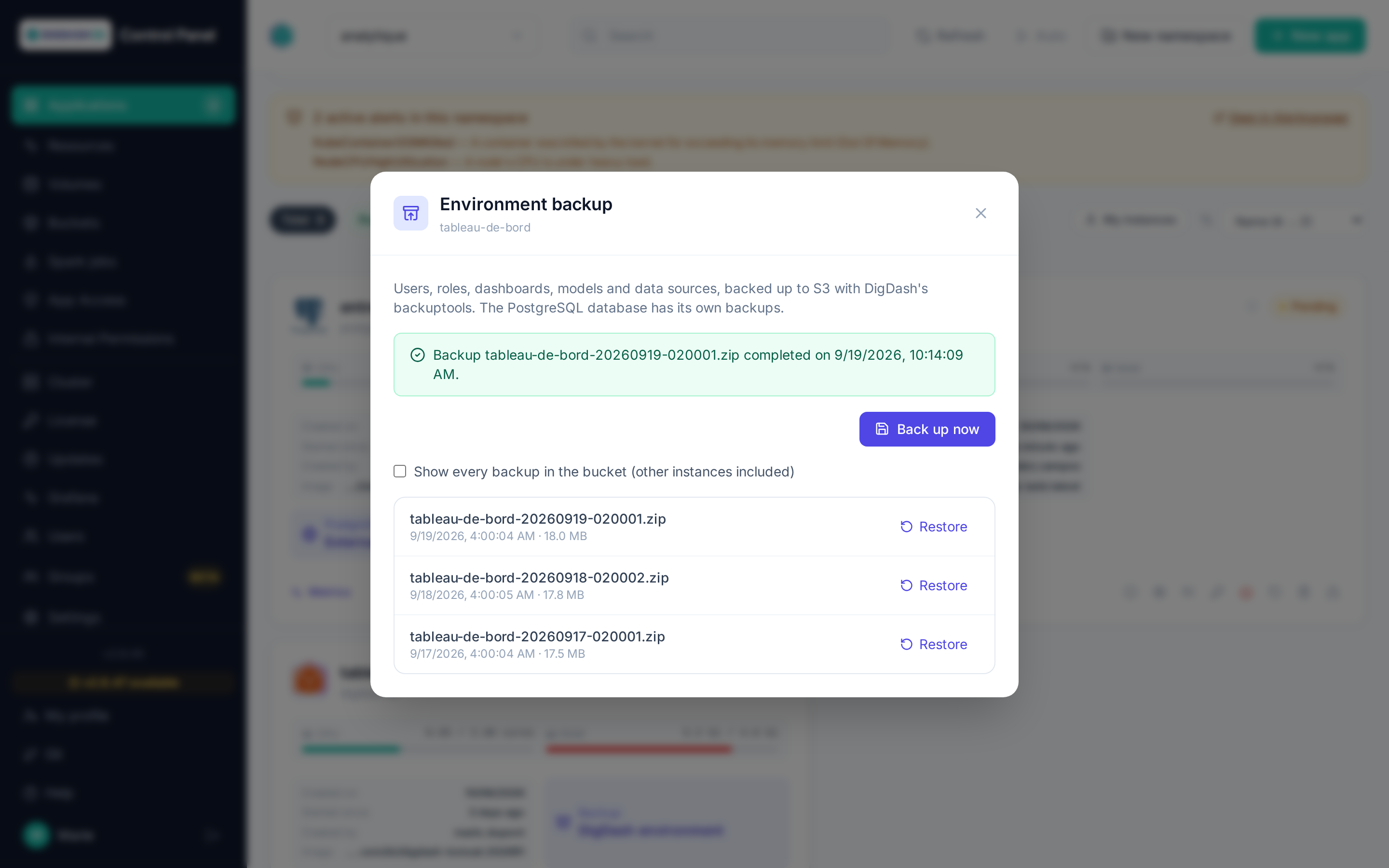
Once the application is running, its card shows Backup · DigDash environment. By default the window lists this instance's backups (its prefix); the Show every backup in the bucket checkbox also shows other instances' backups so you can restore one (bucket of this namespace only). It lets you:
- Back up now (operator role);
- Restore a backup on the running instance, without restart (admin role). Backed-up items replace their current version; anything created since is kept.
One backup or restore at a time; the window follows the operation in progress and shows its result.
Debug mode (Digdash BI)
The Digdash BI template offers a debug mode reserved for the DigDash team, to investigate an issue that cannot be investigated otherwise: it opens a remote Java debug agent (JDWP) on the main container and exposes the internal LDAP directory port (OpenDJ sidecar). Both stay reachable only from within the cluster (ClusterIP Service) until a dedicated external-exposure rule is created — see Connecting below.
Enabling
In the deployment form (Environments tab, at the top of the list), or afterwards via Configure → Advanced → Environments tab:
- Debug mode (JDWP): enables the
-agentlib:jdwp=…flag on port5005(Java debugger) and exposes port1389(OpenDJ LDAP directory) on the application's Kubernetes Service. - Apply: the pod restarts with both ports active.
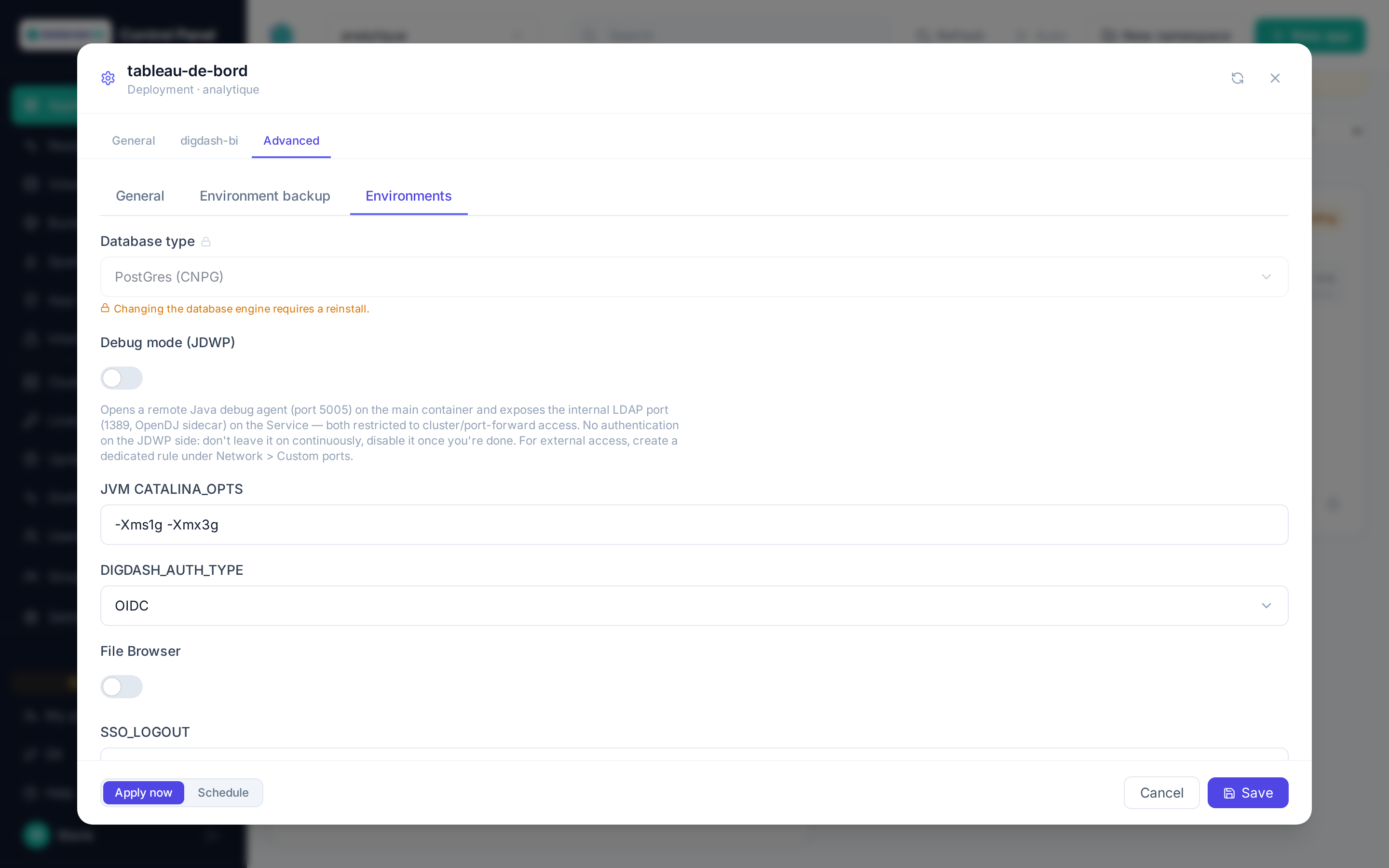
No authentication on JDWP
The Java Debug Wire Protocol (JDWP) has no built-in authentication: anyone who can reach the port can execute arbitrary code inside the JVM. The LDAP port gives access to the internal directory (Digdash accounts/roles). Reserved for the DigDash team for a one-off investigation — do not leave debug mode on continuously or in production, disable it as soon as the session is over.
Connecting
Both ports (5005 for JDWP, 1389 for LDAP) stay internal to the cluster by default. To reach them from a development machine, expose them temporarily via Custom ports — see Namespaces and quotas → Network isolation:
-
Create a Custom port rule targeting the Digdash BI app, with internal port
5005(or1389for LDAP) and a free external port of your choice. To limit collisions with other rules on the cluster (the external port must be unique cluster-wide) and make the rule easier to spot and clean up afterwards, prefer an external port high in the 30000-35000 range (already forwarded by the firewall), for instance34000and above: the bottom of that range is allocated automatically to PostgreSQL external access.The Allowed IP addresses field is pre-filled with your current address, as the platform sees it: keep it. Since JDWP has no authentication, the port is then only reachable from your workstation (or your VPN's egress). Add other addresses if a colleague needs to connect; the filter icon of an existing port lets you edit the list without recreating it. 2. The forward to a potential upstream firewall remains a manual infrastructure step, not automated from this interface — see the reminder shown when the rule is created.
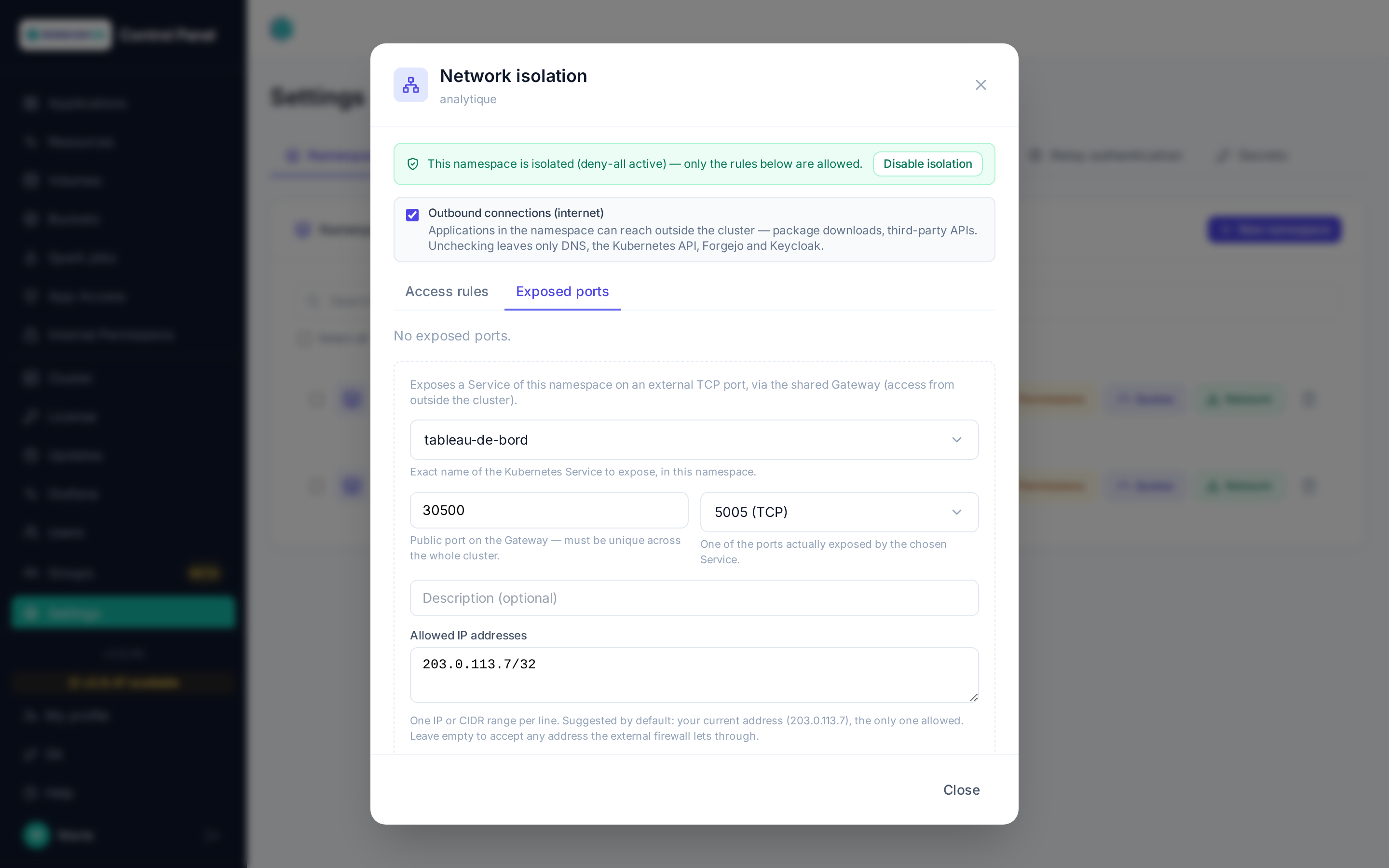
- Then connect your IDE (remote debugger) or your LDAP client on
<external port>, at the Control Panel's own domain name (e.g.controlpanel.my-cluster.digdash.com:30500) — not an IP: the custom port is exposed on that same shared Gateway, whose public IP is neither stable nor meant to be used directly.
Once the session is over
Delete the Custom ports rule and disable debug mode (uncheck + Apply): neither should stay active outside of an ongoing investigation.
Apache Hop GUI: deployment options
The Apache Hop (GUI) template (category Processing) deploys Hop Web, the design interface for Apache Hop pipelines and workflows. The Hop project comes from a Git repository, cloned on first start then updated with git pull --ff-only on later starts. Each user's work, file-picker bookmarks and history are kept on the application's data volume.
General
| Field | Role |
|---|---|
| Hop version | Tag of the ds/hop-web image. |
| Memory limit, CPU limit | Container resources (Capacity category). |
| File Browser | Accessory file manager (upload/download), can be disabled if unused. |
| Hop project name | The project's displayed name in Hop Web. Empty: the name of the Git repository chosen at creation. The project folder on disk does not change. |
Git source
The project opened in Hop Web comes from a Git repository, chosen in the Git source category:
| Field | Role |
|---|---|
| Git project source | None (empty project), Managed Forgejo instance or Manual entry. |
| Forgejo instance, Repository, Branch | Forgejo mode: a platform instance, a repository visible to its admin account, then the branch (empty = the repository's default branch) — see Git. |
| Repository URL, Branch, Git user, Git token / password | Manual entry: external repository. User and token only for a private repository; they are kept in a namespace Secret and never shown again. |
Access
Apache Hop GUI is the only template with direct granting: from Access, a user is either allowed or not, with no profiles — see Access and permissions.
Project connections
The platform writes the namespace's connection metadata into the Hop project: PostgreSQL databases, Hop servers and S3 buckets. They are regenerated periodically, and immediately with the card's Resynchronise Hop connections action. Passwords there are encrypted with an AES key shared across the platform, so Apache Hop Server instances can decrypt them too.
See also
- Apache Hop Server: deployment options — running the pipelines designed here.
- Example: datawarehouse pipeline — Git repository, database, pipeline and scheduled job, end to end.
Apache Hop Server
Apache Hop Server: deployment options
The Apache Hop Server template (category Processing) deploys an Apache Hop execution server: it runs the pipelines and workflows of the Git project synchronised on the instance, on demand or on a schedule — see Jobs and scheduling.
General
| Field | Role |
|---|---|
| Hop version | Tag of the ds/hop-server image. |
| Memory limit, CPU limit | Container resources (Capacity category): 4Gi and 2000m by default. |
| File Browser | Accessory file manager (upload/download), enabled by default. |
| Hop environment name | HOP_ENVIRONMENT_NAME: the project environment activated at startup. |
Git source
The project source is required here, and is filled in as for Apache Hop GUI: managed Forgejo instance (instance, repository, branch) or manual entry (URL, branch, user and token for a private repository).
| Field | Role |
|---|---|
| Synchronisation interval | How often the git-sync sidecar polls the repository (30s, 1m, 5m…), 60s by default. |
Unlike Hop GUI, the project is synchronised continuously: a commit pushed to the tracked branch is picked up at the next synchronisation, without restarting the application.
See also
- Jobs and scheduling — queue, launching a job, periodic scheduling.
- API compatibility test, a card action: checks that the server's API answers, check by check.
Apache Hop Server: jobs and scheduling
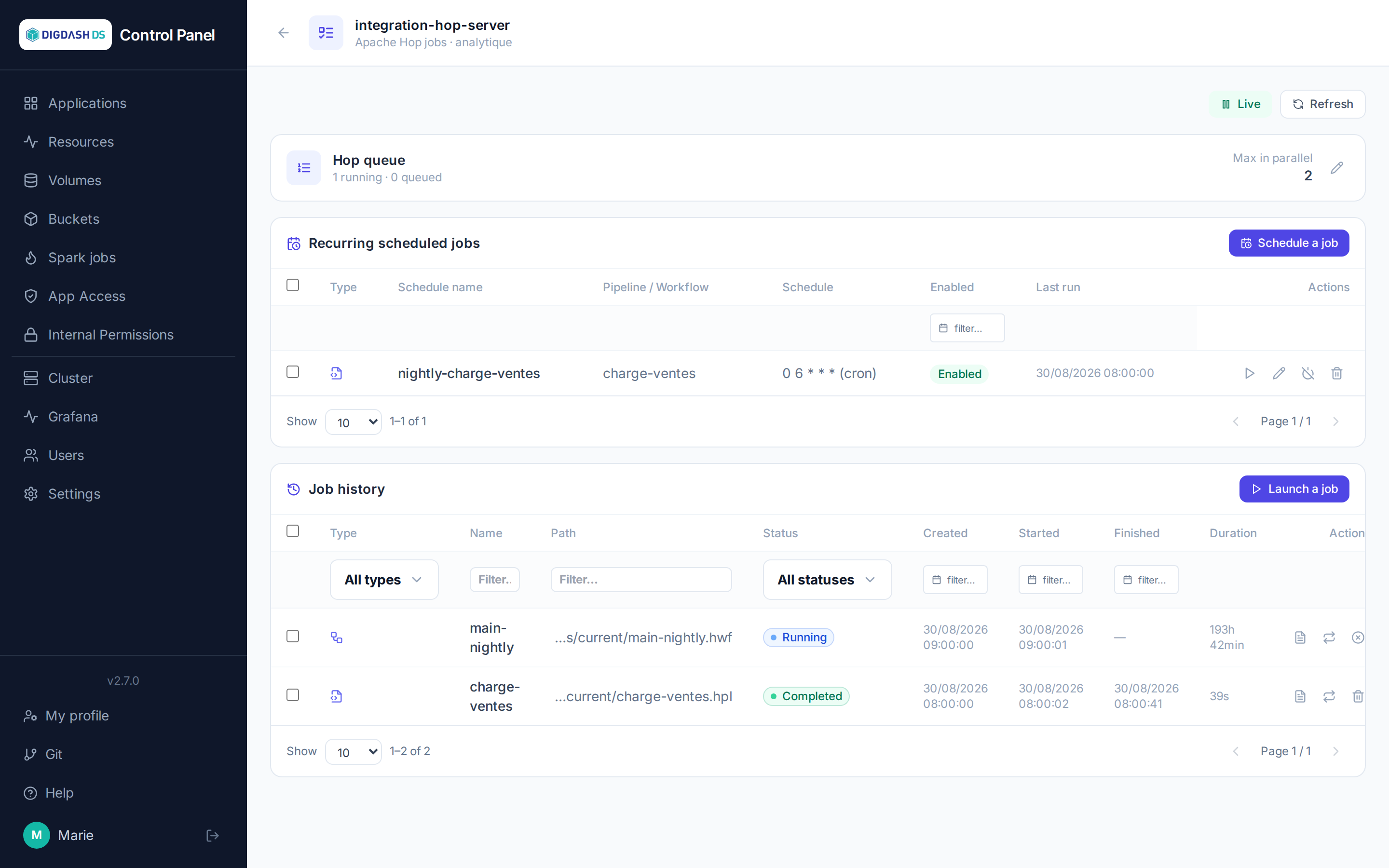
The Apache Hop Server card opens, via the Hop Jobs button, a dedicated page for launching and monitoring the pipelines and workflows of the Hop project synced to this instance (see Git for configuring the project's source).
Queue
A banner at the top of the page shows the number of jobs running and queued, as well as the Hop Server instance's actual CPU/RAM consumption. The maximum number of jobs run in parallel is set here (Max in parallel) — a queue is created automatically (limited to 1) on the first job launched if none exists yet.
Launching a standard job
Launch a job opens a selection among the pipelines (.hpl) and workflows (.hwf) in the synced git repository:
| Field | Role |
|---|---|
| Pipeline / Workflow | File to run, listed from the instance's git repository |
| Run configuration | Name of an existing run configuration in the project's metadata (metadata/pipeline-run-configuration or workflow-run-configuration) |
| Execution parameters | Key/value pairs passed to the pipeline/workflow |
| Log level | From Nothing to Rowlevel — defaults to the one configured on the Hop Server side |
The job immediately appears in the history, with its status (Queued, Running, Completed, Failed, Cancelled) updated live. Each row lets you:
- view details: a graphical preview of the pipeline/workflow, the status of each transform/action, and the full logs;
- relaunch with the same parameters;
- cancel (active job) or delete (finished job).
Jobs can also be selected in bulk (relaunch / cancel / delete several at once).
Scheduling a recurring job
The Recurring scheduled jobs section defines automatic runs of the same file, using two scheduling modes:
- Interval: every N minutes/hours/days;
- Cron: the classic expression (minute, hour, day of month, month, day of week).
Each schedule keeps its own name, parameters and run configuration — independent from manual launches. Once created, it can be enabled/disabled, edited, run now (without waiting for its next occurrence) or deleted. The Last run column lets you check that a schedule is indeed running as expected.
Note
Unlike the Scheduled tasks button on the application card (see Applications) — which manages the Control Panel's internal tasks (cleanup, syncs...) — this scheduling triggers actual Hop jobs, executed by the Hop Server instance itself.
Apache Iceberg (Polaris catalog)
Part of the lakehouse (overview and interaction diagram).
The Apache Iceberg template (Governance category) deploys an Iceberg REST catalog — Apache Polaris — backed by a PostgreSQL database (CloudNativePG) created alongside it.
| Field | Role |
|---|---|
| Warehouse S3 bucket (Storage tab, required) | Bucket that will hold tables and metadata. Picking a namespace bucket fills in endpoint, region and access keys automatically. Fixed at creation. |
| S3 endpoint, S3 region (Storage tab) | Filled in by the bucket picker, to be typed in for an external S3. us-east-1 by default for the region. Fixed at creation. |
| Access Key ID, Secret Access Key (Storage tab) | The bucket's credentials, which can be changed afterwards — after a key rotation, for instance. |
| Iceberg catalog name | lakehouse by default: the warehouse that Trino, Spark or PyIceberg refer to. Fixed at creation. |
| Polaris realm | POLARIS by default, one realm per instance. Fixed at creation. |
| Memory limit, CPU limit (Capacity tab) | 2Gi and 1000m by default. |
| PostgreSQL storage size (Capacity tab) | 5Gi by default. Grow-only: a volume cannot be shrunk. |
On deployment, two tasks run automatically: realm initialization (credentials of the root principal), then creation of the catalog on the bucket with the required grants. The card turns Running before they finish — allow one or two extra minutes before the catalog is usable.
Catalog credentials
Engines authenticate to the catalog with the root principal, kept in the namespace secret <name>-root-principal (keys clientId, clientSecret, catalogUri, catalogName) — see Secrets. The catalog does not vend temporary S3 credentials (no STS on the platform's object storage): every engine uses its own bucket keys, hence the S3 fields repeated in the Trino and JupyterHub templates.
The REST API is exposed at https://<name>-<namespace>.<domain>/api/catalog (authenticated calls only — no web UI).
Deletion
Deleting the Apache Iceberg catalog removes its PostgreSQL database and secrets, but not the bucket files: the tables remain readable by a new catalog pointing at the same location, or can be cleaned up from the Buckets page.
Trino
Part of the lakehouse (overview and interaction diagram).
The Trino template (Processing category) deploys a Trino coordinator and workers with a lakehouse catalog pre-wired to the chosen Apache Iceberg instance.
Trino is not a database: it is a storage-less SQL engine. Three roles share the work — the Apache Iceberg catalog knows which tables exist and which files make them up, the S3 bucket holds the data as Parquet, and Trino runs the SQL in memory, spread across its workers. Hence the deployment order: the catalog first, Trino next, in the same namespace and on the same bucket.
Deployment options
| Field | Role |
|---|---|
| Apache Iceberg (Polaris) catalog (required) | Apache Iceberg instance of the same namespace. Fixed at creation. |
| Iceberg catalog (warehouse) | Catalog name on the Polaris side (lakehouse by default). |
| Warehouse S3 bucket (Storage tab) | The same bucket as the catalog's: select it to fill in endpoint, region and keys. |
| S3 endpoint, S3 region, Access Key ID, Secret Access Key (Storage tab) | Filled in by the bucket picker, editable afterwards — type them in for an external S3. us-east-1 by default for the region. |
| Number of workers (Capacity tab) | 1 by default. |
| Coordinator memory, Per-worker memory (Capacity tab) | 3Gi each by default. Stay ≥ 3 Gi: the JVM heap is fixed at 1400M and the rest is off-heap — an OOM was observed at 2 Gi under load. |
Signing in
Sign-in uses your platform account (OpenID Connect), and access is granted from Access to the users or groups you choose — see Access and permissions. Three ways in:
- The web UI,
https://<name>-<namespace>.<domain>/ui/: a monitoring console — running and past queries, cluster state. It is not a SQL editor, you cannot write queries there; - A SQL client:
trino --server https://… --external-authentication, which opens the browser to sign in; or JDBC withexternalAuthentication=true, for DBeaver or a third-party reporting tool; - A JupyterHub notebook of the same namespace: the
TRINO_HOSTvariable is already set there (name:8080, namespace-internal access), enough to pointtrino-python-clientat it without leaving the cluster.
Querying the lakehouse
CREATE SCHEMA lakehouse.sales;
CREATE TABLE lakehouse.sales.orders AS SELECT 1 AS id, 'test' AS label;
SELECT * FROM lakehouse.sales.orders;
Parquet files and Iceberg metadata appear in the bucket under <schema>/<table>-<uuid>/.
It is the same catalog as Spark Connect, PyIceberg and the Spark jobs: a table written by a Spark job is readable by Trino right away, and the other way around. One copy of the data, several engines — that is the whole point of the lakehouse.
What Trino does not do here
- No source federation: a single catalog is configured,
lakehouse, on the chosen Apache Iceberg instance. The upstream chart's demo catalogs (tpch,tpcds) are removed, and no connector to an application database (PostgreSQL, MySQL…) is exposed in the form. Querying such a database from Trino would mean adding a catalog in the chart values. - No heavy, long-running transformation: for expensive distributed processing, use Spark Connect for interactive work and the Spark jobs for batch.
First start
Allow 3 to 4 minutes before the first query, the time to start the JVM and load the plugins. The card turns Running before Trino answers.
Deletion
Deleting a Trino instance also removes its OpenID client from the platform.
JupyterHub
Part of the lakehouse (overview and interaction diagram).
The JupyterHub template (Data science category) gives every user their own JupyterLab server, with a personal persistent volume and sign-in through the platform account. Whoever deploys the instance becomes its administrator (/hub/admin).
| Field | Role |
|---|---|
| Notebook image, Image version | Jupyter image of user servers (ds/jupyter-datastack by default: JupyterLab + Spark Connect, PyIceberg, Trino and MLflow clients). |
| Max CPU per user, Max memory per user (Capacity tab) | 2 cores and 4 Gi by default, per user server. |
| Storage per user (Capacity tab) | 10Gi by default. Personal volume created at each user's first start. Fixed at creation: resizing existing user volumes is not done from this interface. |
| Apache Iceberg catalog, Trino, Spark Connect, MLflow (Lakehouse tab, optional) | Instances of the same namespace to pre-wire into notebooks (environment variables). |
| Iceberg catalog (warehouse) (Lakehouse tab) | Catalog name on the Polaris side, lakehouse by default (POLARIS_WAREHOUSE). |
| S3 bucket (Storage tab, optional) | S3 keys exposed to notebooks (AWS_*). |
| S3 endpoint, S3 region, Access Key ID, Secret Access Key (Storage tab) | Filled in by the bucket picker, editable afterwards — type them in for an external S3. |
Variables available in every notebook when the corresponding service is set:
| Variable | Content |
|---|---|
POLARIS_URI, POLARIS_WAREHOUSE, POLARIS_CREDENTIAL, POLARIS_SCOPE |
Iceberg REST catalog and clientId:clientSecret credentials |
TRINO_HOST |
Trino coordinator (name:8080, namespace-internal access) |
SPARK_REMOTE, MLFLOW_TRACKING_URI |
Spark Connect and MLflow (if deployed) |
AWS_ENDPOINT_URL, AWS_REGION, AWS_ACCESS_KEY_ID, AWS_SECRET_ACCESS_KEY |
S3 access to the warehouse |
Example with PyIceberg:
import os
from pyiceberg.catalog.rest import RestCatalog

catalog = RestCatalog(
    "lakehouse",
    uri=os.environ["POLARIS_URI"],
    warehouse=os.environ["POLARIS_WAREHOUSE"],
    credential=os.environ["POLARIS_CREDENTIAL"],
    scope=os.environ["POLARIS_SCOPE"],
    **{"s3.endpoint": os.environ["AWS_ENDPOINT_URL"],
       "s3.access-key-id": os.environ["AWS_ACCESS_KEY_ID"],
       "s3.secret-access-key": os.environ["AWS_SECRET_ACCESS_KEY"]},
)
print(catalog.list_namespaces())
One JupyterHub instance per namespace
The chart supports a single JupyterHub per namespace; a second deployment is refused with an explicit message. User servers idle for one hour are stopped automatically (the personal volume is kept).
Deletion
Deleting a JupyterHub instance also removes its OpenID client from the platform.
Spark Connect
Spark Connect
Part of the lakehouse (overview and interaction diagram).
The Spark Connect template (Processing category) deploys an Apache Spark server in local mode (executors inside the pod) exposed through the Spark Connect protocol: notebooks and PySpark clients of the namespace share a single Spark installation, already configured on the chosen Apache Iceberg catalog. No public route (gRPC protocol, namespace-internal).
| Field | Role |
|---|---|
| Apache Iceberg (Polaris) catalog (required) | Instance of the same namespace. Fixed at creation. |
| Iceberg catalog (warehouse) | Catalog name on the Polaris side, lakehouse by default. |
| Spark version | Tag of the ds/spark-connect image. Empty = the chart's version. |
| Warehouse S3 bucket (Storage tab) | The same bucket as the catalog's: select it to fill in endpoint, region and keys. |
| S3 endpoint, S3 region, Access Key ID, Secret Access Key (Storage tab) | Filled in by the bucket picker, editable afterwards — type them in for an external S3. |
| Spark cores (local[N]) (Capacity tab) | Number of execution threads in the pod, 2 by default; the pod's CPU limit follows. |
| Spark (driver) memory, Pod memory limit (Capacity tab) | 2g and 3Gi by default: keep ~1 Gi of headroom between Spark memory and the pod limit. |
| Require a connection token | Shared token (spark.connect.authenticate.token), kept in the <name>-platform secret. Off by default. |
From an attached JupyterHub notebook (SPARK_REMOTE pre-filled) or any pyspark-client of the same minor version as the server:
from pyspark.sql import SparkSession
spark = SparkSession.builder.remote(os.environ["SPARK_REMOTE"]).getOrCreate()
spark.sql("CREATE TABLE lakehouse.demo.t (x INT) USING iceberg")
spark.sql("SELECT * FROM lakehouse.demo.t").show()
Deletion
Deleting a Spark Connect instance touches nothing else; Spark jobs using it as their profile can no longer be relaunched as-is.
Batch Spark jobs (Spark Operator)
Part of the lakehouse (overview and interaction diagram).
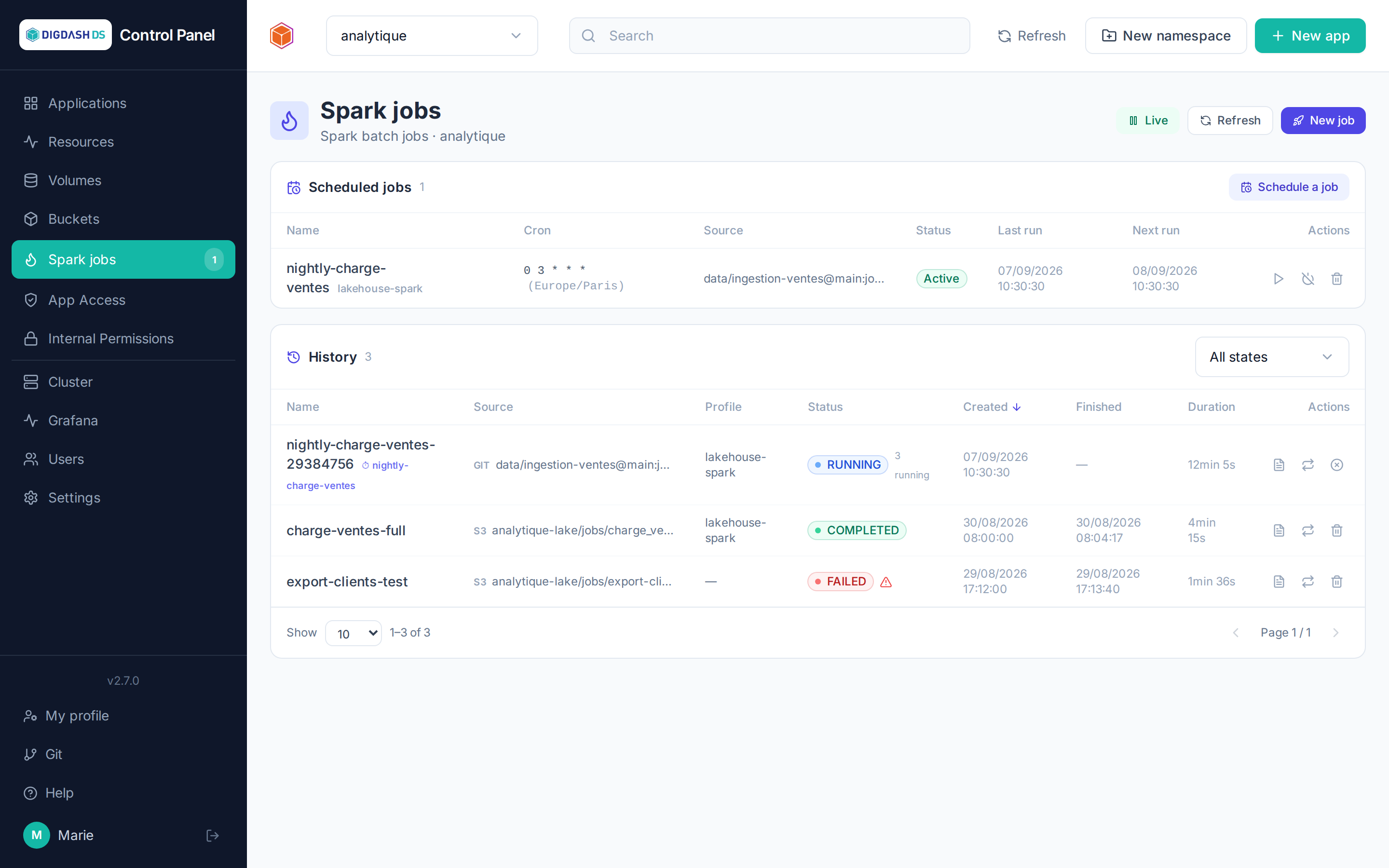
For standalone or scheduled Spark processing (outside an interactive Spark Connect session), the Spark jobs page of the sidebar launches and follows batch jobs in the current namespace, through the Kubeflow Spark Operator installed on the platform: each job is a Kubernetes SparkApplication resource of the namespace (or a ScheduledSparkApplication for a cron schedule); the operator launches the driver then the executors as pods and cleans up at the end. The Spark jobs button of a Spark Connect card opens the same page, filtered on that instance as profile.
Launching a job
New job opens the form:
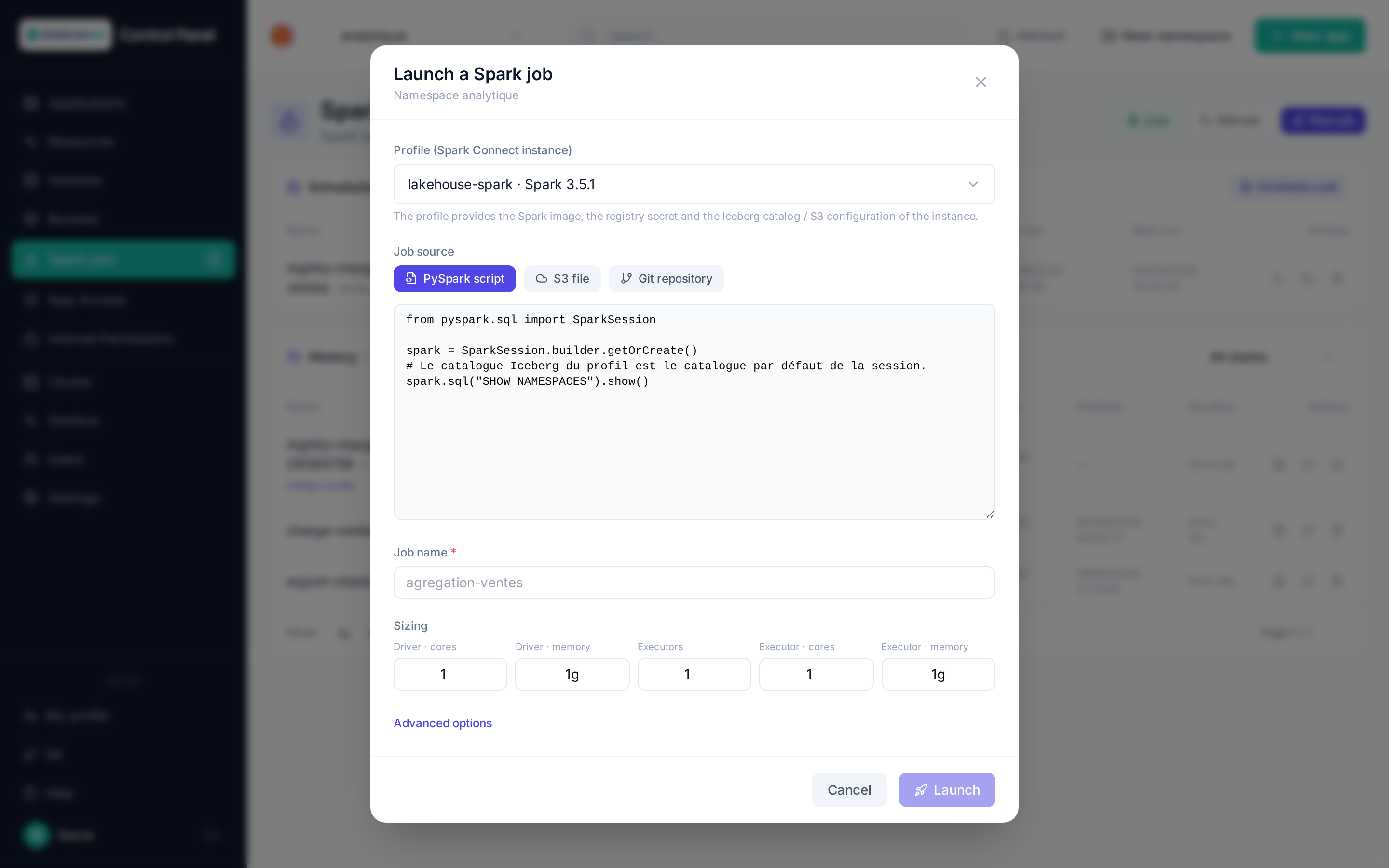
| Field | Role |
|---|---|
| Profile | A Spark Connect instance of the namespace: the job reuses its Spark image (Iceberg jars included), its registry secret and the configuration of its Apache Iceberg / S3 catalog (default catalog of the session). Without a profile, give an explicit Spark image (and its registry secret). |
| Source | The job's main file: a PySpark script typed in directly, an S3 file (bucket of the namespace + object path; endpoint and keys filled by the bucket picker), or a file from a Git repository on Forgejo (instance, repository, branch, path — cloned with your personal token, see Git). A main class (advanced options) switches to a Scala/Java job on a .jar. |
| Name | Kubernetes identifier of the job (lowercase letters, digits, dashes) — suggested from the file. |
| Sizing | Driver cores and memory, number of executors, cores and memory per executor. |
| Advanced options | Arguments, extra Spark properties (spark.*), retention of the resource after completion — in hours, 168 (7 days) by default. |
The driver runs with the namespace's spark service account (CPU/memory limits set on every container, as the namespace quota requires); S3 and Git sources are fetched by an initContainer (aws s3 cp / git clone) into a volume mounted on /opt/job, the typed script through a sparkjob-<name> ConfigMap. Credentials (catalog, S3, Git) stay in namespace Secrets, never in the form annotated on the resource.
Follow-up
The history lists the jobs of the namespace with their state (SUBMITTED, RUNNING, COMPLETED, FAILED…), source, profile and duration; it refreshes by itself while a job is active. For each job:
- Detail and logs: driver/executor pods and the last lines of the driver, live while the job runs;
- Relaunch as is: a new
<name>-<suffix>resource from the original form (profile re-resolved, so image and configuration are up to date); Relaunch with changes reopens the pre-filled form; - Cancel (active job) stops driver and executors; Delete (finished job) removes the resource and its logs.
The usual roles apply: read for a viewer, launch/cancel/delete for an operator, scheduling for a namespace admin.
Scheduled jobs
Schedule a job reuses the launch form with a cron expression (5 fields), a time zone, a concurrency policy (forbid overlaps, allow, replace) and the number of runs kept. Each schedule can be run now, suspended then resumed, or deleted; its runs show up in the history with the ⏱ marker of the schedule name.
Without the UI
The resources remain manageable with kubectl -n <namespace> get sparkapplications: a hand-made job shows up in the history (cancel/delete possible, but no relaunch without an original form). On a cluster without Docker Hub access, the initContainer images can be overridden in Cluster settings: SPARK_JOB_GIT_IMAGE (default alpine/git) and SPARK_JOB_S3_IMAGE (default amazon/aws-cli).
Namespaces created before the operator
The spark service account is created with every namespace and checked at every launch; for namespaces older than the operator installation, the installation creates it too (or python manage.py ensure_spark_rbac on the ControlPanel side).
MLflow
Part of the lakehouse (overview and interaction diagram).
The MLflow template (Data science category) deploys an MLflow tracking server: experiments, runs and model registry in a PostgreSQL database (CloudNativePG) created alongside it, artifacts served by the server on an S3 bucket. Web access is protected by the platform login (the MLflow server has no authentication of its own): as with Apache Hop, allowed users and groups are managed from Access.
| Field | Role |
|---|---|
| MLflow version | Tag of the ds/mlflow image. Empty = the chart's version. |
| Artifacts S3 bucket, Prefix in the bucket (Storage tab, bucket required) | Where artifacts are stored, prefix mlflow by default. Fixed at creation: existing runs point at them. |
| S3 endpoint, S3 region, Access Key ID, Secret Access Key (Storage tab) | Filled in by the bucket picker, editable afterwards — type them in for an external S3. |
| Server processes | Number of server workers, 2 by default. |
| Memory limit, CPU limit (Capacity tab) | 2Gi and 1000m by default. |
| PostgreSQL storage size (Capacity tab) | 5Gi by default. Grow-only: a volume cannot be shrunk. |
From an attached notebook (MLFLOW_TRACKING_URI pre-filled, internal access without login): import mlflow; mlflow.set_tracking_uri(os.environ["MLFLOW_TRACKING_URI"]); mlflow.log_metric("accuracy", 0.99). Artifacts go through the server: notebooks don't need S3 keys.
Deletion
Deleting a MLflow instance also removes its OpenID client from the platform.
Apache NiFi
Part of the lakehouse (overview and interaction diagram).
The Apache NiFi template (Processing category) deploys NiFi 2 with platform-account sign-in: whoever deploys the instance automatically gets edit rights on the flow (the initial administrator is a technical platform account, invisible in NiFi) and authorizes other accounts from the NiFi UI (Users / Policies menu). The flow and repositories (FlowFiles, content, provenance, state) live on a persistent volume.
| Field | Role |
|---|---|
| NiFi version | Tag of the apache/nifi image. Empty = the chart's version. |
| Number of nodes (Cluster tab) | 1 by default. NiFi always runs as a cluster (leader election and shared state natively on Kubernetes, Leases/ConfigMap, no ZooKeeper), one pod and one volume per node. Can be changed at any time (see below). |
| JVM heap, Memory limit, CPU limit (Capacity tab) | 2g, 3Gi and 2 cores by default; keep ~1 Gi of headroom between the heap and the memory limit. |
| Volume size (repositories and flow) (Capacity tab) | 20Gi by default, per node. Fixed at creation: resizing an existing volume is not done from this interface. |
| Apache Iceberg (Polaris) catalog (Lakehouse tab, optional) | Sets POLARIS_URI, POLARIS_CREDENTIAL and the S3_* variables in the pod, to be referenced yourself in a flow: NiFi has no native Iceberg processor, nothing is wired automatically. |
Changing the number of nodes
From the application's configuration window (Number of nodes field, or Replicas):
- Adding nodes: the existing nodes keep running; each new node joins the cluster and receives its flow.
- Removing nodes: the highest-numbered nodes stop, then the Control Panel removes them from the NiFi cluster (otherwise NiFi would refuse any flow change while a node remains "disconnected"). A removed node keeps its volume: data still queued on that node comes back if it is added again.
- Stop / Start: stops all nodes, then restarts them with the same count.
After a node count change or a restart, NiFi may ask you to log in again: each node signs its own sessions, so a session opened on another node is no longer recognized. The flow and data are not affected. Right after a start, the interface may also show an error while the nodes form the cluster (usually under a minute): refresh the page.
NiFi applications created before version 2.8.70
An older single-node application is migrated automatically on its first update (configuration change or restart): it is stopped, its volume is cloned under the name expected by the new mode, then it restarts with its flow and data. The old volume is then deleted.
End-to-end TLS
NiFi 2 only listens on HTTPS: an internal certificate is generated at deployment and verified by the platform gateway. The first start takes 1 to 3 minutes (extension loading).
Deletion
Deleting a Apache NiFi instance also removes its OpenID client from the platform.
Nginx: static site
The Nginx template (category DevOps) serves a static site from a persistent volume, behind a platform HTTPS route.
| Field | Role |
|---|---|
| nginx image version | Tag of the official image, stable-alpine by default. |
| Memory limit, CPU limit | Container resources: 128Mi and 200m by default. |
| Storage size, Attach an existing volume (Capacity tab) | Volume holding the site's files. Fixed at creation: resizing or swapping a volume afterwards is done from the Volumes tab. |
| File Browser, File Browser admin user, File Browser admin password | Web file manager to upload the site's content onto the volume, and the credentials to sign in to it. Disabled by default. |
SFTP server
The SFTP template (Storage category) deploys an SFTP server (SFTPGo) with its own persistent volume. Use it to receive files from, or make files available to, partners, customers or scripts, from the internal network or from the Internet.
| Field | Role |
|---|---|
| Storage size (Capacity tab) | Volume for uploaded files and the account database, 10Gi by default. |
| Attach an existing volume (Capacity tab) | Reuses the volume of a deleted SFTP server: files and accounts come back. |
| Memory limit, CPU limit (Capacity tab) | 256Mi and 500m by default. |
| Disconnect after inactivity | In minutes, 15 by default (0 = never). |
| Max. simultaneous connections per IP | 20 by default (0 = unlimited). |
| Brute-force protection | Temporarily bans an IP address that accumulates failed logins. Enabled by default. |
| File Browser | Browse uploaded files from the browser, behind the platform login. Enabled by default. |
Once the application is running, the SFTP — Accounts and access button on its card opens the server administration.
SFTP accounts
SFTP accounts belong to the server: they are not platform users and have no access to the Control Panel. Platform roles only decide who can manage them:
| Role on the namespace or application | Rights |
|---|---|
| viewer | See accounts, shared folders and connection details. |
| operator | Create, edit, suspend, delete accounts; change their passwords; manage shared folders. |
| admin | Open or close access from the Internet, filter allowed IP addresses. |
Every creation, change or deletion is recorded in the audit logs, with the platform user who made it — never passwords.
An account has:
- a username (2 to 32 characters: lowercase, digits,
.,_,-), which cannot be changed; - an authentication mode:
- SSH key only (default, recommended from the Internet);
- Password only, for clients that cannot use a key;
- SSH key or password;
- SSH key and password, both required at every login;
- its SSH public keys (several allowed, each with a label);
- a home folder, the root of what the account sees;
- the shared folders assigned to it, each read-only or read-write;
- optional restrictions: read-only, quota (size, number of files), expiration date, suspended account.
Deleting an account does not delete its files: they stay on the volume, visible in the File Browser.
Passwords
A password generated by the platform is shown only once, right after saving: copy it before closing the message. It is only stored hashed and cannot be read back; if lost, use New password on the account row. A typed password must be at least 12 characters long.
SSH keys
The user generates their key pair on their own machine and only sends the public key — the private key must never leave their machine:
ssh-keygen -t ed25519 -C "partner-x"
# send the content of ~/.ssh/id_ed25519.pub
On Windows, ssh-keygen ships with OpenSSH (PowerShell); with PuTTYgen, copy the "Public key for pasting into OpenSSH authorized_keys file" line.
In the account form, paste the key or upload the .pub file, then Add. Accepted types: ssh-ed25519, ecdsa-sha2-nistp256/384/521, ssh-rsa (2048 bits minimum) and sk-* hardware keys. A private key pasted by mistake is refused. The SHA256:… fingerprint shown is the one given by ssh-keygen -lf id_ed25519.pub: the user can check it is their key.
To replace a key without interruption, add the new one, let the user test it, then remove the old one.
Shared folders
A shared folder appears under /partage/<name> for every account it is assigned to. Access is set per account: a partner can upload while another account only reads. Deleting a shared folder removes it from every account; its files stay on the volume.
Connection and access from the Internet
The Connection tab gives the host, the port, a ready-to-copy sftp command and the server fingerprints. Share these fingerprints with users: their client shows them at the first connection, to check it is really this server.
By default, the server is only reachable from the cluster. Open access from the Internet (admin) assigns it a TCP port on the Gateway, chosen automatically. Allowed IP addresses (one IP or CIDR range per line) restrict the sources; when empty, any address the external firewall lets through is accepted. As for PostgreSQL databases, the external firewall forward to the cluster Load Balancer must be configured by hand.
sftp -P <port> <username>@<host>
sftp -i ~/.ssh/id_ed25519 -P <port> <username>@<host>
Files and File Browser
On the volume, files are stored in files/home/<username>/ (home folders) and files/shared/<name>/ (shared folders). The application's File Browser shows everything to whoever has access to the application on the platform; the account database does not appear there.
Deletion
Deleting the application closes access from the Internet, releases its port and removes its OpenID client. The volume follows the usual volumes rule.
Generic Helm: any Helm chart
The Generic Helm template deploys any Helm chart, with its own values, to try out software before it has a dedicated template. It only appears in the catalogue when the GENERIC_HELM_ENABLED cluster setting is true, and it is reserved for namespace administrators.
Unlike the other templates, it wires no HTTPS route, certificate or authentication: the chart is installed as is.
Deploying a chart
| Field | Purpose |
|---|---|
| Chart reference | Chart name in its repository (nginx), or full OCI reference (oci://registry/path/chart). |
| Helm repository URL | Classic chart repository (https://charts.example.com). Ignored for an oci:// reference. |
| Chart version | Version to install; the latest one if empty. |
| Helm values (YAML) | Values passed to the chart, in a YAML editor. |
Once the reference (and optionally the version) is entered, Load the chart's default values fills the editor with the chart's values.yaml, comments included: then change only what needs changing. If values have already been entered, the Control Panel asks before replacing them. Show README displays the chart's documentation.
If the chart ships a values schema (values.schema.json, flagged by Values schema provided), Helm checks the values on deployment and rejects those that don't match it, with the chart's error message.
Upgrading the release
On the application card, Version, values and history opens the Helm release.
The Version and values tab shows the chart version and the values currently deployed. The labels and annotations the Control Panel sets to track the application are not shown: they are added back automatically on every upgrade.
- Check submits the upgrade to Helm without applying anything (
helm upgrade --dry-run): values schema, manifest rendering, version availability. - Upgrade applies the new chart version and the new values.
- Default values of this version and README show, next to the editor, those of the version entered, to compare before a version upgrade.
Application deployed before this feature
The chart source (reference and repository) was not recorded. The tab asks for it once; it is kept after the first upgrade.
History and rollback
The History tab lists the release's revisions, most recent first: status, chart and version, application version, date and Helm description. Values shows those of a revision.
Roll back to this revision (after confirmation) restores the chart version and values of that revision (helm rollback). The rollback creates a new revision: history is kept, and you can move forward again the same way.
Lakehouse: overview
Six catalog templates together form a lakehouse on the platform's S3 buckets: an Apache Iceberg table catalog (implemented by Apache Polaris), the distributed SQL engine Trino, JupyterHub notebooks, a Spark Connect server, an MLflow tracking server and Apache NiFi for ingestion. Deploy the catalog first, then the rest in any order, in the same namespace.
flowchart LR
    B[(S3 bucket<br/>warehouse)]
    P[Apache Iceberg<br/>Polaris catalog]
    T[Trino]
    J[JupyterHub]
    S[Spark Connect]
    M[MLflow]
    N[Apache NiFi]
    T -- metadata --> P
    J -- metadata --> P
    P -- metadata files --> B
    T -- Parquet data --> B
    J -- data --> B
    J -- Spark Connect --> S
    S -- metadata --> P
    S -- data --> B
    J -- runs --> M
    M -- artifacts --> B
    N -- ingestion --> B
Applications
- Apache Iceberg (Polaris catalog) — Iceberg REST table catalog (Apache Polaris), deploy it first
- Trino — distributed SQL engine
- JupyterHub — per-user JupyterLab notebooks
- Spark Connect — shared Spark server for notebooks and PySpark clients
- MLflow — experiment tracking and model registry
- Apache NiFi — data ingestion
- Batch Spark jobs (Spark Operator) — batch and scheduled Spark processing (Spark jobs page)
Example: datawarehouse pipeline
This example walks through the standard workflow for building an end-to-end data pipeline on the platform: a Git repository to version the Apache Hop project, a PostgreSQL database as the target, Apache Hop GUI to design the pipeline, an Apache Hop Server to run it, and a recurring schedule to automate it.
Overview
- Create a Git repository.
- Create a database.
- Launch Apache Hop GUI, with the repository as a parameter.
- Create a pipeline in Hop GUI.
- Launch an Apache Hop Server on the same repository and branch.
- Create a recurring job on that pipeline.
- Monitor the result.
1. Create a Git repository
From the Git page, My Git account section, Create a repository — personal or in an organization. This repository will version the Apache Hop project (.hpl pipelines, .hwf workflows, connections and metadata).
2. Create a database
From the catalog (New app), deploy the PostgreSQL template — see Deploying an application. This is the target database the pipeline will write to. Note the application name: it identifies the PostgreSQL connection automatically exposed to Apache Hop (see next step).
3. Launch Hop GUI with the repository as a parameter
Deploy the Apache Hop (GUI) template. In the form's Git source section:
- Forgejo instance: the platform-managed instance;
- Repository: the repository created in step 1;
- Branch: leave empty for the default branch.
Once the application is Running, open it (Open): the Hop project is synced to this repository/branch, and connections to the namespace's PostgreSQL databases, Hop servers and S3 buckets are automatically provisioned in the project's metadata.
Tip
If the database created in step 2 doesn't show up right away as a connection in Hop, use Resync Hop connections on the application's card (see Applications) instead of waiting for the periodic sync.
4. Create a pipeline
In Hop GUI, create a new pipeline (.hpl) using the PostgreSQL connection provisioned in the previous step as its target, then commit it to the repository (Hop GUI has a built-in Git client). This file is what the Hop Server will run in the following steps.
5. Launch a Hop Server on the same repository/branch
Deploy the Apache Hop Server template, with the same Git source configuration as in step 3 (same Forgejo instance, same repository, same branch) — the Hop Server must see exactly the same project, pipeline included, as the one used in Hop GUI.
6. Create a recurring job on the pipeline
Open Hop Jobs from the Hop Server's card, then, under Scheduled recurring jobs, create a schedule pointing at the pipeline created in step 4 (interval or cron expression) — see Apache Hop Server: jobs and scheduling for the field details.
7. Monitor the result
From the same Hop Jobs page:
- the schedule's Last run column confirms it's firing as expected;
- the history lists every run with its status (
Completed,Failed…) — click a row for the pipeline's graphical detail and full logs; - the banner at the top of the page gives an instant view of running/queued jobs and the instance's load.
Storage
Volumes
The Volumes page lists the persistent volumes (PVCs) in the current namespace: name, capacity, used space, storage class, status, and the pods using them.
The Used column (gauge + percentage) comes from the platform monitoring (Prometheus, kubelet metrics): it is only filled for a volume mounted by a pod; otherwise, or when monitoring is unavailable, it shows n/d.
Actions on a volume
The ⋮ menu to the right of each row groups together every action available for that volume:
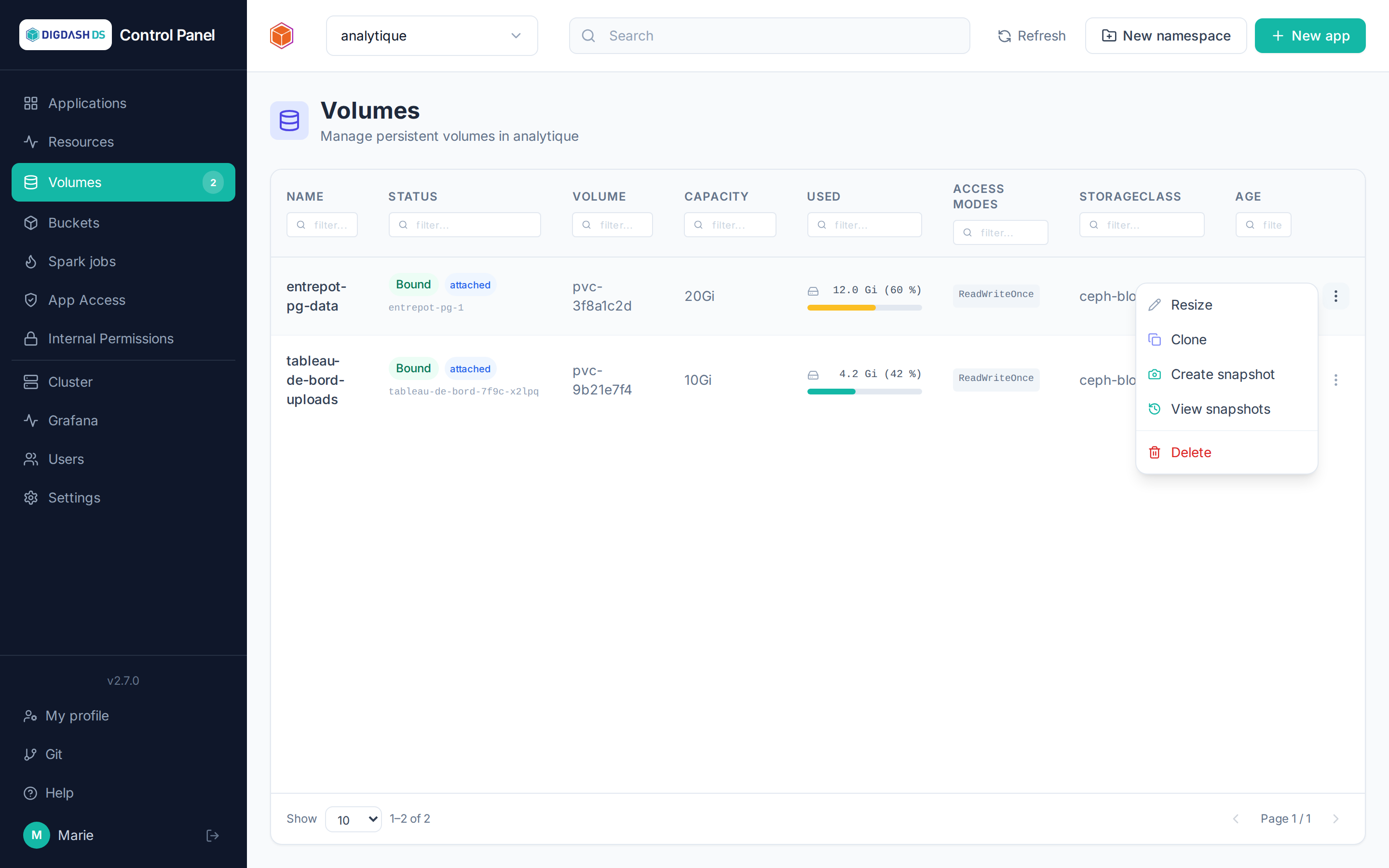
| Action | Effect |
|---|---|
| Resize | Increases the capacity (never a reduction — a Kubernetes limitation) |
| Create snapshot | Freezes a point-in-time snapshot of the volume |
| Clone | Creates a new volume, an independent copy of the original |
| Restore a snapshot | Creates a new volume from an existing snapshot |
| Delete | Deletes the volume — not possible if it's still attached to a pod |
PostgreSQL database volumes
Volumes of a PostgreSQL database (the PostgreSQL application, or a database embedded in another application) are driven by the CloudNativePG operator: Resize, Clone and Snapshot are greyed out for them, and refused by the API even when bypassing the interface.
- Growing the database: go through the application's Configure → Storage size. The operator resizes its instances' volumes itself; a resize made directly here would be reconciled away (i.e. reverted) by the operator. Shrinking remains impossible.
- Copying the database: use its backups. A snapshot or a clone taken on a running database is not guaranteed to be consistent.
Use case: rolling back after a mistake
- Before the risky operation, take a snapshot of the volume in question.
- If something goes wrong, restore the snapshot to a new volume.
- In the application's Configure → Volumes, point the mount to this new volume — the application restarts on the restored data.
Note
Snapshots live in the cluster (not in S3): they protect against operator mistakes, not against loss of the cluster. For a true, externalized backup of databases, see Backup and restore.
S3 buckets
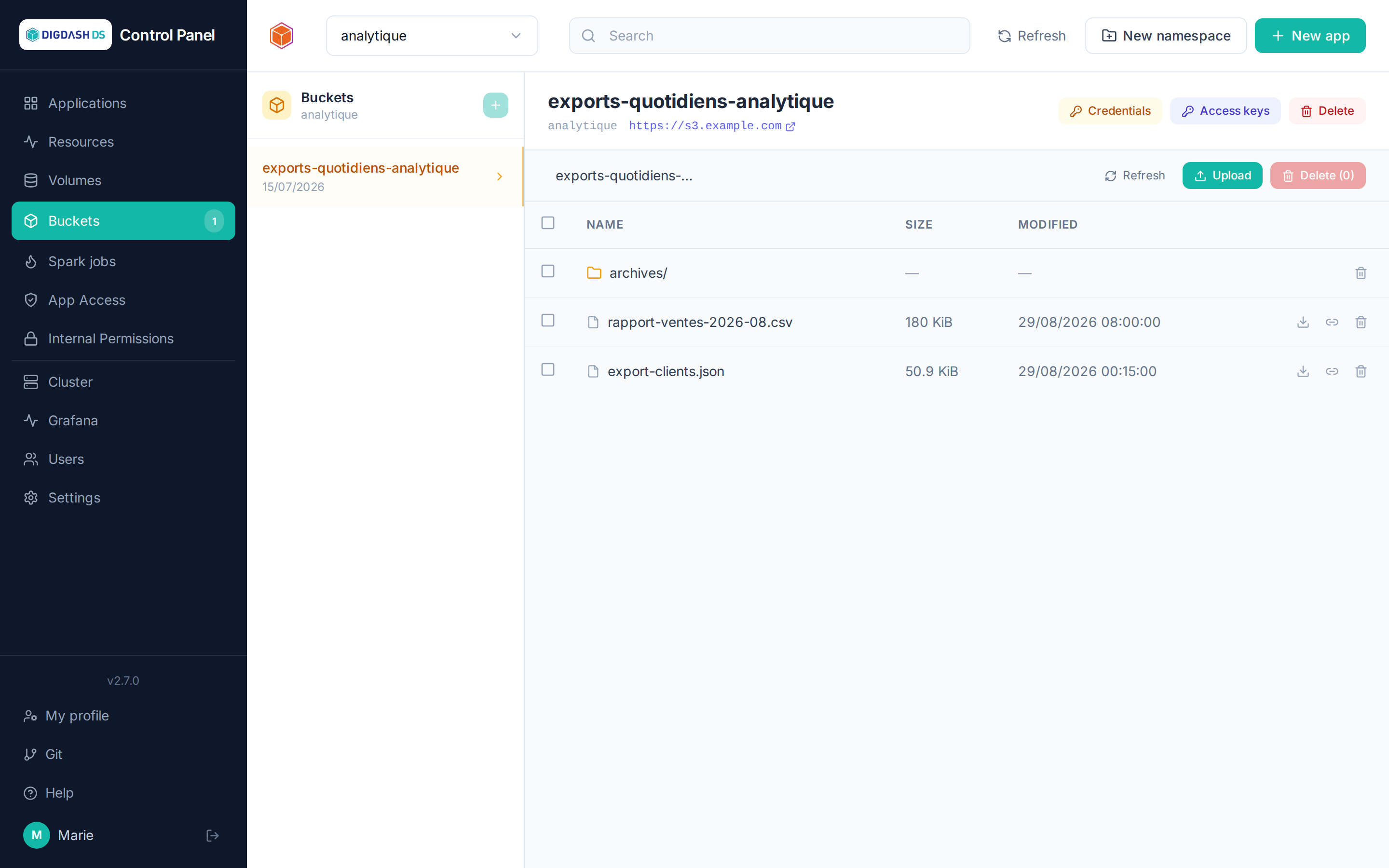
The Buckets page manages the namespace's S3 object storage (served by the cluster itself): file repositories, backup targets, data sources for Apache Hop…
Size and compression
Each bucket shows its size (sum of its objects' sizes), the size actually stored in Ceph after compression, the compression savings when there are any, and its object count. These values come from the object storage admin API (RGW) and are refreshed at most every minute; they are not shown if that API is unreachable. Without compression enabled on the Ceph side, size and stored size are identical.
Creating a bucket
New bucket → a short name (lowercase letters and digits). The bucket goes through a provisioning phase, then becomes Bound — it is then usable.
Access credentials
Each bucket exposes its S3 credentials (endpoint, access key, secret key) from its row in the list. These are the values expected by:
- the Backup section of PostgreSQL and Digdash BI;
- any external S3 client (rclone, AWS CLI, DBeaver…).
Per-application access keys
The Access keys tab lets you create additional, narrower-scoped S3 identities (read-only or read/write) to hand off to an application, rather than sharing the bucket's main credentials.
Browsing objects
A bucket's contents (files and folders) can be browsed directly from the page — useful for checking that a backup was actually written before starting a restore.
New folder creates a folder at the displayed location. Since S3 has no real folders (a folder only exists if it contains an object), the Control Panel puts an empty .keep text file in it; the folder stays visible as long as this file or another object is in it.
Access and permissions
Two distinct notions coexist:
- App Access — who can use a deployed application (sign in to Digdash BI, to Hop…);
- Internal Permissions — who can administer what within the Control Panel itself.
App Access
The App Access page (or the Manage access button on a card, not available for PostgreSQL) lists, for each OIDC-authenticated application, all platform users split into two sections, With access / Without access, with search and multi-select to act on several users at once.
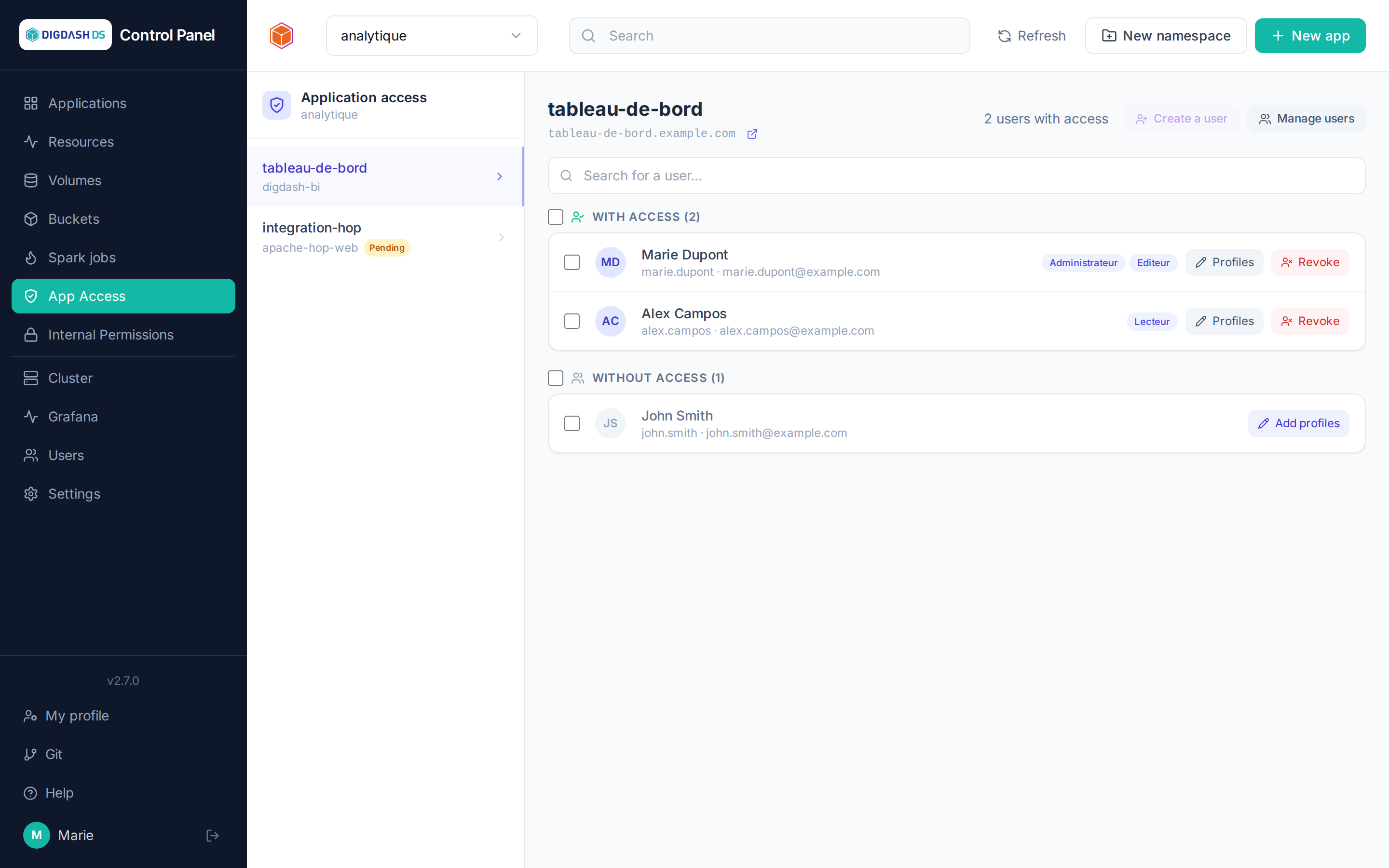
Two mechanisms depending on the template, shown automatically by the page:
- Profiles (most templates, e.g. Digdash BI): granting access means assigning one or more profiles (application roles) to the user — a user with no profile has no access. The Add profiles button opens the selection, individually or in bulk on the current selection.
- Direct grant / revoke (Apache Hop GUI only): a simple binary grant, with no notion of profile — Grant / Revoke buttons, also available in bulk.
Internal Permissions
Control Panel roles are granted per namespace (the user acts on the whole namespace, from the Namespaces tab) or per application (scope limited to a single application, from this page). The Internal Permissions page reuses the same interface as App Access (search, With/Without permission sections, multi-select for bulk actions), but only shows and changes permissions set directly on the application: roles inherited from the namespace do not appear here — a reminder the screen itself displays, alongside the rights table below. Every application of the namespace is listed, including those without a Keycloak login (PostgreSQL, Apache Iceberg, Nginx, Spark Connect…), which are absent from the App Access page since there is no access to grant there.
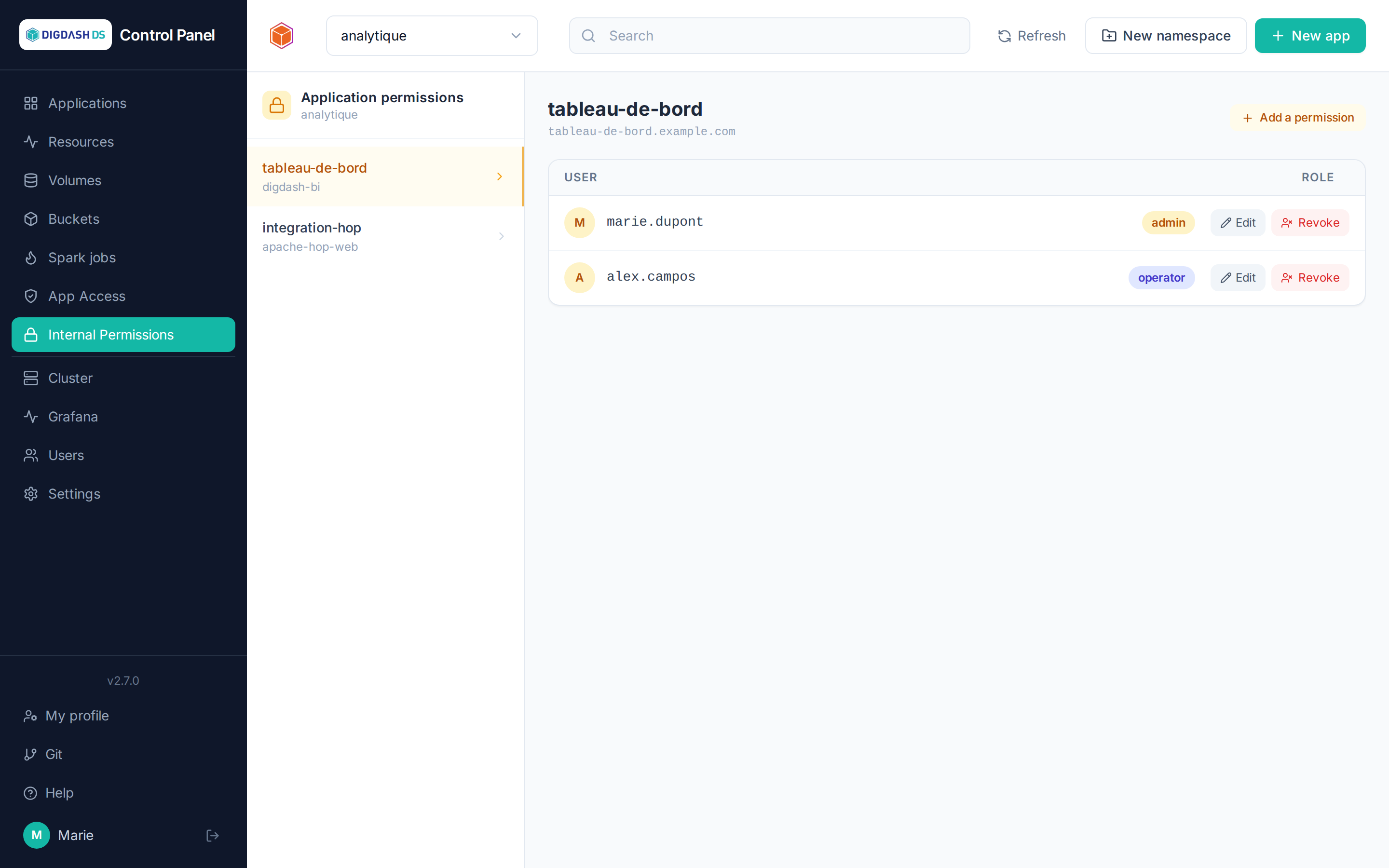
| Role | What it allows |
|---|---|
viewer |
View the applications, volumes, buckets in scope |
operator |
+ start/stop/restart, configure, resync |
admin |
+ deploy and delete, manage access and permissions in scope |
On top of this comes the platform administrator status, which is cross-cutting: managing users, groups, namespaces and quotas, cluster settings, the Git instance and relay authentication.
Namespace creation right
Creating a namespace no longer requires being a platform administrator. The Namespace creation right can be granted:
- to a user, in their record (Users → Edit user), when creating them, or through the
creation_namespacescolumn of the bulk import; - to a group: all its members receive it, as long as they belong to it.
Whoever creates a namespace becomes its administrator (admin) — of that one only. The right gives nothing else: neither deleting a namespace, which stays reserved to the platform administrator, nor managing groups or cluster settings. Like any namespace administrator, they can create user accounts, but not edit or delete them. Only a platform administrator can grant it.
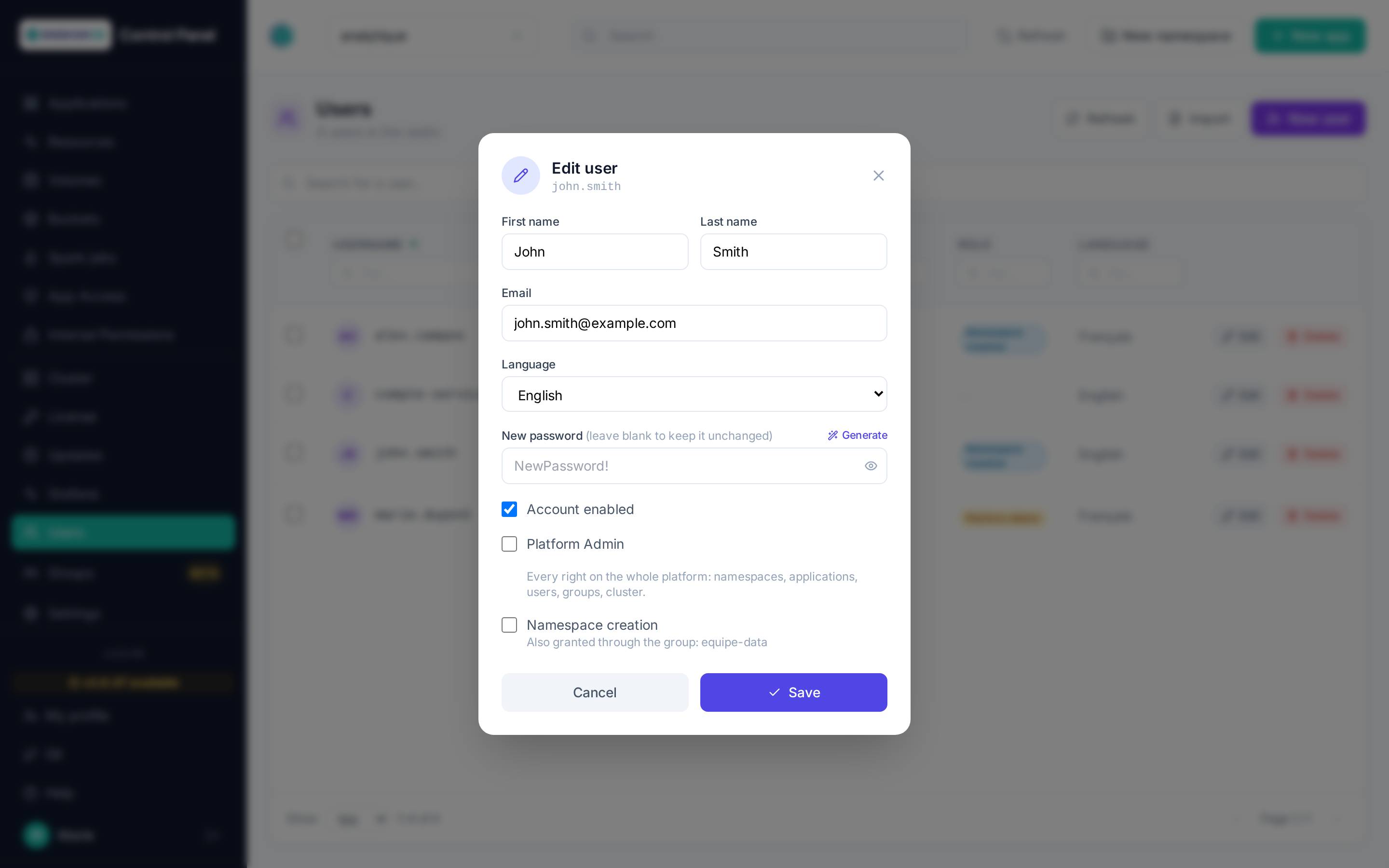
In the Users list, a badge flags the holders of the right; on hover, it tells whether it comes from a group. A platform administrator holds it by default.
Groups
Restricted to platform administrators.
A group is a set of users. Everything granted to the group applies to each of its members, as long as they are members: leaving the group removes what the group brought, and only that.
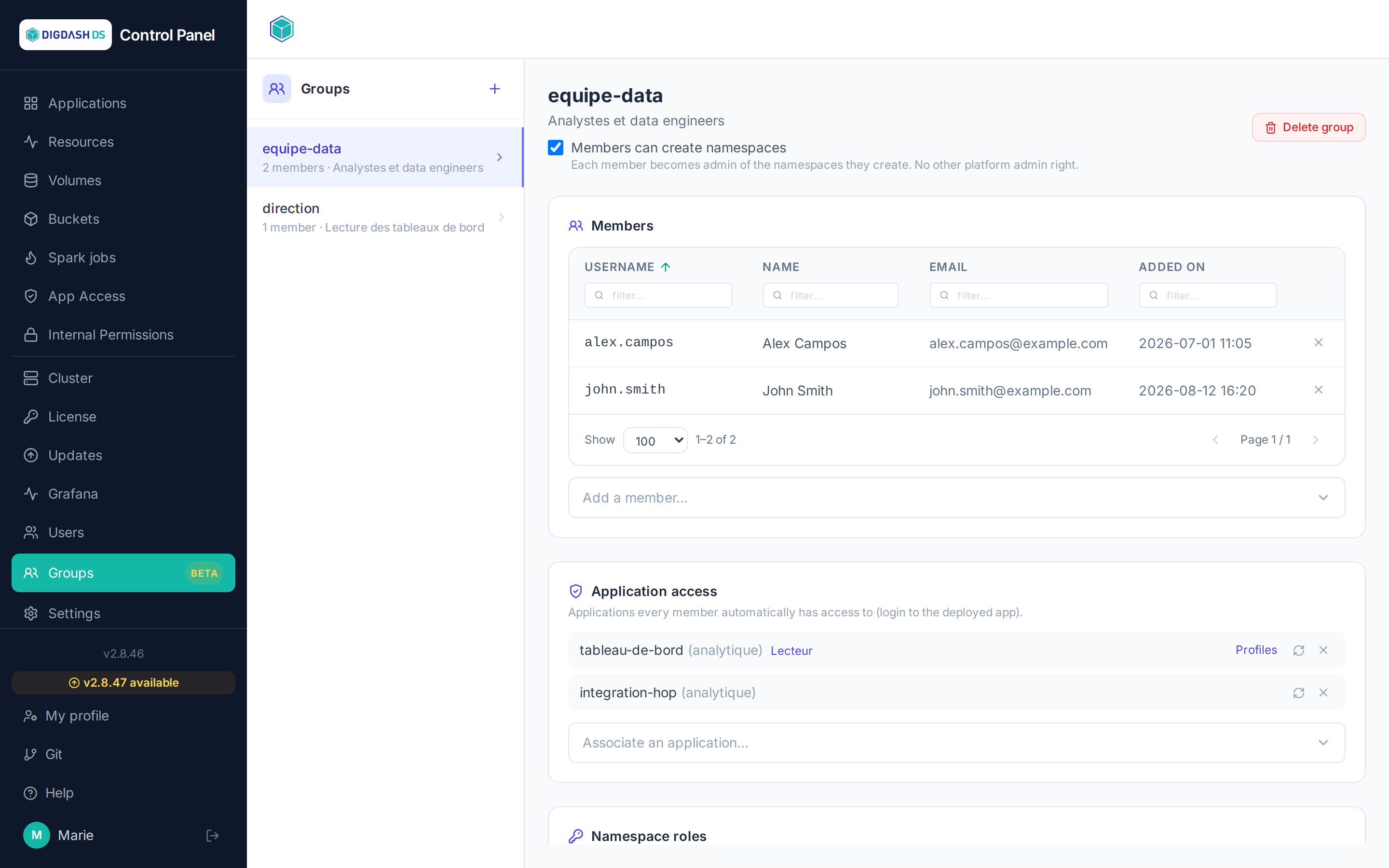
What a group can carry
| Item | What members receive | Applied |
|---|---|---|
| Access to an application (and its profiles, for Digdash BI and NiFi) | The right to sign in to the application, with those profiles | Pushed to Keycloak |
| Role on a namespace | viewer, operator or admin on the whole namespace |
Immediately |
| Role on an application | A role limited to that application | Immediately |
| Namespace creation | The right to create namespaces | Immediately |
Roles and the creation right are computed on every action: a change takes effect at once. Application access, on the other hand, must be written to Keycloak (see When changes apply).
How rights combine
A user may receive rights from several sources: directly and through one or more groups. Nothing overwrites anything:
- Roles: the highest wins. A role set on an application takes precedence over the role of the namespace containing it.
- Access and profiles: they add up. A member of two groups receives the union of their profiles, plus those assigned to them directly. Access stays in place as long as at least one source justifies it: removing someone from a group does not take away access they also hold directly or through another group.
When changes apply
- Adding or removing a member: their access is updated immediately.
- Associating or dissociating an application, changing its profiles, deleting the group: the change is recorded at once, then applied to every member by a background task whose progress is shown on the page. For a group of several thousand members, this takes a few minutes. After a partial failure, the Resync button pushes access and profiles to every member again.
- Periodic reconciliation: the system reconciliation task restores in Keycloak any access that groups justify but that would be missing. It never removes anything — several Control Panels may share the same Keycloak, and access without a justification here may have one elsewhere.
Application access and profiles
Only running applications are offered for association: nothing could be applied to a stopped one. For Digdash BI and Apache NiFi, the Profiles button of an associated application lets you choose the profiles the group confers; other applications keep a simple access grant.
What comes from a group is greyed out
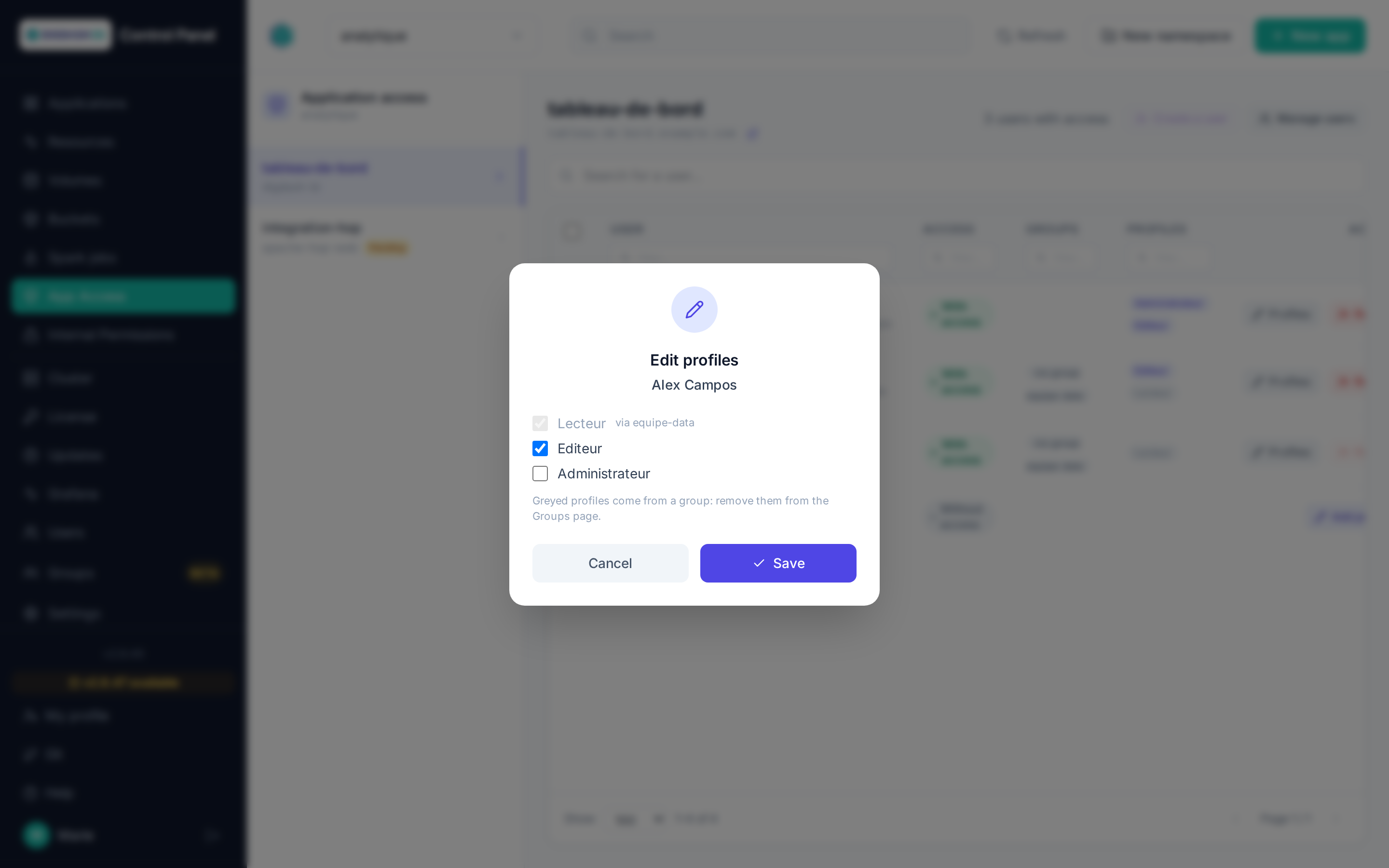
On the App Access page, profiles inherited from a group are shown greyed out, with the group name on hover, and a "via group" badge flags the users concerned. In Edit profiles, they are checked but cannot be unchecked: removing them there would have no effect, the group would grant them again. Likewise, Revoke is disabled for a user whose access only comes from a group. Such access is removed from the Groups page.
Group names
A group name is unique regardless of case: "Business" and "business" are the same group. The bulk import therefore attaches a user to the existing group whatever the case, and only creates a group if it really does not exist.
Note
Control Panel permissions are independent from each application's own internal roles: granting operator on a namespace does not, for example, grant administration rights inside Digdash BI itself.
Users
Restricted to platform administrators. A namespace administrator can also open it to view the list, create or import accounts: without making them platform administrators or granting them the namespace creation right, and without editing or deleting an existing account.
The Users page manages the platform's accounts (created in Keycloak, the enterprise identity provider).
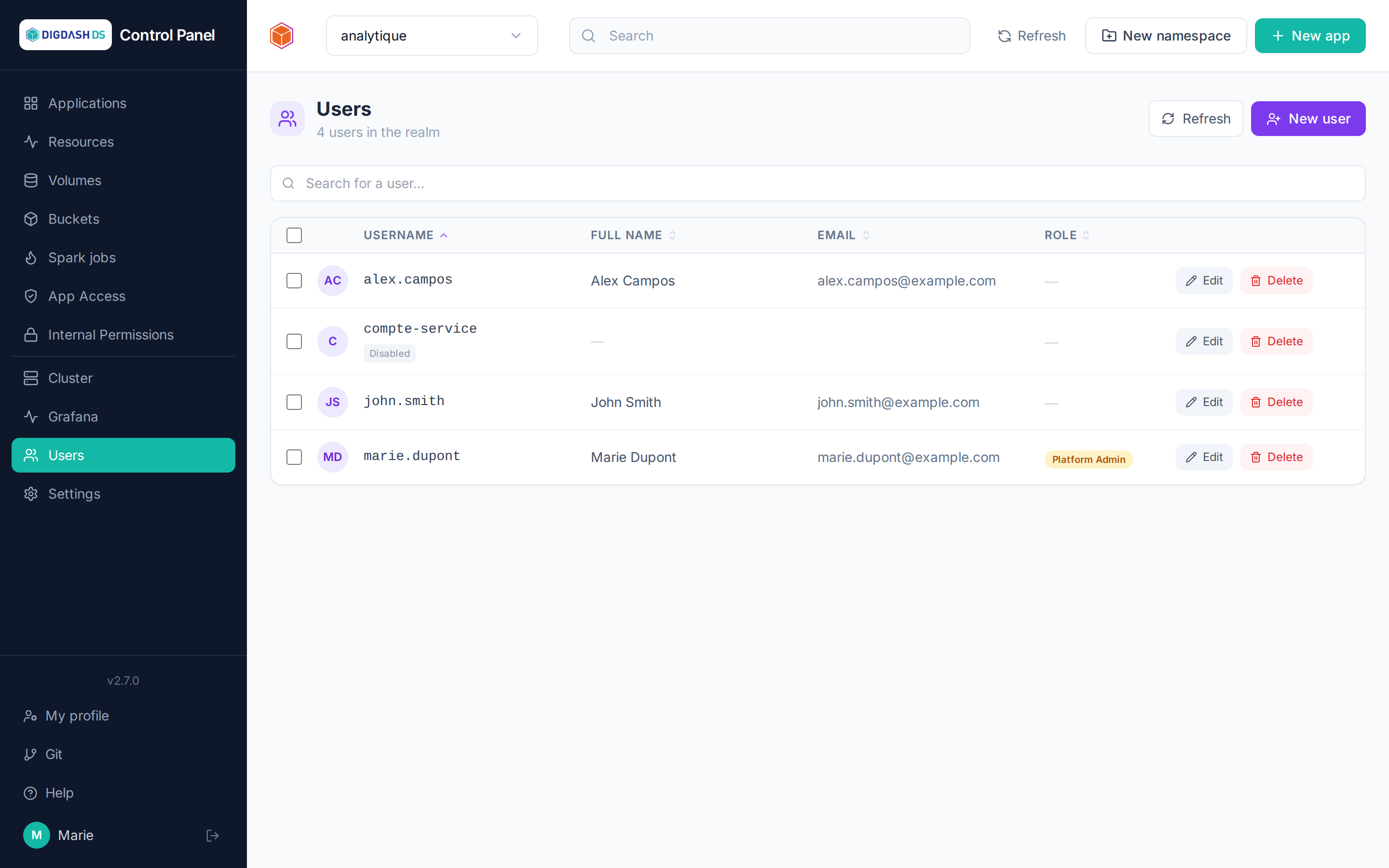
Creating a user
New user → username, email, name, initial password (temporary by default: the user will have to change it on first sign-in), interface language, and optionally Platform Admin status.
On creation, the user's personal Git account is automatically provisioned on the platform's Forgejo instance (see Git) — it can therefore be added immediately as a repository collaborator, without waiting for their first sign-in.
Importing several users
Import creates a batch of accounts at once, from a CSV file or from text typed directly — one user per line. The file is read by the browser and poured into the text area: you see, and can correct, what you are about to create before confirming.
The Download an example button provides a ready-to-fill template.
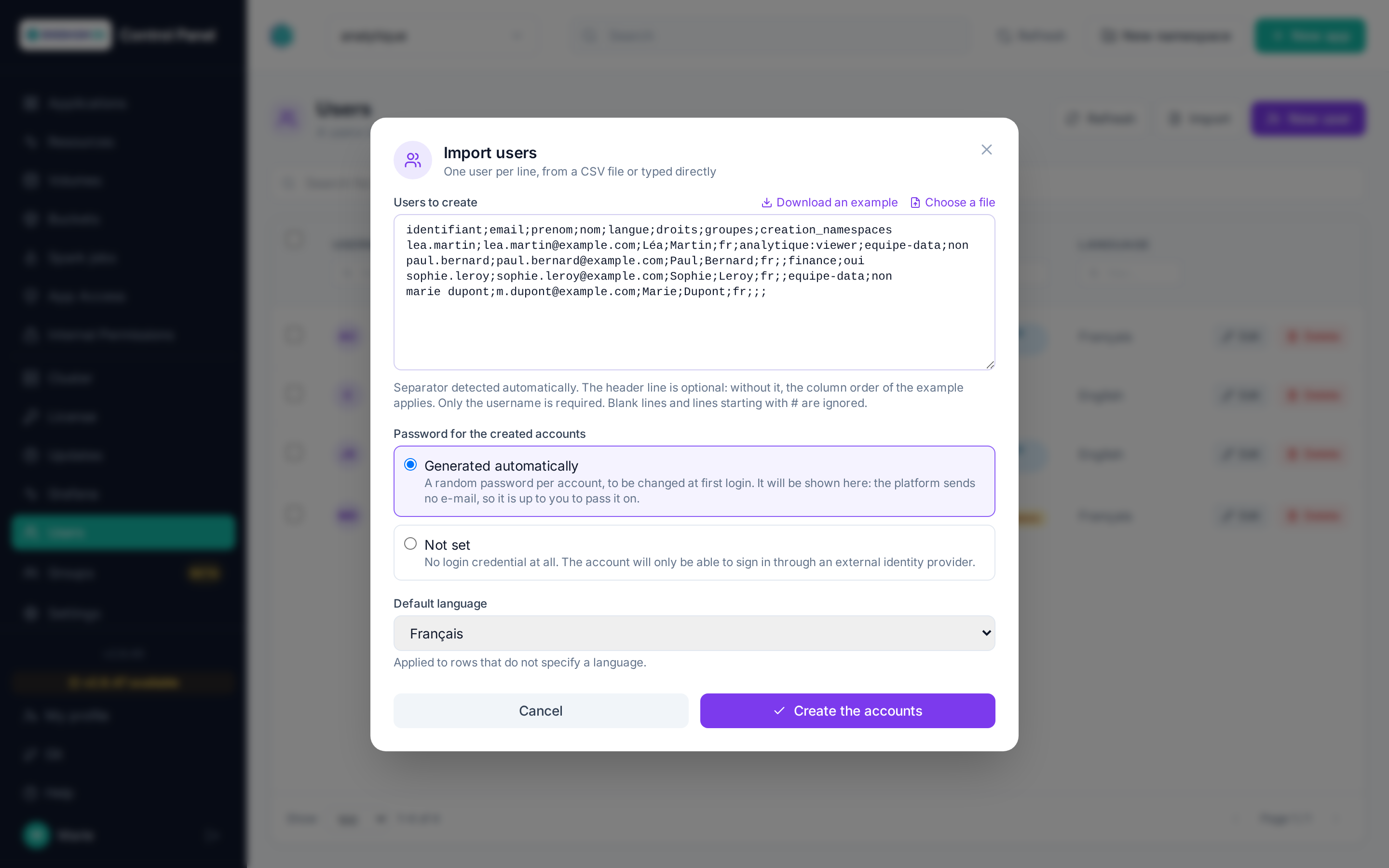
Recognised columns, in this order when the file has no header line:
| Column | Content | Required |
|---|---|---|
username |
Sign-in username | yes |
email |
E-mail address | no |
firstname, lastname |
The person's name | no |
language |
fr, en or es |
no |
admin |
yes/no — platform administrator | no |
active |
yes/no — account enabled | no |
rights |
namespace:role, comma-separated (accounting:admin,hr:viewer) |
no |
groups |
Group names, comma-separated | no |
creation_namespaces |
yes/no — right to create namespaces, grantable by a platform administrator only | no |
A group that is named but does not exist is created automatically and flagged as such in the report — do read it, a typo in this column creates a group instead of joining one.
The separator (;, tab, , or |) is detected automatically. With a header line, the column order is free and you may supply only some of them. Blank lines and lines starting with # are ignored.
Existing accounts
A username that already exists is neither recreated nor modified: password, e-mail, name, language, active status and administrator status stay as they are. The line only adds to its access:
- the listed groups are joined (and created if they do not exist);
- namespace rights are added, or raised if the requested role is higher — never lowered;
- the namespace creation right is granted when requested — never removed.
The line then shows the Updated status. Re-importing a file to add people to a group is therefore safe: no access is ever taken away.
Password
A single choice applies to the whole import:
- Generated automatically: a random password per account, to be changed at first sign-in. It is shown in the report — since the platform sends no e-mail, it is up to you to pass it on.
- Not set: no login credential at all. For accounts that will sign in through an external identity provider.
Report
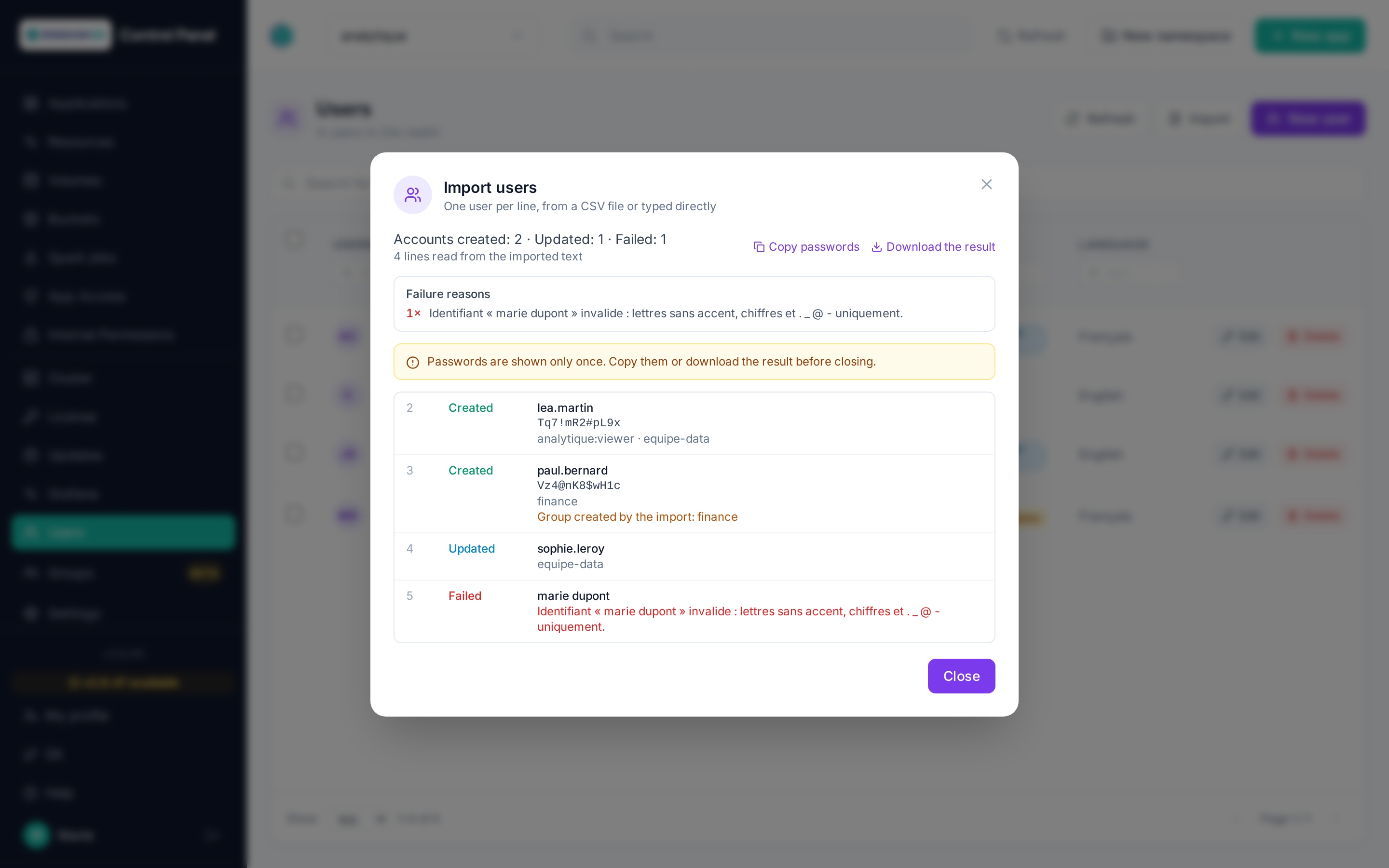
Every line of the file gets its own status, including those never attempted — invalid syntax, username repeated in the file, permission denied. The count tells created accounts, updated existing accounts and failures apart. The report can be downloaded as CSV, and generated passwords copied in one click.
Warning
Passwords are shown only once. Copy them or download the report before closing the window.
Note
A line whose permissions do not pass is refused without creating anything: never a half-provisioned account. Assigning a group or creating an administrator requires platform administrator rights; granting a right requires being administrator of the target namespace.
Editing / disabling / deleting
From each user's row: editing fields, changing the password, enabling/disabling the account, deletion (which also removes their personal Git account).
Bulk actions
By selecting several users:
- Enable / Disable the selected accounts;
- Change the language of all selected accounts;
- Delete in bulk.
The result details successes and failures user by user.
Note
The language set here drives the language of messages sent by the platform to this user. Each user can also change it themselves from My profile.
Git
The platform hosts an internal Git server (Forgejo), used in particular as a project source for Apache Hop. Two entry points:
- Git (bottom of the sidebar): your personal Git account — accessible to everyone;
- Settings → Git: administration of the Forgejo instance itself — platform administrators only.
My Git account
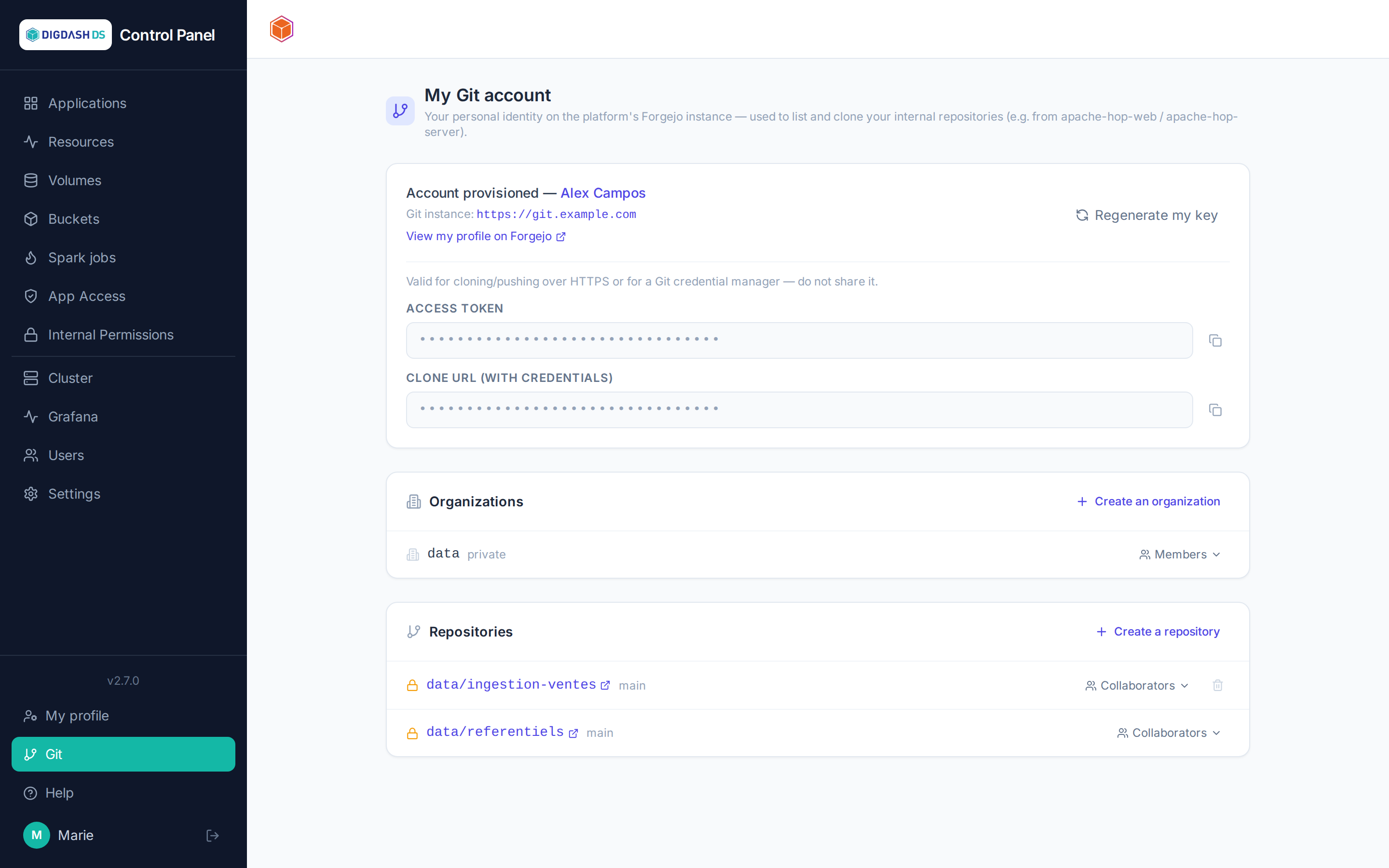
On first visit, your Forgejo identity is provisioned automatically. The page shows:
- a link to your Forgejo profile;
- your personal access token: show it to use in a
git clone https://user:token@…or a credential manager. Regenerate my key creates a new one if the old one is lost or compromised; - your organizations and your repositories.
Repositories and organizations
- Create an organization: a space for grouping repositories, of which you become the owner.
- Create a repository: personal or within one of your organizations, private by default, initialized with a main branch — immediately usable as the Git source of an application, notably Apache Hop.
- Collaborators (on a repository): add a platform user with a
read,writeoradminlevel — autocomplete searches by name or username. - Members (on an organization): add members, who get full rights on the organization's repositories.
- Delete a repository: only possible if you administer it; irreversible.
Instance administration (Settings → Git)
The Forgejo instance is unique for the whole platform. From this tab, an administrator can:
- deploy it if it doesn't exist yet (the generic catalog refuses any second instance);
- monitor it and configure it like a standard application (resources, restart, details).
Shared instance
Changing the Forgejo instance's resources restarts the Git service for all users of the platform — do this knowingly.
Settings
Namespaces and quotas
The Settings → Namespaces tab — creation and deletion restricted to platform administrators.
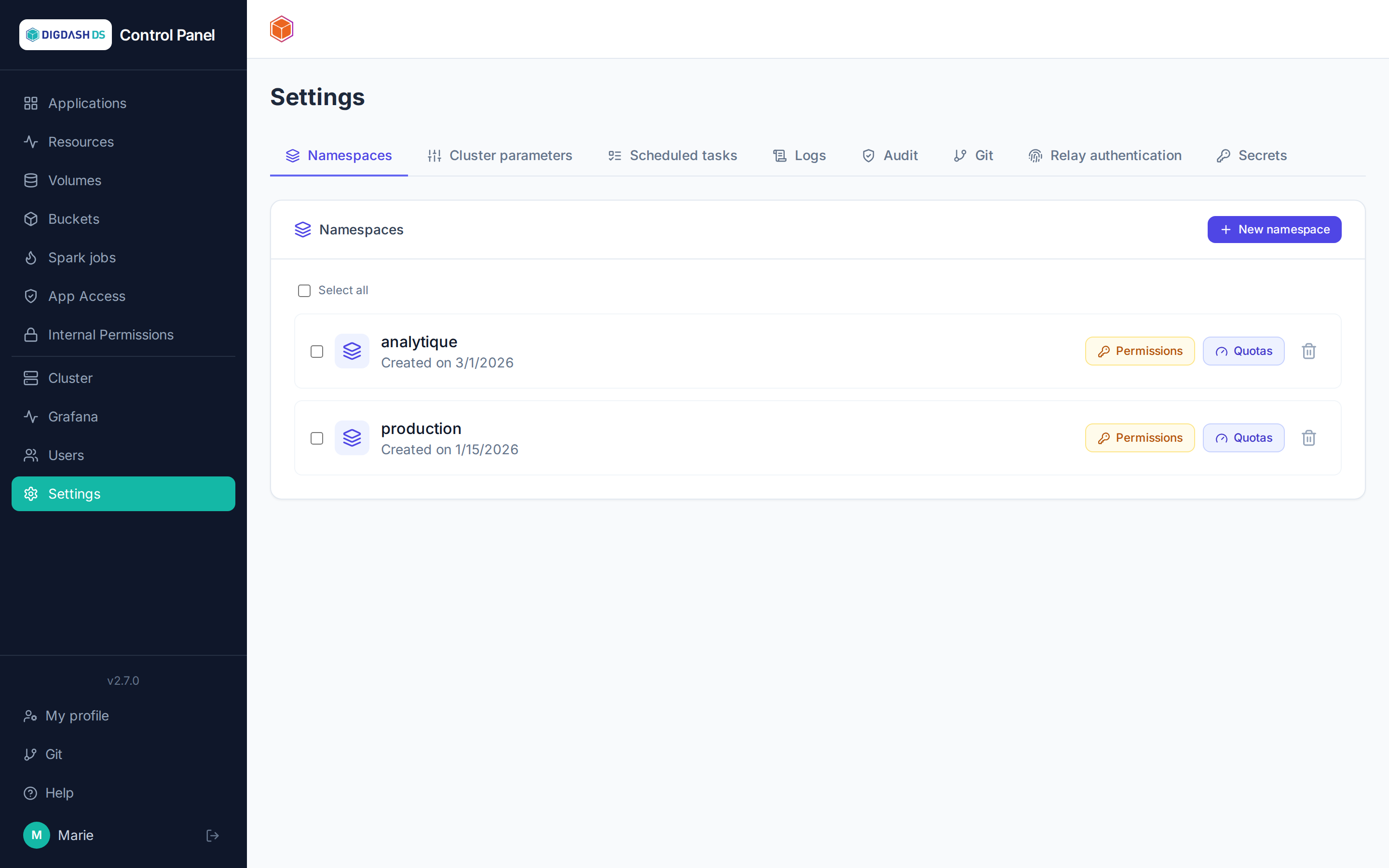
A namespace is an isolated workspace: its applications, volumes and buckets are separate from those of other namespaces, and it carries its own quotas and permissions.
Creating a namespace
New namespace (from the dashboard header or the Namespaces tab) → name (lowercase letters and digits), description, and quotas:
| Quota | What it caps |
|---|---|
| CPU requests / limits | The sum of pods' CPU reservations and ceilings |
| Memory requests / limits | Same, for memory |
| Pods | The number of simultaneous pods |
| Storage | The sum of persistent volume capacities |
The platform's default values are pre-filled and adjustable at creation. CPU, memory and storage are entered as a whole number + unit (m/cores, Mi/Gi/Ti), the pod count as a whole number.
An Isolate namespace on the network checkbox (checked by default) immediately applies the deny-all network policy described below — uncheck it to create an open namespace; isolation can still be turned on at any later time from the Namespaces tab.
Tracking and adjusting quotas
- The dashboard's quota gauge continuously shows the current namespace's consumption.
- In the Namespaces tab, the Quotas button on each row lets you adjust an existing namespace's ceilings.
- By selecting several namespaces, the edit applies in bulk to the whole selection.
Tip
A deployment refused with exceeded quota names the quota at fault and the requested/used/ceiling values — enough to decide between freeing up resources and raising the quota.
Permissions on a namespace
The Permissions button on a row grants a user a role (viewer, operator, admin) on that namespace — see Access and permissions.
Network isolation
The Network button on a row opens the namespace's network isolation — deny-all by default once enabled: no inbound or outbound traffic is allowed except the rules declared below (plus a handful of technical flows that always stay necessary: DNS, access to the Gateway for HTTPRoutes, etc.).
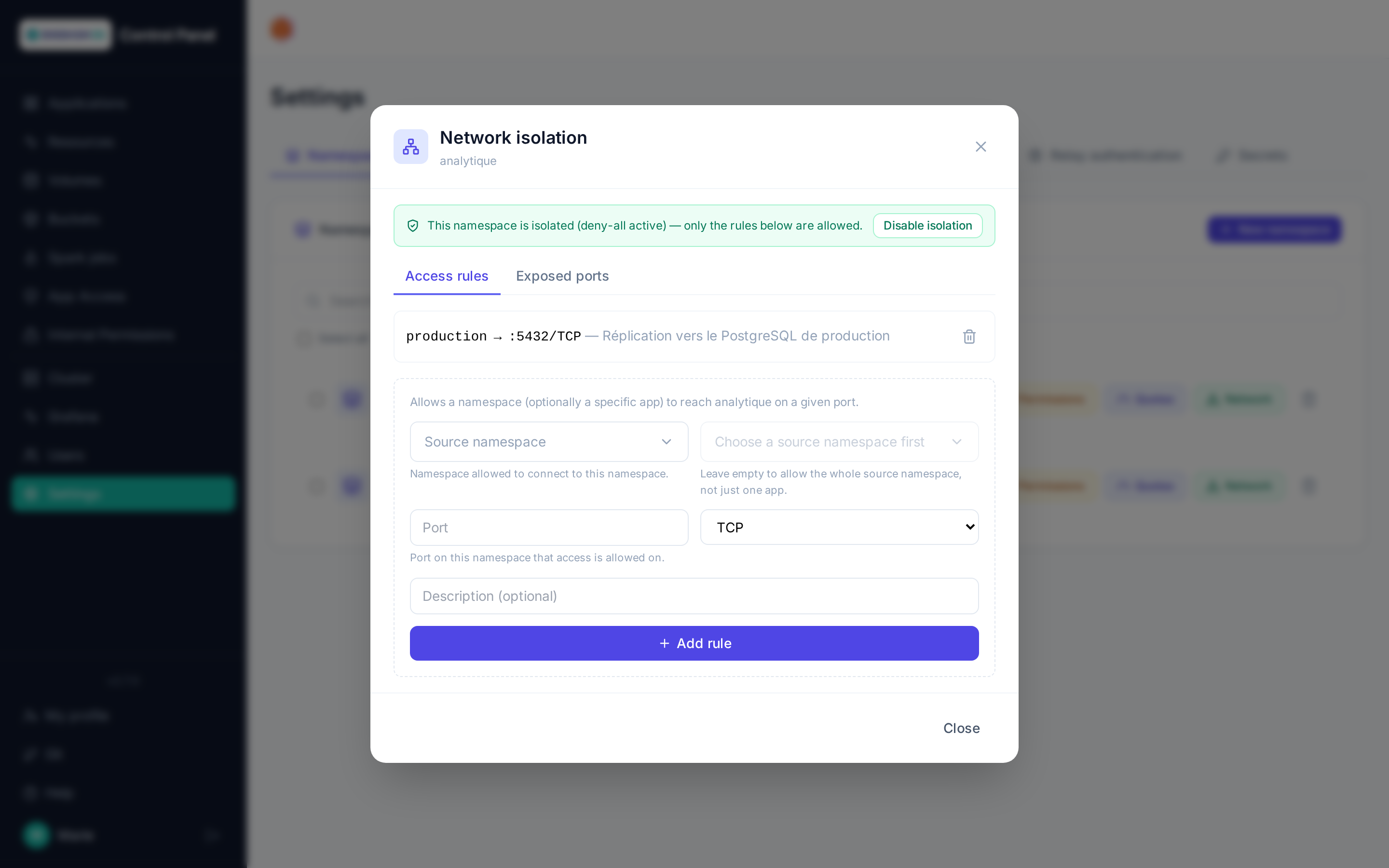
- Enable / disable isolation: switches the namespace between open (legacy behavior) and isolated. Declared rules stay visible and editable even while disabled, simply with no effect until isolation is turned back on.
- Outbound connections (internet): checked by default, letting the namespace's applications reach outside the cluster — package downloads, third-party API calls. Unchecked, only the technical flows (DNS, Kubernetes API, Forgejo, Keycloak) and the declared rules remain. Isolation therefore covers traffic between namespaces, not internet access.
- Bulk editing: tick several namespaces in the list, then click Network in the toolbar to enable or disable isolation, or allow or block outbound connections, for the whole selection at once. Namespaces with nothing to change (already in the requested state, or not isolated for outbound connections) are skipped and listed at the end.
- Access rules: allows a namespace (and optionally one specific app of that namespace) to reach this namespace on a given port — useful for example for cross-namespace replication or a legitimate cross-namespace application access.
- Exposed ports: exposes a Service of this namespace on a public TCP port through the shared Gateway, for access from outside the cluster. Each port can be restricted to a list of allowed IP addresses (IPs or CIDR ranges, pre-filled with your current address on creation, editable later through the filter icon): a source outside the list is refused by the proxy before it reaches the application. Left empty, any address the external firewall lets through is accepted. A PostgreSQL database is exposed from its own card instead (External access button), which picks the port and requires TLS — see PostgreSQL administration.
Note
Only namespaces created after this feature was introduced can be isolated — and among those, isolation is only effective right from creation if the corresponding checkbox was checked (see above). A non-isolated namespace (older, or created with the checkbox unchecked) shows "not isolated": declared rules then have no effect on the cluster until isolation is turned on.
Warning
Exposing a port (Exposed ports tab) also requires the matching forward on the infrastructure side, on a potential upstream firewall — not automated from this interface.
Deleting a namespace
Deletion with confirmation — destroys all of the namespace's content (applications, volumes, buckets). Irreversible.
Cluster parameters
The Settings → Cluster parameters tab.
Cluster parameters are typed text settings that drive the platform's behavior. Each parameter has:
- a type (cluster setting, Digdash license, API token…);
- a name (its key) and a value;
- a scope: global (empty namespace — applies everywhere, management restricted to platform administrators) or scoped to a namespace (managed by that namespace's admins, takes priority over the global value).
Examples of recognized settings
| Name | Effect |
|---|---|
USE_DIGDASH_BETA |
true to offer Digdash BETA versions in the version picker |
DIGDASH_QA_DATABASE_TYPES |
true to show database engines reserved for internal QA (MariaDB, PostgreSQL side-car) in the Digdash BI form |
DIGDASH_FILEBROWSER |
Default value of the File Browser option for Digdash deployments |
DEFAULT_DIGDASH_RAM |
Default memory suggested for a Digdash BI deployment |
CPU_REQUEST_RATIO_<APPLICATION> |
Share of the CPU limit that is reserved (requests), as a percentage — e.g. 20: a Hop Web limited to 2 cores reserves only 0.4. One setting per application type: POSTGRES, DIGDASH_BI, HOP_WEB (or APACHE_HOP_WEB), HOP_SERVER, FORGEJO, NGINX, ICEBERG. Applied at deployment (afterwards, the reservation is set directly in Configure → container resources); 100 (default) = reservation equal to the limit. |
GRAFANA_URL, PROMETHEUS_PUBLIC_URL, ALERTMANAGER_URL |
Public URLs of the monitoring tools (links on the Cluster page, the sidebar and the cards) — default https://grafana|prometheus|alertmanager.<domain> |
PROMETHEUS_URL |
Address of the internal Prometheus queried for volume usage and alerts (default: the service of the monitoring namespace) |
SPARK_JOB_GIT_IMAGE, SPARK_JOB_S3_IMAGE |
Images of the initContainers fetching a Spark job's source (Git repository / S3 object) — override on a cluster without Docker Hub access |
POSTGIS_DEFAULT_IMAGE |
PostgreSQL image shipping PostGIS, used when the PostGIS option is ticked (must match the CNPG operator's major version) |
CUSTOM_PORT_AUTO_RANGE |
Range (start-end) a port is automatically allocated from, notably for a PostgreSQL database's external access — 30000-35000 by default |
CUSTOM_PORT_RESERVED_PORTS |
Ports always refused for a TCP exposure, on top of the ports the Gateways actually carry — 80,443,222 by default |
POSTGRES_PUBLIC_TLS_SECRET |
Secret (namespace/name) of the Let's Encrypt wildcard certificate served by exposed PostgreSQL databases, e.g. default/pg-wildcard-tls: clients then verify the server with no CA file. Copied into each exposed database and resynchronized every night. Empty or none: CNPG certificate and CA file to download |
POSTGRES_PUBLIC_DOMAIN |
Domain covered by that wildcard (*.<domain>): exposed databases are named <app-name>-<namespace>.<domain> — default pg.<platform domain> |
Sensitive values
A parameter's value is shown in plain text to anyone with access to its scope. Only put a secret there if the scope is appropriate.
Usage
The list can be filtered by namespace and by type; creation, editing and deletion happen directly in the table. A parameter created as a duplicate (same namespace, type and name) is rejected.
Scheduled tasks
The Settings → Scheduled tasks tab.
Scheduled tasks automatically run recurring operations on the platform.
Task types
- Application tasks: target an application within a namespace — restart, start, stop an application, take a snapshot with retention, queue a Hop job…
- System tasks: platform maintenance (database cleanup, application reconciliation…), restricted to administrators.
Creating a task
New task → name, description, task to run (chosen from the catalog), target (application/namespace for an application task), and schedule:
- Interval: every n seconds/minutes/hours/days;
- Cron: minute, hour, day of month, month, day of week, with a timezone.
A task can be disabled without being deleted, and run now (dedicated button) regardless of its schedule.
Creating or editing an application task requires the admin role on the target application's namespace.
Application tasks
An application task targets a specific application — except Stop all applications in a namespace, which targets a whole namespace directly (the application field is then hidden in favor of a namespace field).
The target application's name and namespace are always derived from the selected application: never enter them as keyword arguments.
Restart / Start / Stop application
Nothing to enter: just pick the application.
For Start application only, the replica count can be set in Advanced options → Keyword arguments (defaults to 1):
{ "replicas": 2 }
Warning
Do not add release_name to the keyword arguments: it is already passed automatically, and the duplicate makes the run fail.
Stop all applications in a namespace
No task/application to pick in the main form: a dedicated Namespace field appears instead of the Application field. No keyword arguments to enter — {"namespace": "..."} is injected automatically from that field.
Application snapshot (with retention)
Simplified form (visible without "Advanced options"): a single field, Number of snapshots to keep (integer ≥ 1, defaults to 7). release_name/namespace are derived automatically from the selected application — do not enter them as keyword arguments.
Example: automatic volume snapshot
A daily snapshot of a critical application's volume: cron schedule 0 2 * * *, retention of 7 snapshots. To restore a snapshot created this way, see Volumes.
Call REST API
{
  "url": "https://example.com/api/hook",
  "method": "POST",
  "json_body": { "key": "value" },
  "headers": { "X-Custom": "value" },
  "auth_param": "namespace_parameter_name",
  "timeout": 30
}
url(required).method:GET,POST… (defaults toPOST).json_body: JSON body sent as-is (optional).headers: additional HTTP headers (optional).auth_param: the name of a parameter on the selected application's namespace — its value is read and injected as-is into theAuthorizationheader (e.g.Bearer xxx). This is the parameter's name, not the token itself. The namespace is enforced by the selected application: anamespaceentered in the arguments is ignored.timeout: seconds (defaults to 30).
Enqueue Hop job
{
  "queue_name": "my-hopqueue",
  "kind": "pipeline",
  "path": "/files/projects/current/mypipeline.hpl",
  "name": "MyPipeline",
  "parameters": {},
  "run_config": "local"
}
queue_name: the name of an existing HopQueue on the Hop Server application (not to be confused with the Queue field described below — a Celery queue, a distinct concept).kind:pipelineorworkflow.path: the.hpl/.hwffile path, as returned by the Hop Server application's file list (prefixed with/files/projects/current/).name: the pipeline/workflow's internal name (the Hop file'snameattribute — not the scheduled task's own name entered at the top of the form).parameters: pipeline/workflow parameters (object, optional).run_config: Hop run configuration (e.g.local) — in practice required, execution fails on the Hop Server side without it.
Note
This entry remains a low-level access path. To schedule actual recurring Hop jobs, the dedicated Scheduled recurring jobs section of the Hop Server application itself (guided form, per-job history) is the recommended route — see Apache Hop Server: jobs and scheduling.
Advanced options
The Advanced options button on the form reveals fields normally hidden:
- Keyword arguments: the task's parameters as free-form JSON — see the per-task detail above. Application snapshot and Stop all applications in a namespace have their own simplified form and don't need it.
- Queue: the Celery queue that runs the task (advanced setting, rarely needed — unrelated to a HopQueue).
- Positional arguments: the positional-list equivalent of keyword arguments, for one-off needs.
Monitoring
Each task shows its last run and its total run count; its history lists past runs with their status and result, filterable by status.
Relay authentication
The Settings → Relay authentication tab — platform administrators only.
Relay authentication lets users sign in to the platform through an external identity provider (the company SSO, a third-party directory…): the platform's Keycloak then delegates authentication to that upstream provider, using OpenID Connect or SAML 2.0.
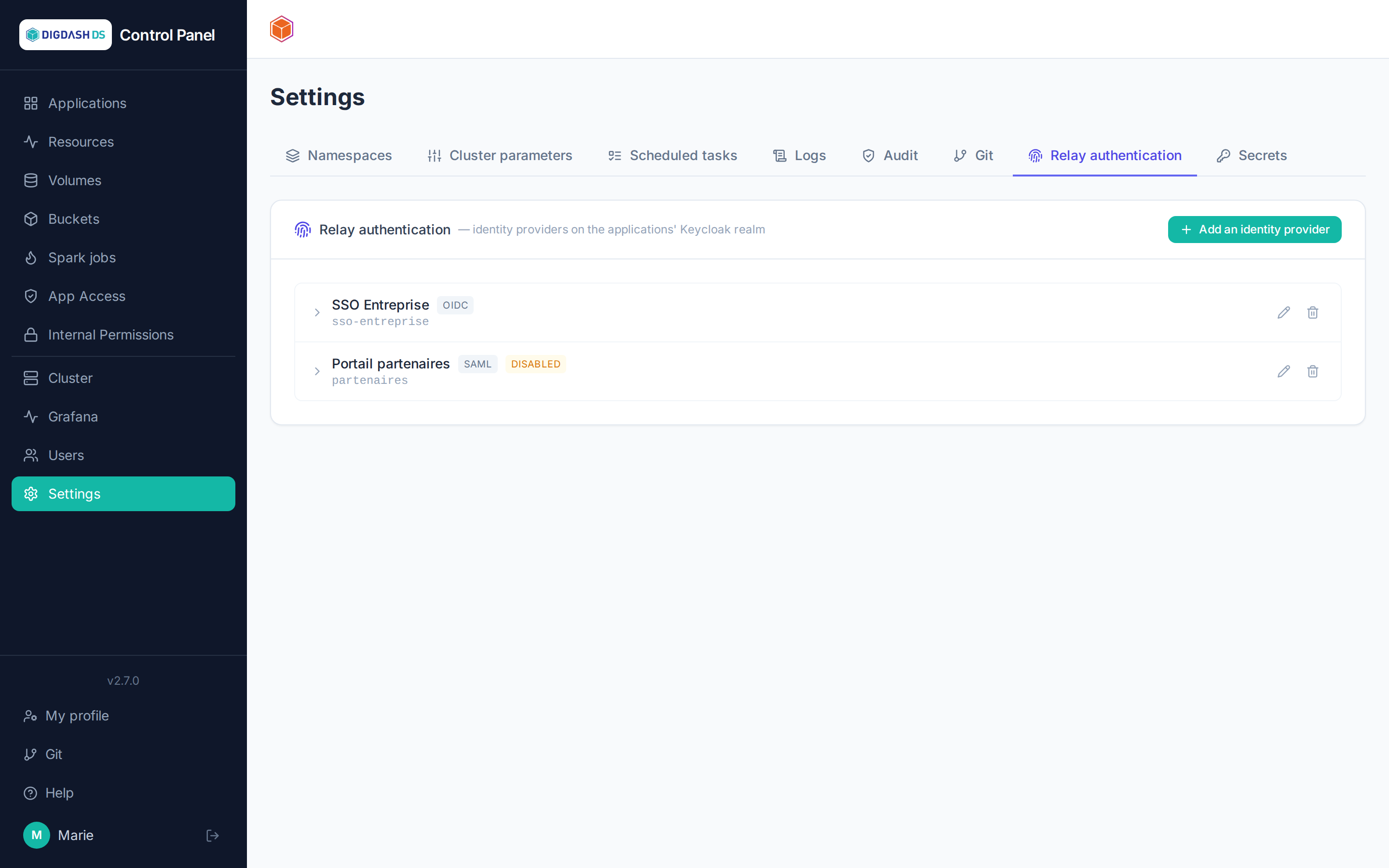
Adding an identity provider
Add an identity provider:
- Alias: a unique technical identifier (it appears in URLs — cannot be changed afterwards).
- Protocol: OpenID Connect or SAML 2.0 — the form adapts accordingly.
- Display name: the label of the sign-in button shown to users.
- Import from a URL: paste the provider's discovery URL (
…/.well-known/openid-configurationfor OIDC, the metadata URL for SAML) and click Import — the authorization, token, JWKS URLs… are filled in automatically. - Fill in the Client ID and Client secret provided by the upstream provider's administrator, then Save.
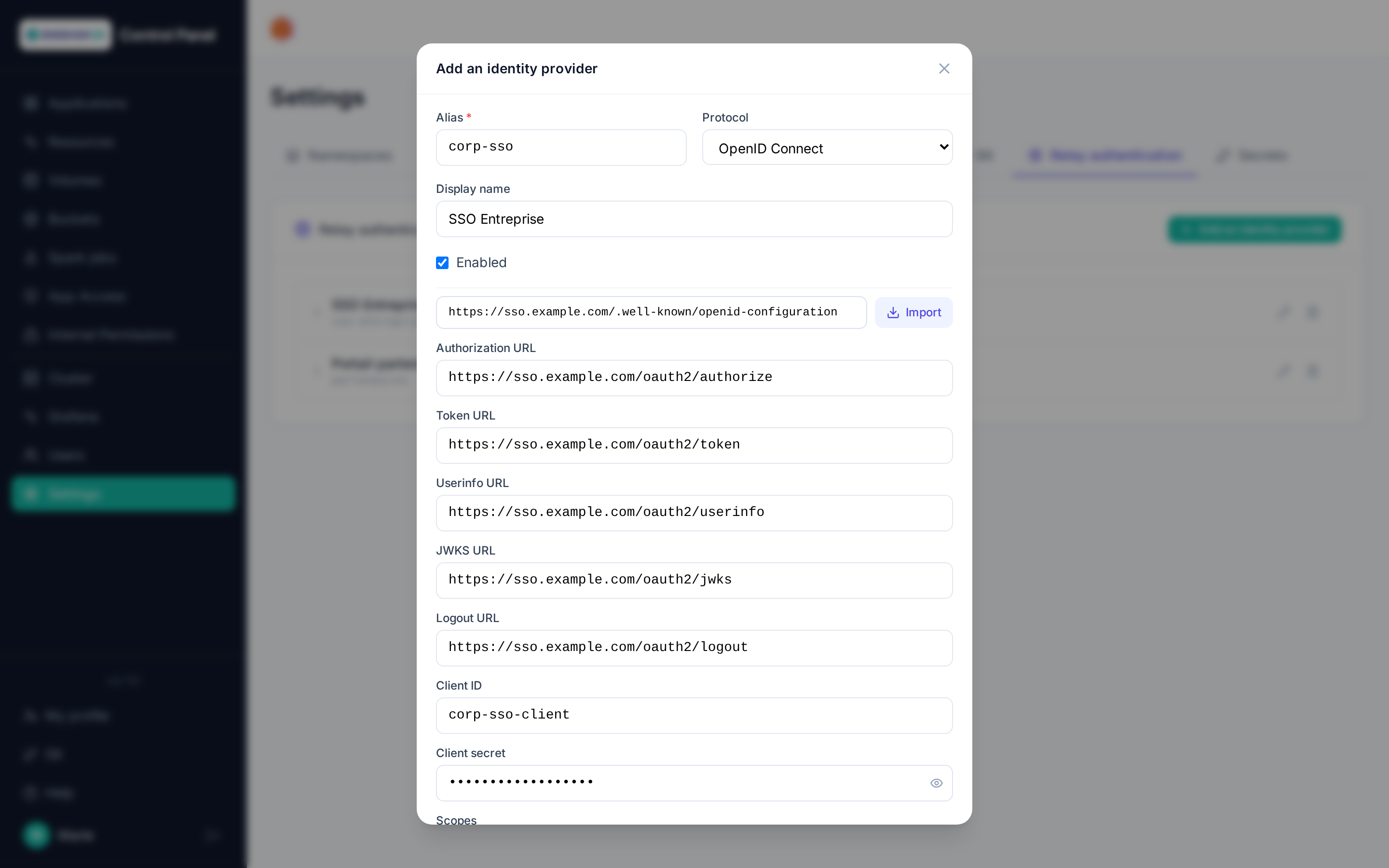
The provider then appears in the list; it can be disabled temporarily, edited or deleted at any time. The configuration lives directly in Keycloak — there is no local copy, what you see is always the real state.
Existing accounts: automatic linking
The Automatically link to existing accounts option, checked by default, handles a user already created in the Control Panel (Users page) who signs in through SSO for the first time:
- checked: their SSO identity is linked straight to the account with the same email or username, without asking for a password. Accounts meant for SSO can therefore be created without a password;
- unchecked: Keycloak's default behavior, the "Account already exists" screen asks for the existing account's password before linking it.
An SSO user without an existing account gets one created on their first sign-in, in both cases.
Trusted providers only
With automatic linking, the platform takes the upstream provider at its word: a user able to freely choose their email or username there could sign in to the matching platform account. Only keep it enabled for a provider that guarantees this information (corporate directory, Entra ID, Google…).
Providers created before this option existed keep Keycloak's default behavior: check the option when editing them, or run python manage.py enable_idp_auto_link on the backend to switch them all.
Mappers
Expanding a provider's row, the Mappers section maps information received from the upstream provider onto the platform:
- Attribute: copies an OIDC claim (or a SAML attribute) to a user account attribute — for example
department→departmentattribute. - Role: grants a realm role when a claim equals a given value — for example
groups = "admins"→platform_adminrole.
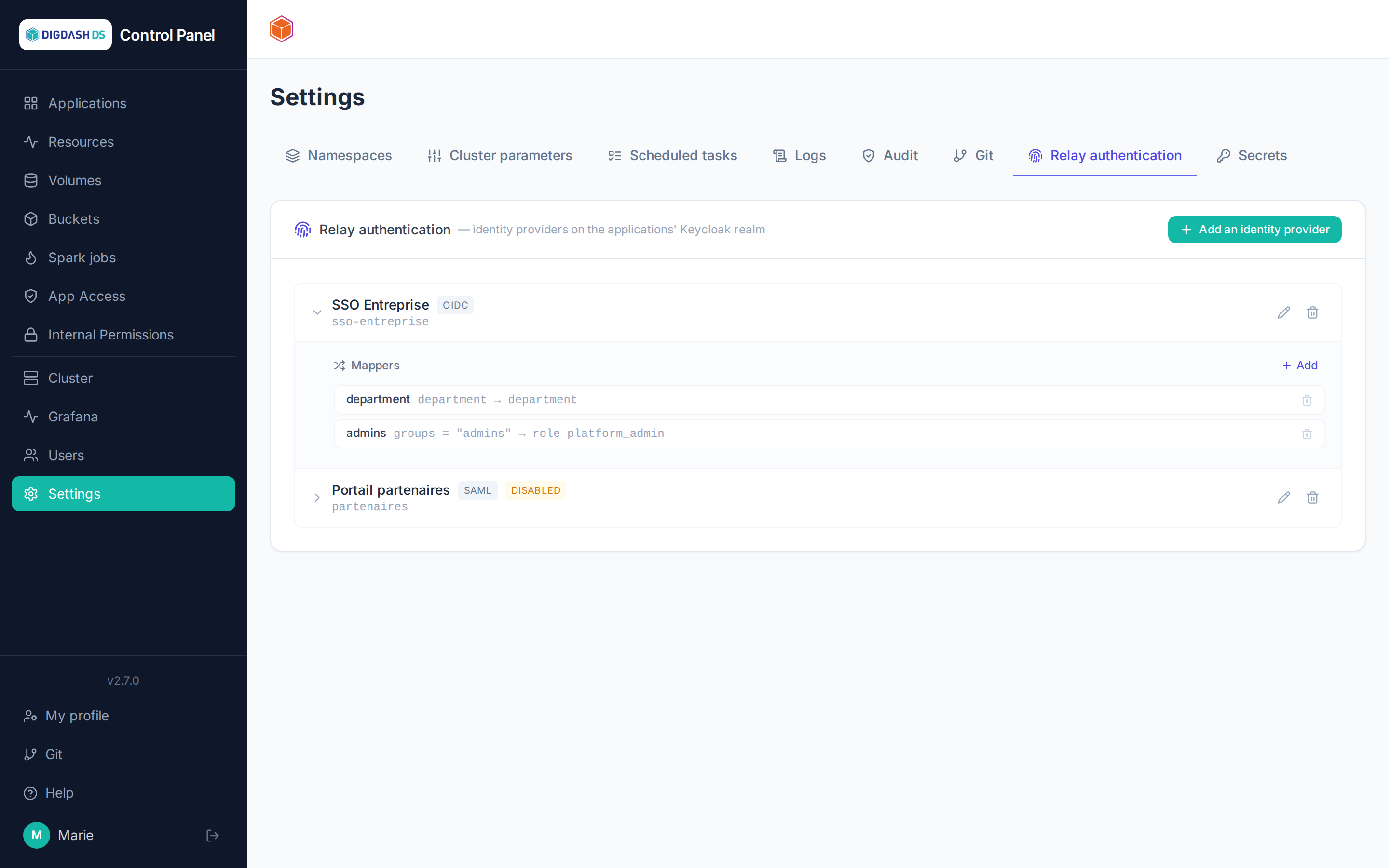
On the upstream provider's side
The identity provider's administrator must register the platform as a client and authorize the Keycloak redirect URL (https://<keycloak>/realms/<realm>/broker/<alias>/endpoint), visible in the Keycloak console.
Example: signing in with a Google account
Google exposes a standard OpenID Connect provider — no special configuration is needed on the platform side beyond the flow described above.
1. Create the credentials on Google's side
In the Google Cloud Console (a dedicated or existing project):
- APIs & Services → OAuth consent screen: set it up if not already done (app name, authorized domains).
- APIs & Services → Credentials → Create credentials → OAuth client ID, type Web application.
- Authorized redirect URIs: add
https://<keycloak>/realms/<realm>/broker/google/endpoint(the alias chosen in the next step —googlehere — must match). - Note down the generated Client ID and Client secret.
2. Configure the identity provider on the platform side
From Add an identity provider:
- Alias:
google(must match the redirect URI authorized on Google's side). - Protocol: OpenID Connect.
- Display name: e.g.
Google. - Import from a URL:
https://accounts.google.com/.well-known/openid-configuration, then Import — Google's endpoints (authorization, token, JWKS, userinfo) are filled in automatically. - Client ID / Client secret: the values noted in the previous step.
- Save.
The Google button then appears on the platform's sign-in screen.
Restricting to a Google Workspace domain
To only allow accounts from a Google Workspace organization rather than any Google account, publish the OAuth consent screen internally to the organization (rather than externally) on the Google Cloud Console side — the restriction then happens on Google's side, before the user even reaches the platform.
URL redirects
Tab Settings → Redirects — platform administrators only.
A redirect answers every request sent to a host name with a 301 (permanent redirect) to the URL of your choice. It serves service migrations, both ways:
- from outside into the cluster: the former domain of a service (
www.customer.com, for instance) is redirected to the application that replaces it in the cluster; - from the cluster to the outside, or to another application: the former address of a cluster application (
old-app.<cluster domain>) is redirected to its new service, internal or external.
Browsers and search engines remember a permanent redirect: existing links and bookmarks keep working.
Creating a redirect
New redirect:
- Redirected host name: the name alone, without
https://or path. It cannot change afterwards: to change it, delete the redirect and create it again. - Target:
- Cluster application: choose the namespace, then the application; the target URL becomes the root of the application;
- URL: any
http://orhttps://address, without a query string (?…) or fragment (#…).
- Keep the request path (checked by default):
https://old-address/docs/a.pdfleads to<target>/docs/a.pdf. Unchecked, every request leads to the target URL itself. The query string is kept in both cases. - Create.
http:// addresses of the redirected name are redirected too.
Host name certificate
- Cluster subdomain (
old-app.<cluster domain>): covered by the cluster certificate, the redirect is active within seconds. - External domain: a dedicated certificate is requested from Let's Encrypt. First point the domain's DNS to the public address of the cluster, shown in the creation dialog: Let's Encrypt checks the domain by reaching it. The certificate is usually issued within one or two minutes.
-
Provided certificate (option of the dialog, for any host name): use a certificate generated outside the platform (internal authority, purchased certificate, etc.). Paste or load from a file:
- the certificate in PEM format: the server certificate first, followed by the intermediate certificates;
- the private key in PEM format, unencrypted.
The Control Panel checks that the key matches the certificate, that the certificate covers the host name (exact name or
*.domainwildcard) and that it has not expired. The key is only kept in the cluster (TLS Secret), never in the Control Panel database. The domain's DNS must still point to the cluster, but no Let's Encrypt check takes place.
No automatic renewal
A provided certificate is not renewed by the platform: the row shows its expiry date (in orange within 30 days). Before it expires, open Edit and upload the new certificate and its key; left empty, the current certificate is kept.
Following a redirect
Each row shows:
- Cluster domain or External domain;
- Path kept or Path replaced;
- Route: ready when the cluster gateway serves the redirect; pending right after a creation or a change;
- Certificate (external domain): pending until Let's Encrypt has issued the certificate. Hover the badge to read the details, for instance a DNS that does not point to the cluster yet. For a provided certificate: ready, or error once expired, with its issuer and expiry date.
Refresh reads the state from the cluster again.
Editing, deleting
- Edit: change the target, the path option, the description or the certificate (switch to a provided certificate or back to the automatic one, upload a new certificate). The new target applies within seconds.
- Delete: the host name is no longer redirected; its dedicated certificate (issued or provided) is deleted too.
Host name still in use
A redirect cannot be created for a host name that an application or a route still serves: the message names the object concerned. To redirect the former address of an application, delete the application first.
Secrets
The Settings → Secrets tab — access restricted to administrators of the namespace (or application) concerned.
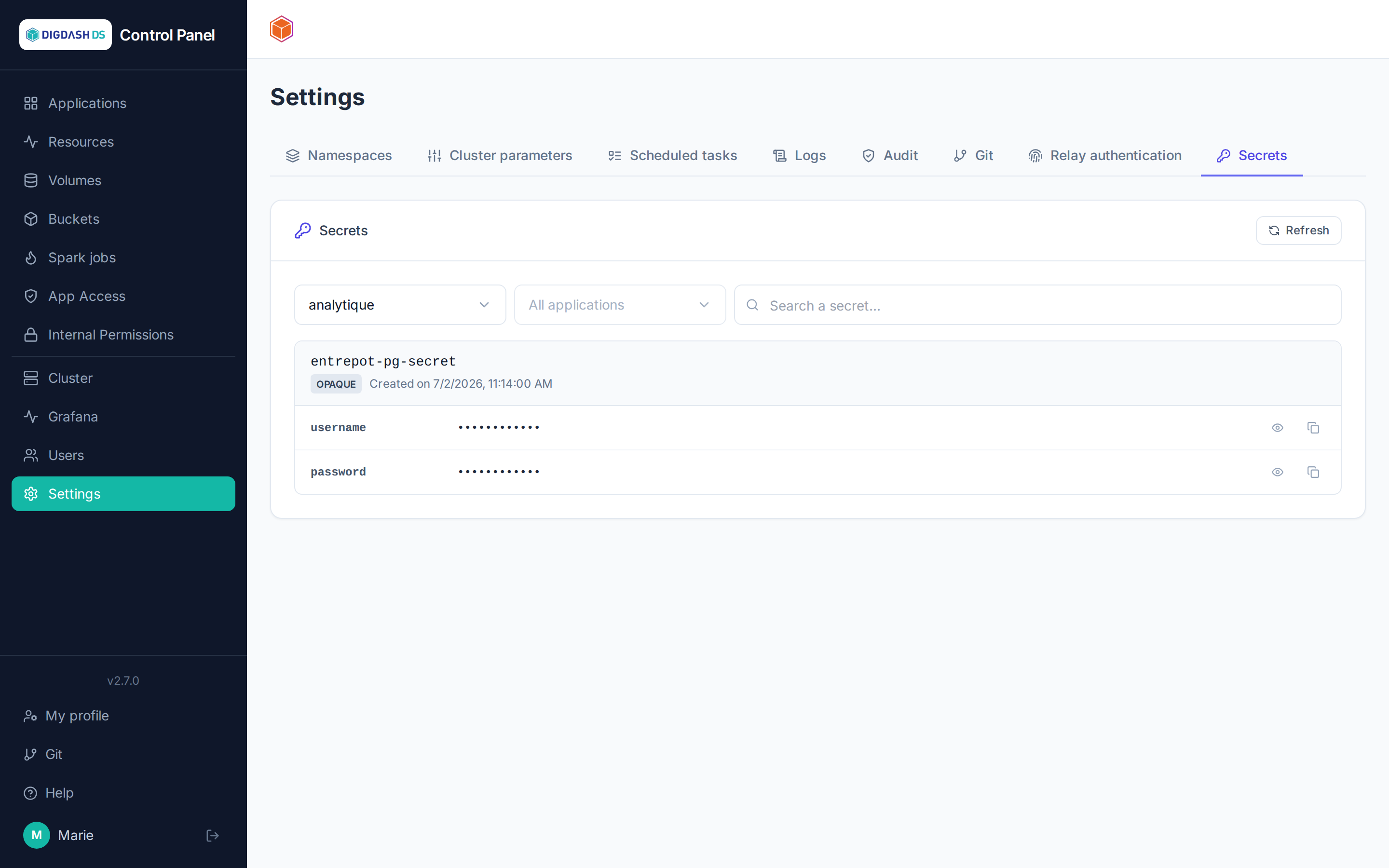
The Secrets tab lists the Opaque and basic-auth Kubernetes Secrets of a namespace (or of a single application, via the filter). OIDC secrets managed by the platform (applications' Keycloak clients) are excluded from the list — they are neither listed nor viewable here.
On-demand viewing
The list only shows each secret's key names, never their values. Clicking Show retrieves and reveals a single key's plaintext value, on demand — the value stays hidden for every other key until it is individually clicked.
Traceability
Every view (Show) and every copy (Copy) triggers its own call, logged separately in the audit trail (Settings → Audit tab) — who saw or copied which key, and when.
Copying a value
The Copy button places the value on the clipboard without necessarily showing it first — useful for pasting a password or an API key directly into another tool without exposing it on screen.
Filtering
A namespace selector and an application selector let you narrow down the list — an application administrator (without rights over the whole namespace) only sees the secrets of their own applications.
Audit logs
The Audit logs tab (Settings, platform administrators only) traces mutating actions performed by users — create, update, delete — on resources managed by the Control Panel: applications, accounts, permissions, volumes, namespaces, Git secrets, identity providers…
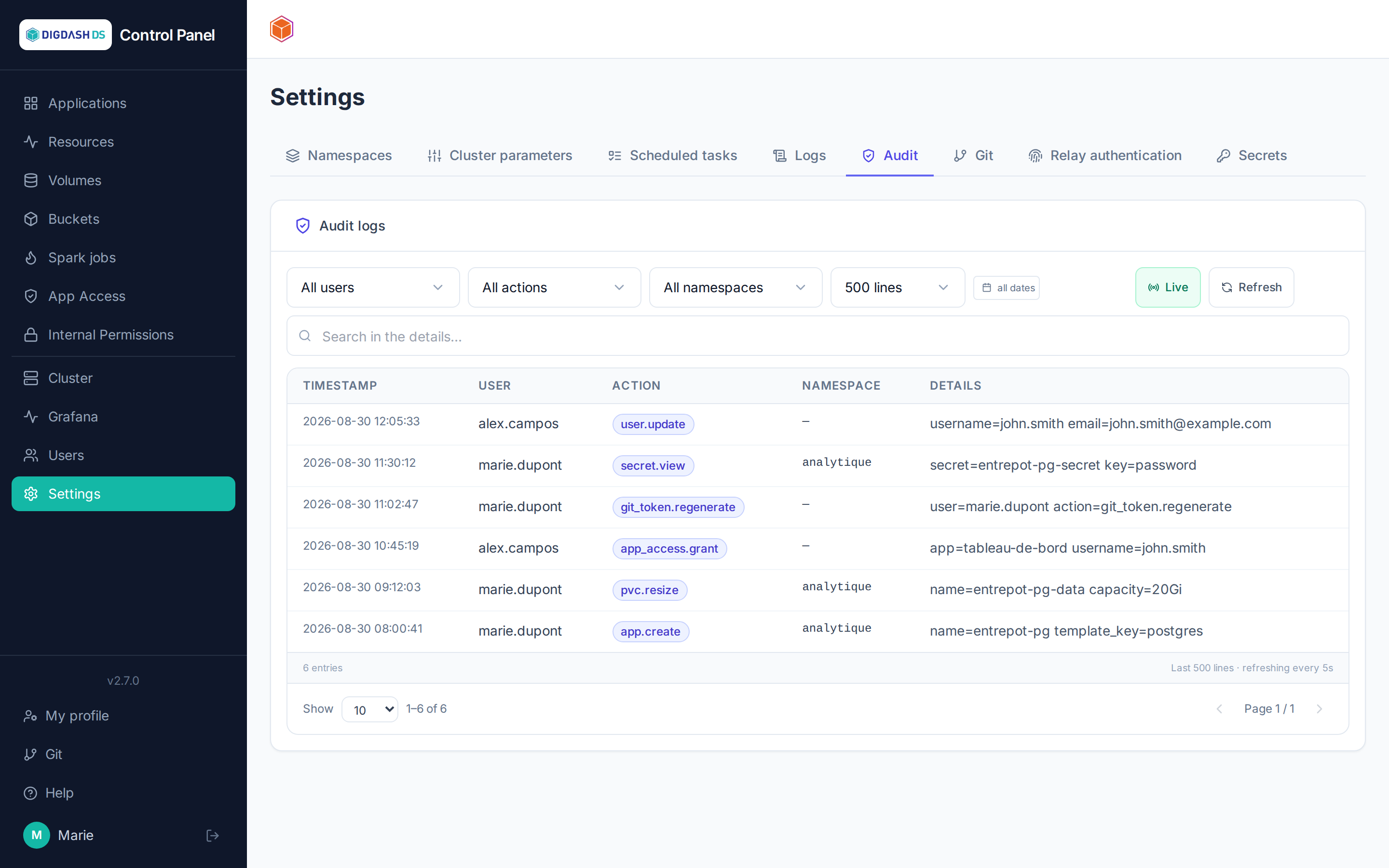
What isn't traced here
Only successful actions are logged — an attempt rejected by a permission check or a technical error doesn't appear in this log (it stays visible in the general technical logs). Plain data reads generally aren't traced, except reads considered sensitive: viewing a personal Git token (git_token.view) and viewing or copying a Kubernetes secret's value (secret.view, secret.copy — see Secrets).
Table columns
| Column | Content |
|---|---|
| Timestamp | Date and time of the action, in the browser's time zone. |
| User | The username who performed the action — anonymous for an unauthenticated action (normally never happens, since these actions require a session). |
| Action | A short, stable identifier in resource.verb form, e.g. app.create, user.delete, pvc.resize, git_token.regenerate — see examples below. |
| Namespace | The relevant namespace, when the action depends on one (an application, a PVC…) — empty for cross-cutting actions (user management, identity providers…). |
| Details | Identifiers specific to the action's target (application name, pod, volume, group…), as key=value pairs, specific to each action type. |
Action examples
| Action | Domain |
|---|---|
app.create, release.delete, release.scale, deployment.restart, workload.update |
Application lifecycle |
pvc.create, pvc.resize, pvc.delete, pvc.clone, pvc.snapshot, snapshot.restore, snapshot.delete |
Volumes and snapshots |
app_access.grant, app_access.revoke, app_access.set_profiles, application_permission.delete |
Application access |
user.create, user.update, user.delete, user.bulk_update, user.bulk_delete |
User accounts |
group.member_add, group.member_remove, group.namespace_permission_add, group.namespace_permission_remove, group.delete |
Groups and permissions |
namespace.create, namespace.quota_update, namespace.quota_bulk_update, namespace_permission.delete |
Namespaces and quotas |
git_token.view, git_token.regenerate |
Personal Git access token |
identity_provider.create, identity_provider.update, identity_provider.delete, identity_provider.mapper.create, identity_provider.mapper.update, identity_provider.mapper.delete |
Identity brokering (see Identity brokering) |
secret.view, secret.copy |
Viewing or copying a Kubernetes secret value (see Secrets) |
No secret values are ever logged
A password, token or secret key never appears in plain text in an action's details — only the fact that it changed is traced (e.g. password_changed=True).
Filtering and following the log
- User, Action, Namespace: dropdowns populated dynamically from values seen so far.
- Search: full-text filter on the Details column.
- Date range: restricts to entries whose timestamp falls within the chosen interval.
- Line count: volume of log lines fetched from the server (100 to 5000).
- Live: auto-refreshes every 5 seconds; Pause freezes the display without stopping collection.
Log bundle
The log bundle is a single file that gathers the logs and the state of the platform, intended for the DigDash support team: when they need to understand an incident, this is the file they ask for. It is produced from the Logs tab (Settings, platform administrators only), with the Export the log bundle button — no command line, no access to the cluster.
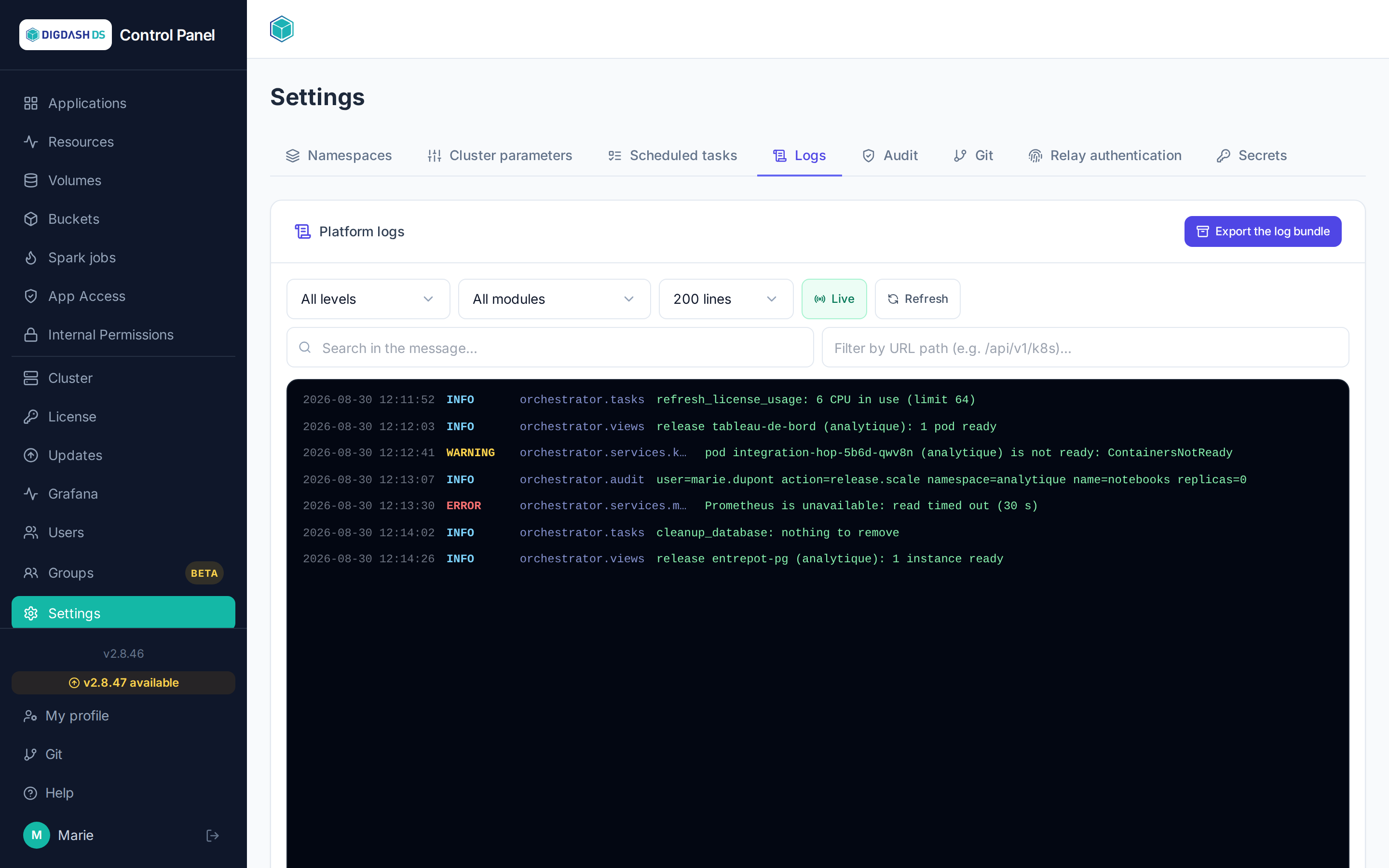
A file for the DigDash support team, and for them only
The file is encrypted: only the DigDash support team can open it. Nobody else can read its content, not even a platform administrator. It is therefore of no use otherwise, and is sent to them only.
Starting an export
Export the log bundle opens the Export a log bundle window. It asks for two things — what the bundle must contain, and over which period — then Export starts the collection. Export stays greyed out as long as nothing is checked.
On opening, the window may show Reading the cluster: namespaces, applications and their state…: it is asking the platform what can be checked. On a large platform, this can take up to a minute. If an export is already running or ready, its progress is shown without waiting.
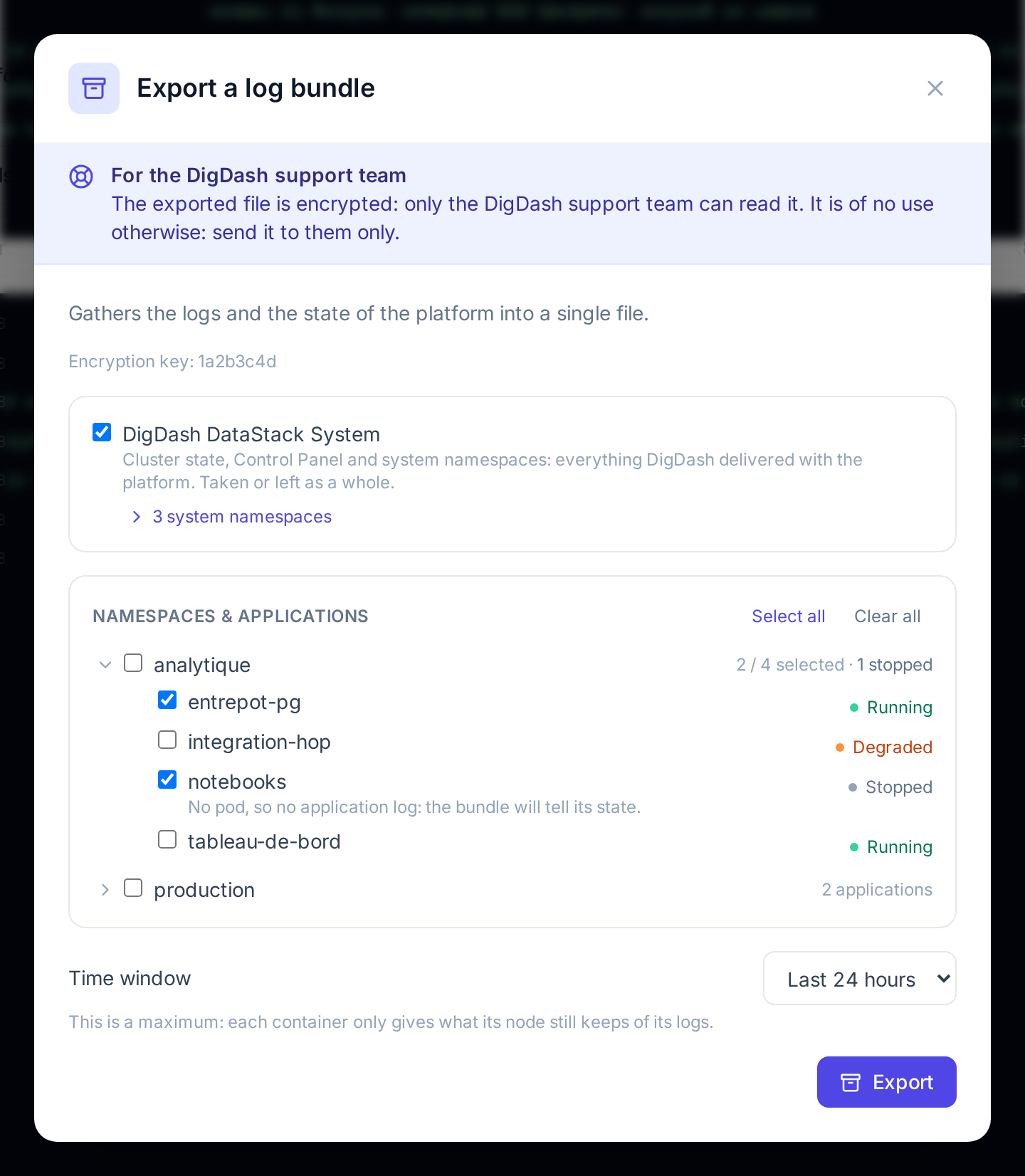
Scope
| Block | What it brings to the bundle |
|---|---|
| DigDash DataStack System | The cluster state, the Control Panel and the system namespaces: everything DigDash delivered with the platform. Checked when the window opens; taken or left as a whole. The N system namespaces link lists the namespaces concerned. |
| Namespaces & applications | The namespaces managed in the Control Panel and their applications. Checking a namespace takes it as a whole; the chevron on its left unfolds its applications, to check only some of them. Select all and Clear all act on all namespaces. |
Support usually says what to check. Otherwise, keeping DigDash DataStack System and adding the application or namespace affected by the incident gives a useful bundle without making it needlessly large.
Folded, a namespace shows how many applications it contains, how many are checked, and how many are stopped. Unfolded, each application carries its state:
| State | Meaning |
|---|---|
| Running | Everything the application must run is ready. |
| Degraded | Part of the application is not ready: startup in progress, pod in error… |
| Stopped | The application is stopped. It has no pod, so no log: when checked, it only brings its state to the bundle. |
Applications or states not shown
When the list of applications of a namespace cannot be read, the namespace is still offered, to be taken as a whole (Applications not listed). When it is their state that cannot be read, the applications are shown without a state.
Time window
The Time window bounds what is collected: Last hour, Last 24 hours (offered when the window opens), Last 2 days, Last 3 days or Last 7 days.
This is a maximum. Each node only keeps a limited volume of logs per container: a container that writes a lot sometimes covers only a few hours, whatever the requested period. And the logs of a pod disappear with it: after an update or a redeployment, they do not reach back beyond the creation of the new pod.
Following the collection
The window shows Collecting… and the progress, in processed targets. The collection takes from a few seconds to about fifteen minutes, depending on the scope.
- The window can be closed: the collection carries on on the platform, and the Export the log bundle button brings its progress back.
- Cancel the export stops the collection; nothing is kept.
- Only one export at a time on the platform. If another administrator has started one, the window shows its progress instead of the form.
Downloading the bundle
Once the collection is over, the window shows The bundle is ready. with:
| Item | Content |
|---|---|
| File | The file name, of the form ds-bundle-<platform>-<date>-k<key>.zip.age: the platform it comes from, the start of the collection (UTC time) and the encryption key used, the one the window shows before the export (Encryption key). |
| Size | The size of the encrypted file. |
| SHA-256 digest | The digest of the file, which makes it possible to check that it has not been altered. |
| N files · N masked values | The number of files in the bundle and the number of sensitive values masked (see What the bundle contains). |
| Available until… | The time at which the bundle will be removed from the platform: one hour after it was produced. |
Download hands the file to the browser, which checks it against its digest before saving it to the downloads.
| Message | What happened | What to do |
|---|---|---|
| Bundle downloaded and verified. | The file is intact, and it has been removed from the platform. | If it does not show up in the browser downloads, Save again before closing the window: once it is closed, a new export is needed. |
| Bundle downloaded. This browser could not verify its integrity… | The file is saved, but the browser could not check it — this is the case when the Control Panel is opened over HTTP rather than HTTPS. The bundle stays on the platform, for one hour at most. | Compare the digest shown with that of the received file (sha256sum on Linux, shasum -a 256 on macOS, Get-FileHash on Windows), then Remove from the platform. |
| The received file does not match the announced digest and was not saved… | The received file is not the one the platform produced: the transfer altered it. The bundle is still on the platform. | Click Download again. |
Nothing stays on the platform
The bundle is removed as soon as it has been downloaded and verified, and in any case one hour after it was produced. As long as it is there, the window shows it to every platform administrator; to start another export, it must first be downloaded or erased with Delete this bundle.
Sending the file to support
The .zip.age file is sent as is to the DigDash support team, through the usual support channel. It is better not to rename it: its name tells support which platform it comes from and which key opens it.
What the bundle contains
| Scope | Content |
|---|---|
| DigDash DataStack System | State of the nodes, journal of their kubelet and of their container runtime; events of the cluster; active alerts, alerts that fired during the period and alerting rules in error; installed versions; version, update channel and license state of the Control Panel, its audit log, the results of its tasks over the period (one line per distinct result, with its number of occurrences), its latest updates; events, description and logs of the pods of the system namespaces. |
| A namespace or an application | Events and alerts of the namespace; for each application, its Helm release (name, chart, version, status), the state of its components (replicas, databases, last requested stop or start), the description and logs of its pods — including those of the previous container after a restart — and the requests the gateway received for it, including those it could not hand to any route. |
The bundle never contains: Kubernetes secrets, the configuration values of the applications (Helm values, ConfigMap content, values of the environment variables — only the names of the variables are kept), the kubeconfig, the content of the license.
Throughout the bundle, the values recognised as sensitive are replaced with [REDACTED]: passwords, tokens, access keys, authentication headers and cookies, credentials in a URL, private keys. Their number is shown with the ready bundle (masked values).
Masking is a precaution, not a guarantee
The logs are taken as the applications wrote them: they may contain business data (names, identifiers, queries). This is why the file is encrypted and intended for the DigDash support team only.
If the export does not complete
| What is shown | Cause | What to do |
|---|---|---|
| Greyed-out button and Export unavailable: no encryption key is configured on this platform… | The support encryption key was not installed with the platform. | Contact DigDash support: the key is set when the infrastructure is installed, not from the Control Panel. |
| Unable to read the exportable scope. | The platform could not query the cluster. | Try again. |
| The export failed. | The collection was interrupted — the technical message is shown — or it stayed five minutes without progress. | New export. If the failure repeats, reduce the scope and pass the message on to support. |
| This export no longer exists: it was abandoned or has expired. | The export was cancelled during the collection, from another window or by another administrator. | Start a new export. |
Traceability
Every export and every download is recorded in the audit logs, with its author: actions log_bundle.export and log_bundle.download.