Updates
The Updates menu — access restricted to platform administrators.
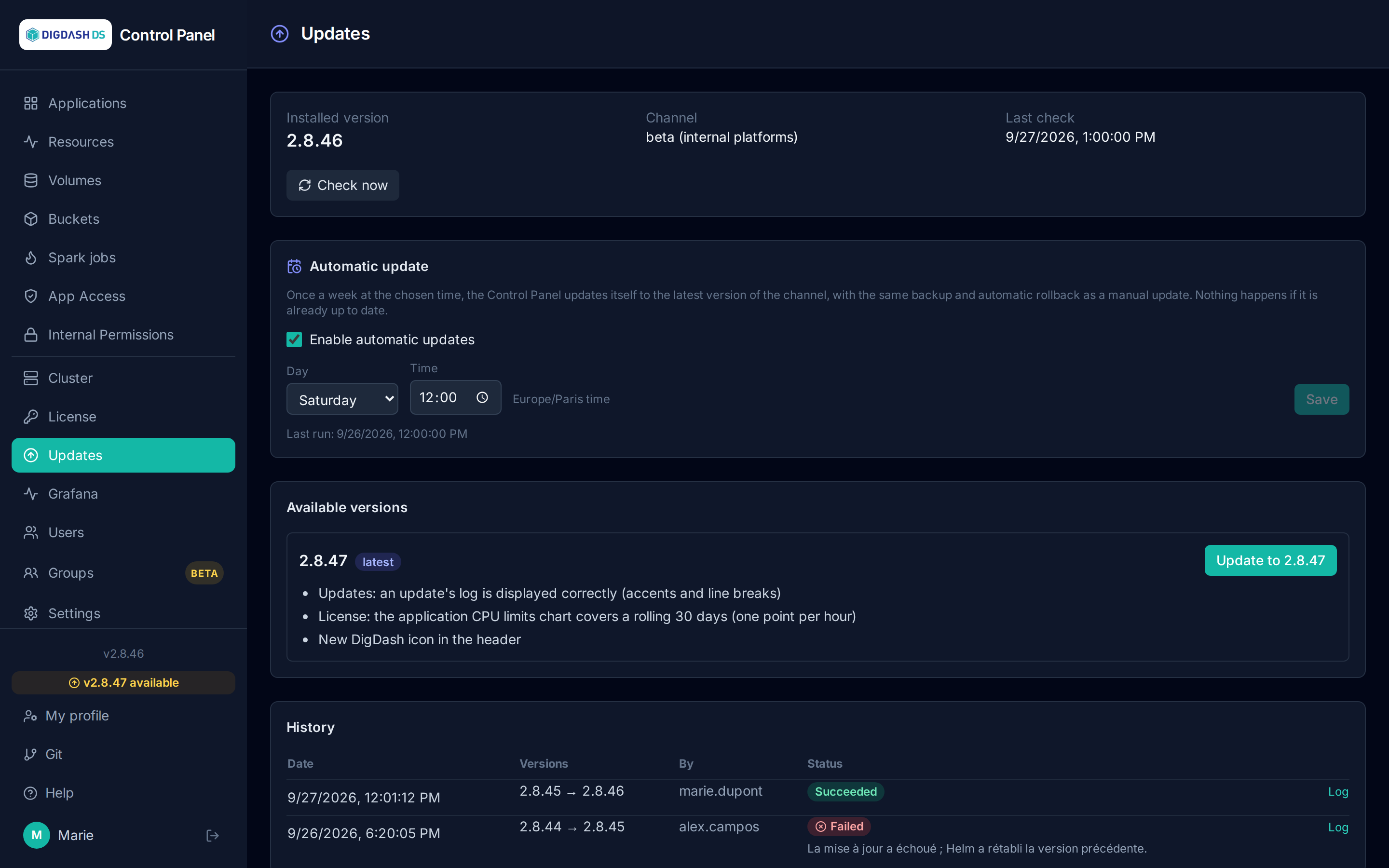
The Updates page shows the installed Control Panel version, the newer versions available with their release notes, and installs a new version in one click.
Channel
Each platform follows a release channel:
| Channel | For | Content |
|---|---|---|
| stable (default) | customer platforms | versions validated by the end-to-end tests before release |
| beta | internal platforms | every new version, as soon as it is published |
The channel is set with the UPDATE_CHANNEL parameter in the cluster settings (stable or beta).
Checking for new versions
The Control Panel checks the channel every hour. Check now runs the check immediately; the date of the last check is shown at the top of the page. When a newer version exists, a vX.Y.Z available badge appears at the bottom of the menu, on every page.
Each available version is shown with its release notes; the newest one carries the latest badge.
Automatic update

The Automatic update section installs the latest version available on the channel once a week, at the chosen time. It is disabled by default; the suggested slot is Saturday at 12:00, Paris time.
- Tick Enable automatic updates, choose the day and time, then Save.
- At that time, the Control Panel checks the channel: if it is up to date, or if an update is already running, nothing happens. Otherwise the update runs exactly like a manual update (backup, installation, automatic rollback on failure). It appears in the history with automatique as its author.
- The same setting exists in Settings → Scheduled tasks (task
auto_update_controlpanel), where a finer crontab expression can also be entered. In that case the Updates page says so; saving from the page replaces the expression with a weekly slot.
Every change of this setting is recorded in the audit logs.
Updating
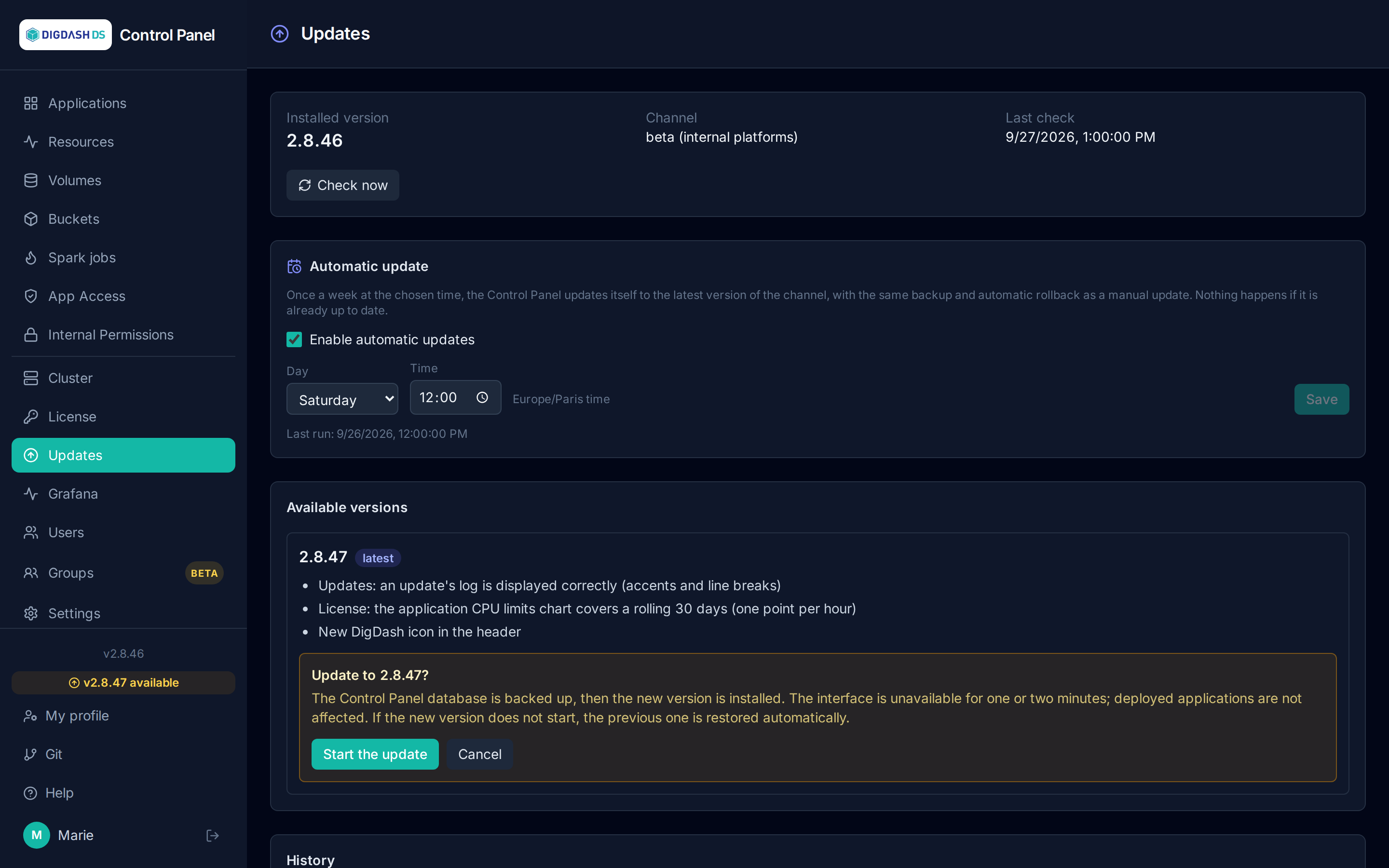
Update to X.Y.Z asks for confirmation, then:
- Backup: the Control Panel database is backed up (CloudNativePG backup by volume snapshot, restorable). If the backup fails, the update is abandoned and nothing is changed.
- Installation: the new version is installed.
- Check: if the new version does not start, the previous version is restored automatically.
The interface is unavailable for one or two minutes during the installation; the page refreshes by itself. Deployed applications are not affected. Once the new version is running, a button offers to reload the page to load the new interface.
The backups of the last three updates are kept; older ones are deleted automatically.
Note
Updating is only possible from the Control Panel deployed in the cluster, not from a development installation.
History
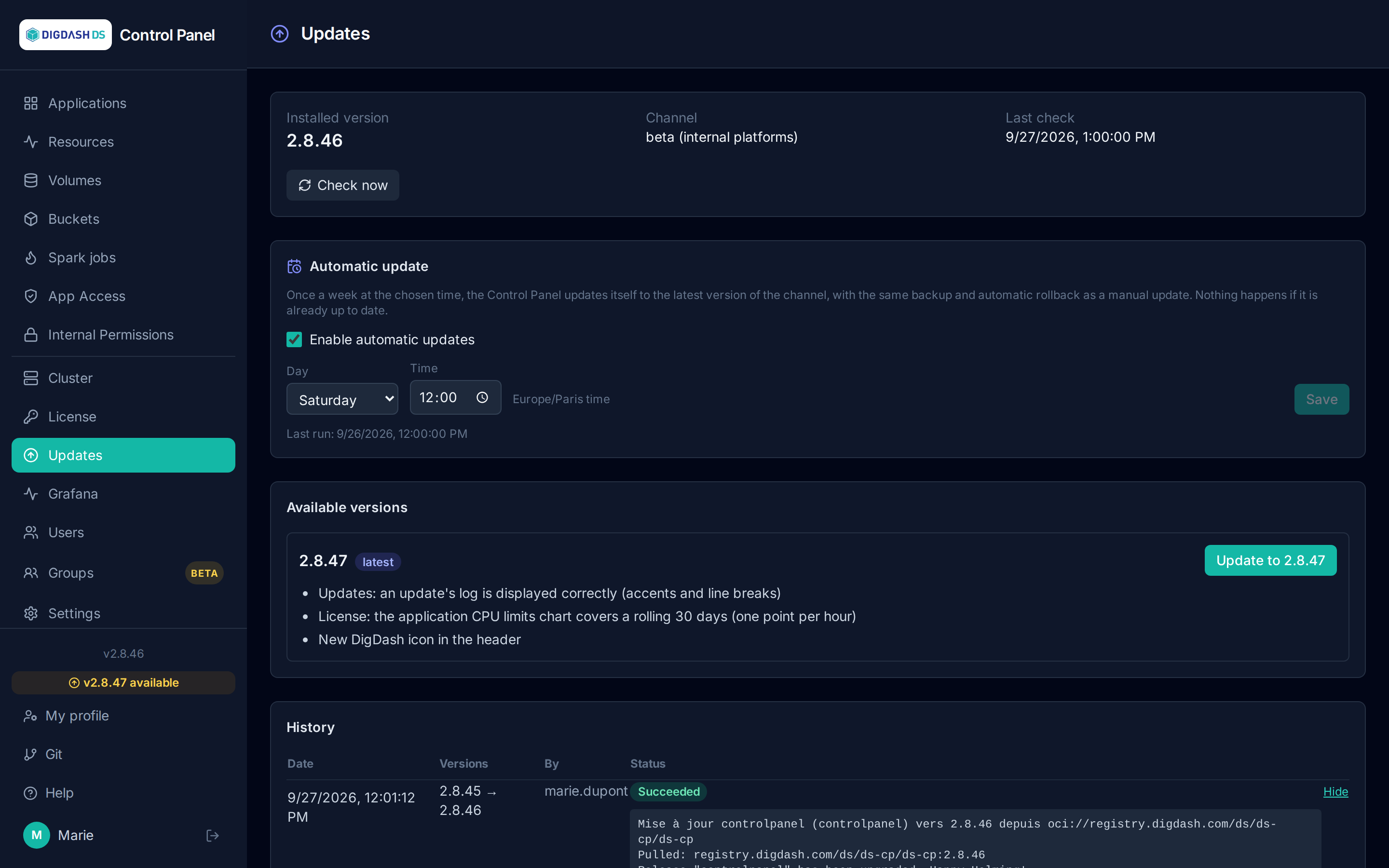
The history lists past updates: date, source and target versions, author and result (Succeeded or Failed, with the reason). Log shows the installation output, useful to understand a failure.