License
License menu — access restricted to platform administrators.
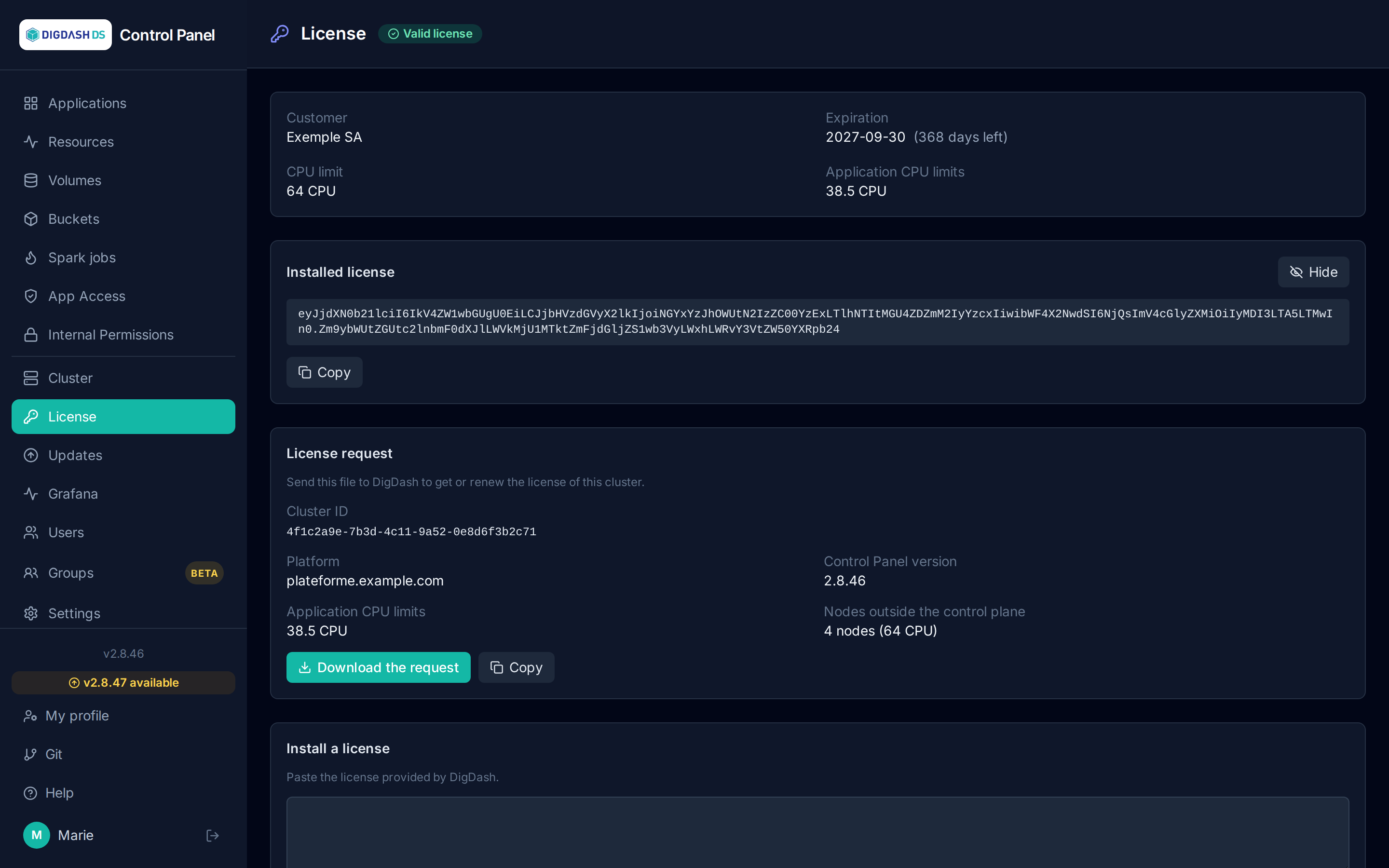
The Control Panel runs with a license issued by DigDash for one specific cluster. It sets a customer, an expiry date and a CPU cap. The License page shows its status, prepares a license request and installs the license you receive.
What is counted
The cap applies to the sum of the CPU limits (limits.cpu) of the deployed applications, not to the nodes' cores or to actual consumption:
- only pods in application namespaces (the ones listed in the Control Panel) are counted;
- only pods that are running or waiting to start: a stopped application (0 replicas) no longer counts;
- pods scheduled on Kubernetes control-plane nodes are not counted;
- infrastructure (storage, monitoring, gateway, the Control Panel itself) is not counted.
Example: an application with 2 pods limited to 1.5 CPU each counts for 3 CPU, whether it uses 0.1 or 3 cores. An application's CPU limit is set in its configuration (see Configuring an application).
The total is measured every minute. A measurement older than 10 minutes is treated as unknown and never blocks anything.
Rolling 30 days
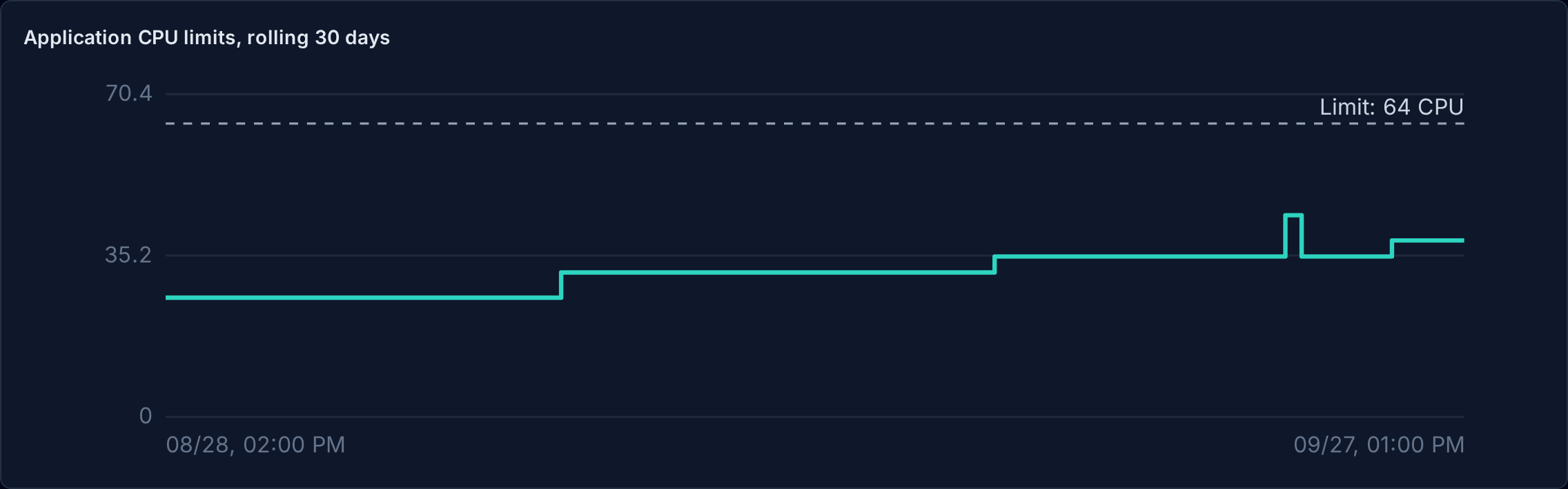
The chart shows the sum of the applications' CPU limits over the last 30 days, one point per hour (the highest value of the hour, so peaks stay visible). The dashed line is the license cap. Hovering shows the value at a given date.
Warnings and blocking
| Situation | Effect |
|---|---|
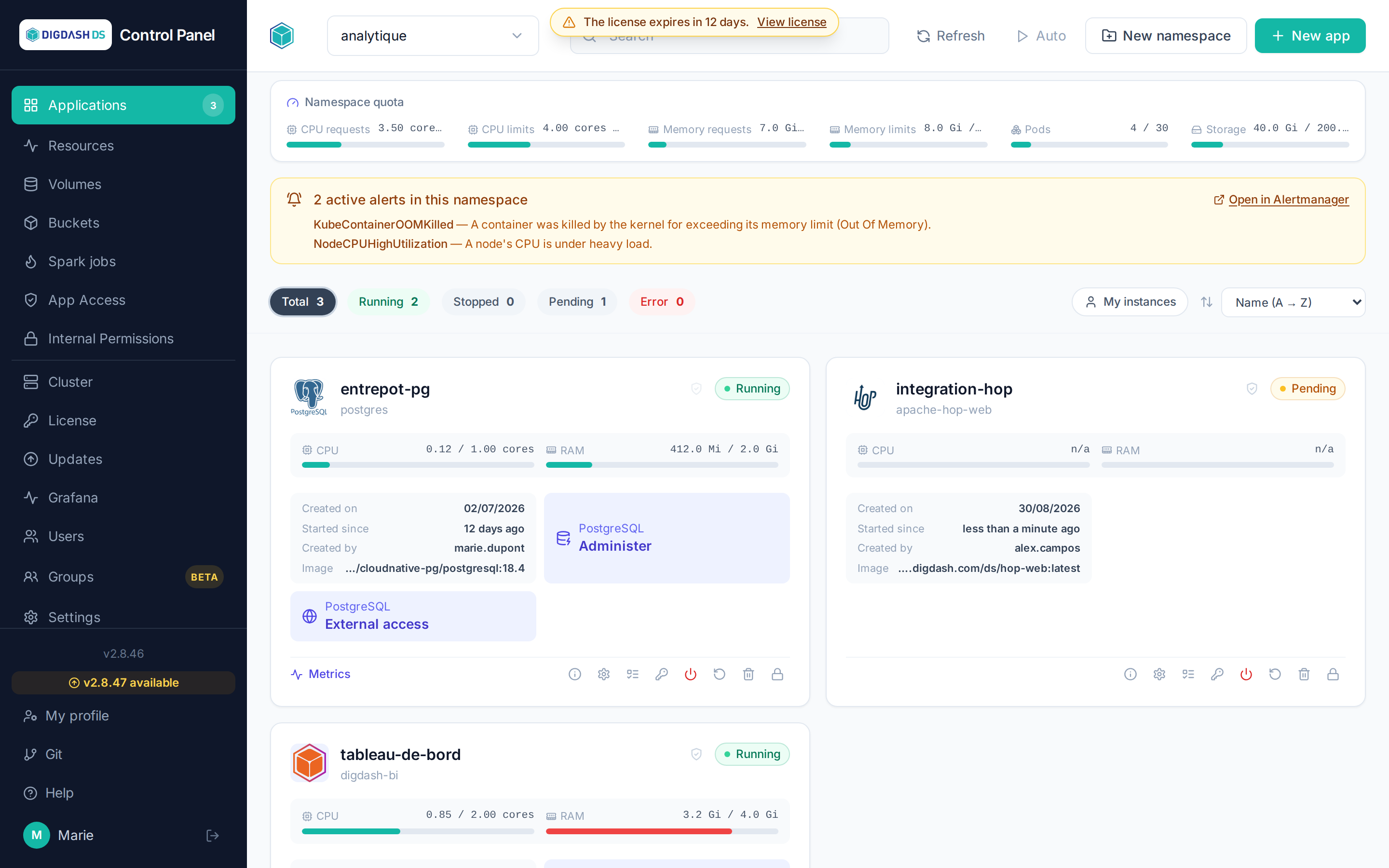
| Expiry in 15 days or less | Banner at the top of every page, with the number of days left. |
| CPU cap exceeded | Banner, and new deployments are refused as long as the total stays above the cap. Existing applications keep running. |
| No license, or an expired, invalid or other-cluster license | The Control Panel is blocked: every page redirects to the License page. Applications already deployed keep running. |
Without a valid license, users who are not platform administrators only see the license status and a prompt to contact an administrator.
Getting or renewing a license
The License request section gathers the information DigDash needs:
- the cluster identifier (the license is only valid on this cluster);
- the platform name and the Control Panel version;
- the current sum of the applications' CPU limits;
- the number of non-control-plane nodes and their CPU capacity;
- the current license, if any.
Download the request produces a JSON file to send to DigDash; Copy puts the same content in the clipboard.
Installing a license
Paste the license provided by DigDash into Install a license, then click Install. It is checked immediately and refused if it has been altered or was issued for another cluster. An accepted license replaces the previous one and unblocks the Control Panel without a restart.
Viewing the installed license
Show the license displays the text of the installed license, for instance to check it or send it to DigDash; Copy puts it in the clipboard. Each view is recorded in the audit logs.