Debug mode (Digdash BI)
The Digdash BI template offers a debug mode reserved for the DigDash team, to investigate an issue that cannot be investigated otherwise: it opens a remote Java debug agent (JDWP) on the main container and exposes the internal LDAP directory port (OpenDJ sidecar). Both stay reachable only from within the cluster (ClusterIP Service) until a dedicated external-exposure rule is created — see Connecting below.
Enabling
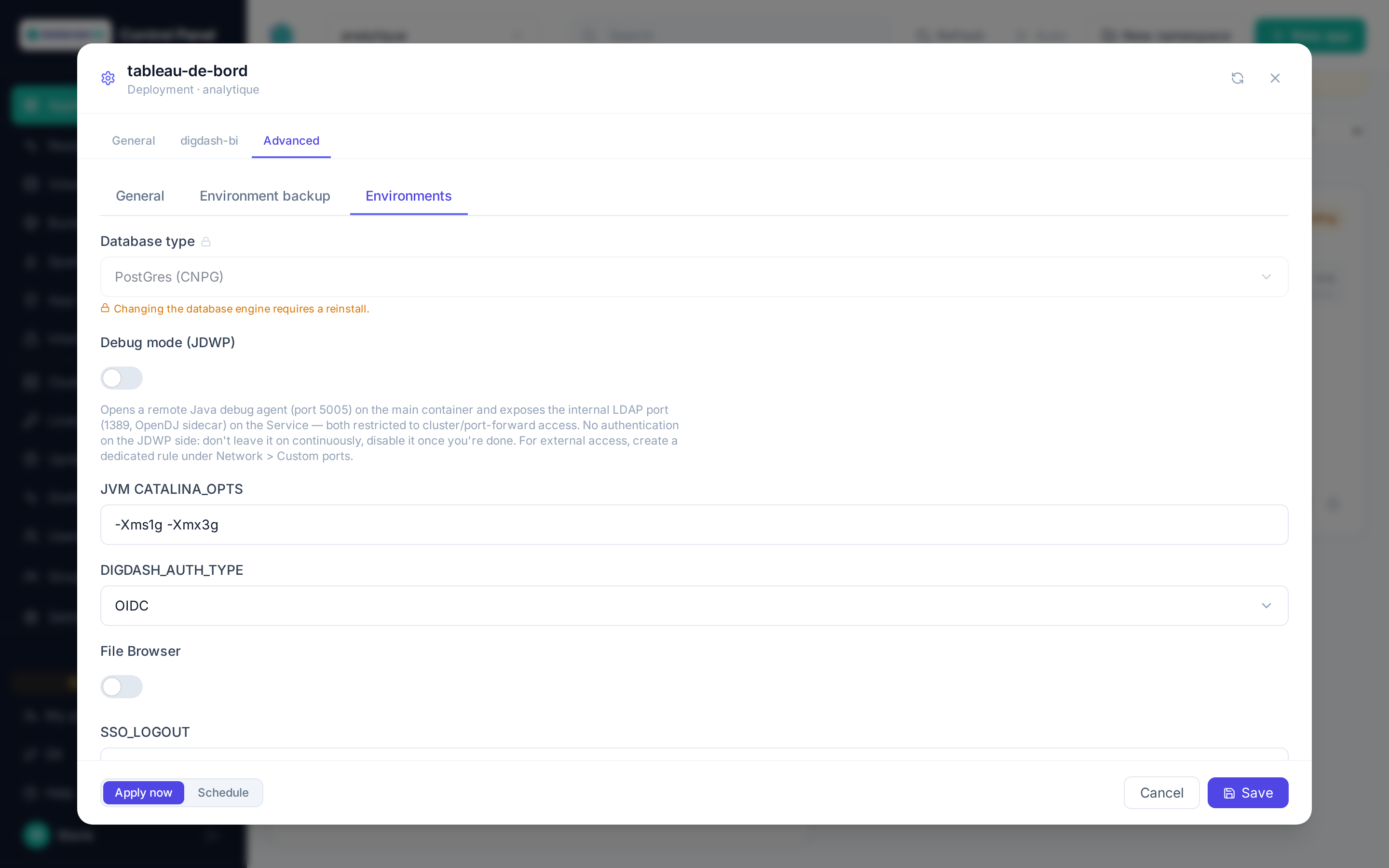
In the deployment form (Environments tab, at the top of the list), or afterwards via Configure → Advanced → Environments tab:
- Debug mode (JDWP): enables the
-agentlib:jdwp=…flag on port5005(Java debugger) and exposes port1389(OpenDJ LDAP directory) on the application's Kubernetes Service. - Apply: the pod restarts with both ports active.
No authentication on JDWP
The Java Debug Wire Protocol (JDWP) has no built-in authentication: anyone who can reach the port can execute arbitrary code inside the JVM. The LDAP port gives access to the internal directory (Digdash accounts/roles). Reserved for the DigDash team for a one-off investigation — do not leave debug mode on continuously or in production, disable it as soon as the session is over.
Connecting
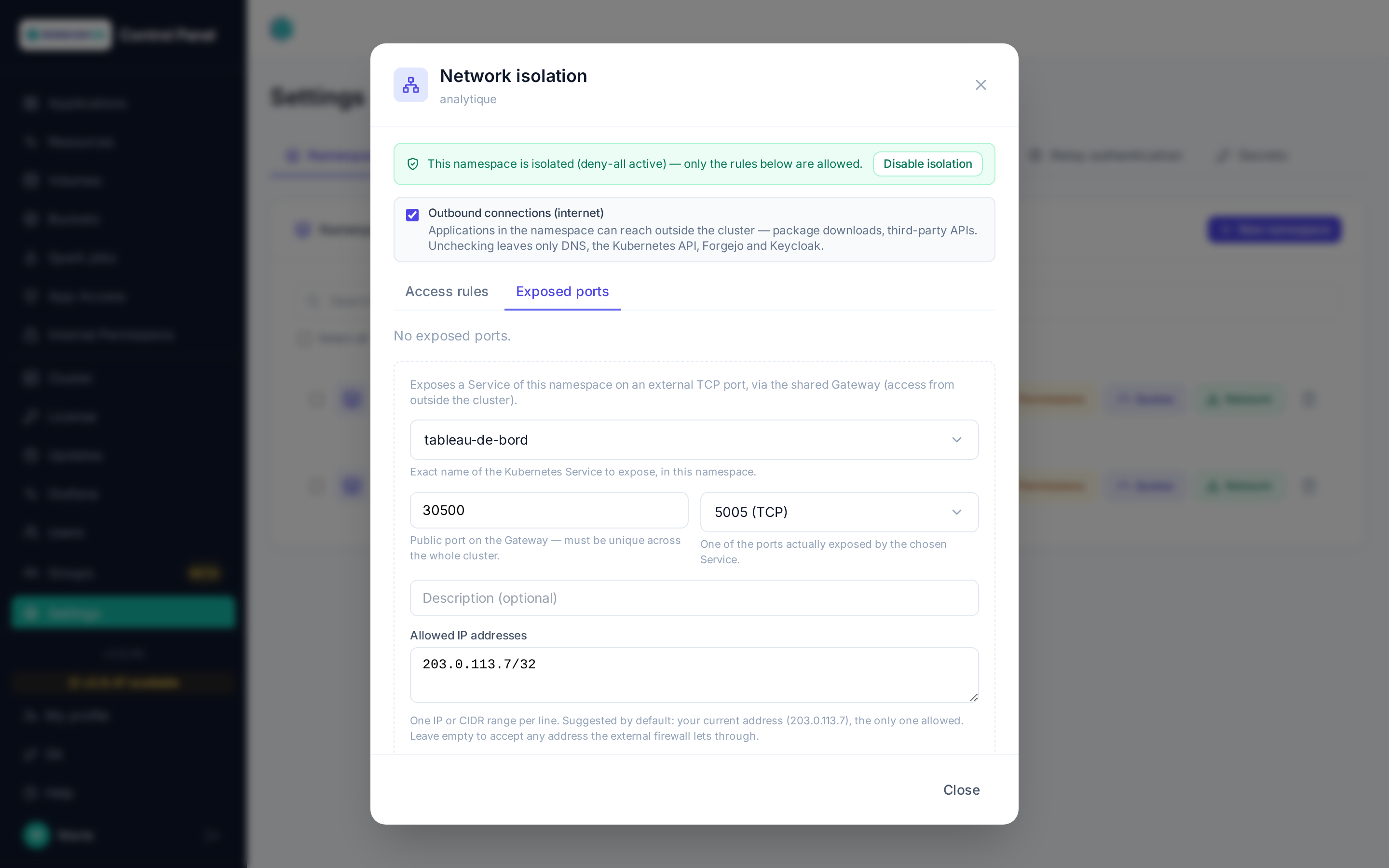
Both ports (5005 for JDWP, 1389 for LDAP) stay internal to the cluster by default. To reach them from a development machine, expose them temporarily via Custom ports — see Namespaces and quotas → Network isolation:
-
Create a Custom port rule targeting the Digdash BI app, with internal port
5005(or1389for LDAP) and a free external port of your choice. To limit collisions with other rules on the cluster (the external port must be unique cluster-wide) and make the rule easier to spot and clean up afterwards, prefer an external port high in the 30000-35000 range (already forwarded by the firewall), for instance34000and above: the bottom of that range is allocated automatically to PostgreSQL external access.The Allowed IP addresses field is pre-filled with your current address, as the platform sees it: keep it. Since JDWP has no authentication, the port is then only reachable from your workstation (or your VPN's egress). Add other addresses if a colleague needs to connect; the filter icon of an existing port lets you edit the list without recreating it. 2. The forward to a potential upstream firewall remains a manual infrastructure step, not automated from this interface — see the reminder shown when the rule is created.
- Then connect your IDE (remote debugger) or your LDAP client on
<external port>, at the Control Panel's own domain name (e.g.controlpanel.my-cluster.digdash.com:30500) — not an IP: the custom port is exposed on that same shared Gateway, whose public IP is neither stable nor meant to be used directly.
Once the session is over
Delete the Custom ports rule and disable debug mode (uncheck + Apply): neither should stay active outside of an ongoing investigation.