Configuring an application
The Configure button on a card opens the configuration of the current deployment. If the application has several pods (for example Digdash BI and its embedded PostgreSQL), a pod selector is shown first.
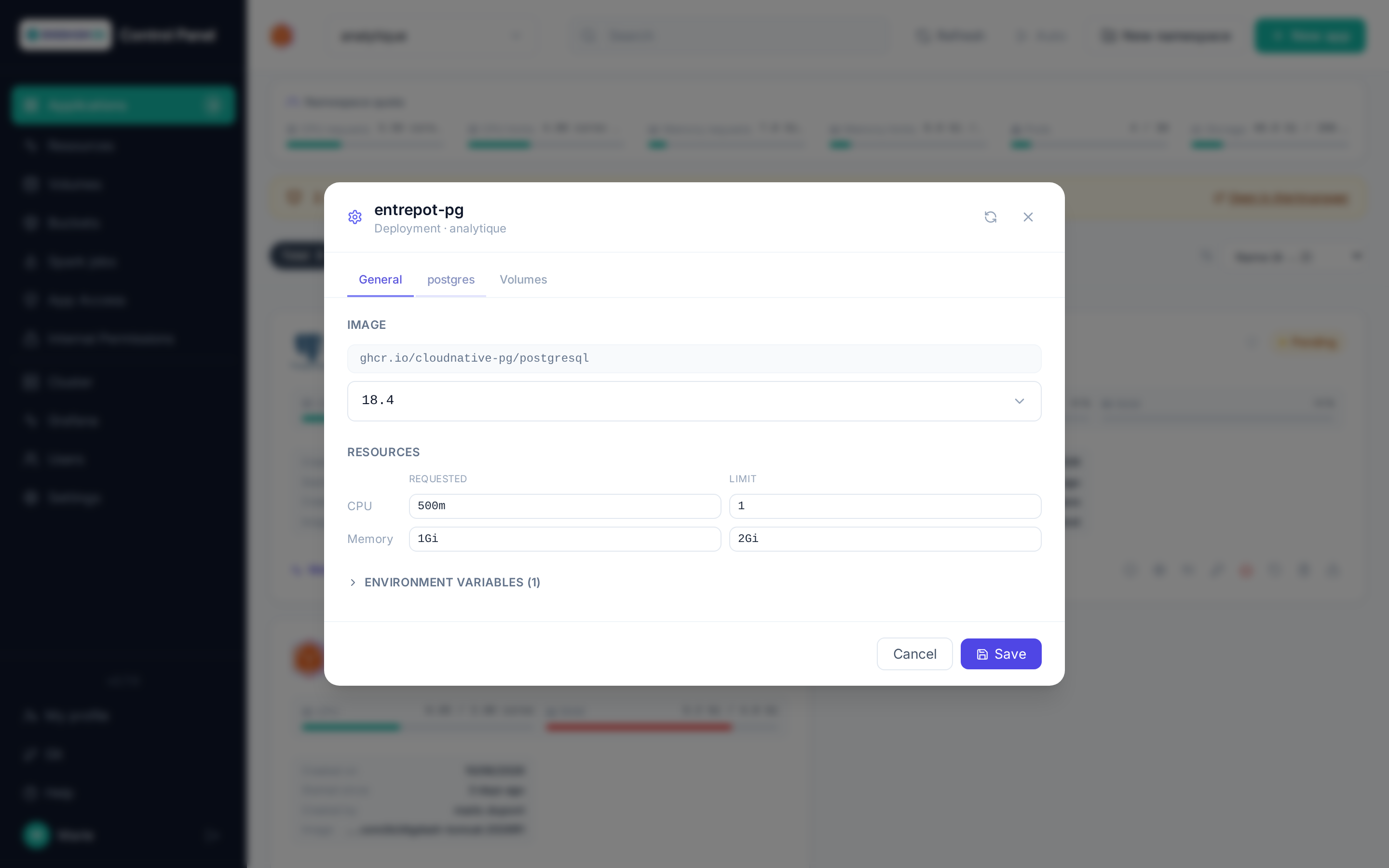
General tab
- Display name: the label shown on the card, editable at any time (unlike the technical name).
- Replicas: number of pod instances.
Container tab
For each container of the application:
- Image: the tag is editable (list loaded from the registry) — changing the version redeploys the application.
-
Resources: CPU and memory, each with two distinct values:
- Requested — the guaranteed reservation on the cluster (counted against the namespace quota);
- Limit — the ceiling beyond which the container is throttled (CPU) or restarted (memory).
Each value is entered as a whole number + unit (
morcoresfor CPU,Mi/Gi/Tifor memory). The limit must be greater than or equal to the requested value. Changing these values triggers a pod restart. -
Environment variables: shown read-only (name and value of the standard containers) — not editable from this modal.
Volumes tab
The persistent volumes mounted by the application, with the option to point a mount to another existing PVC (for example a clone or a volume restored from a snapshot — see Volumes).
Advanced settings
The template-specific fields (Digdash properties, backup scheduling, Hop Git source…) that stay editable after deployment. Fields marked with a lock icon are frozen — their tooltip explains why (for example: "Changing the database engine requires a reinstall").
Tip
After a Save, if resources or the image have changed, the application restarts: the card briefly goes back to Pending before returning to Running.