Apache Hop Server: jobs and scheduling
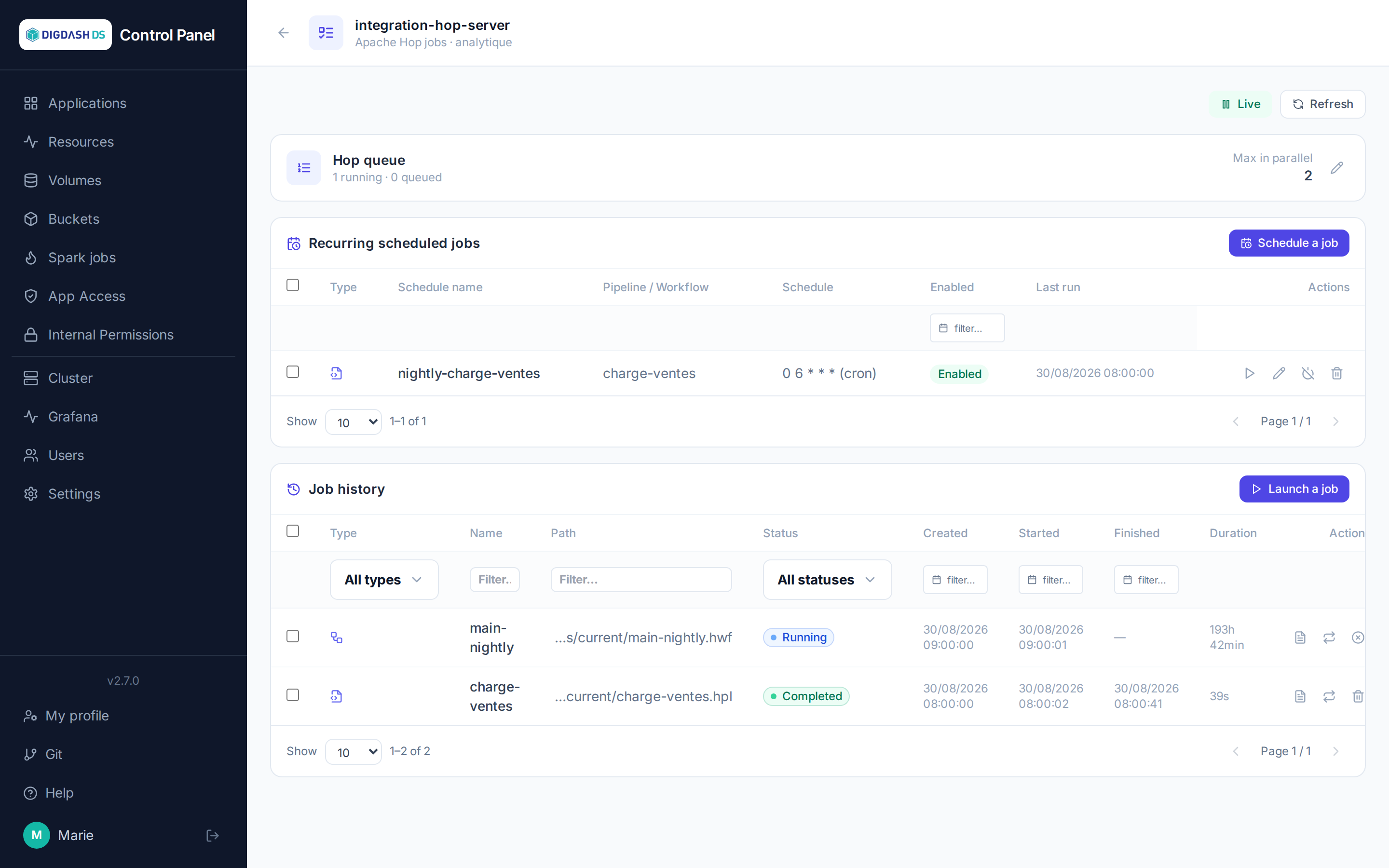
The Apache Hop Server card opens, via the Hop Jobs button, a dedicated page for launching and monitoring the pipelines and workflows of the Hop project synced to this instance (see Git for configuring the project's source).
Queue
A banner at the top of the page shows the number of jobs running and queued, as well as the Hop Server instance's actual CPU/RAM consumption. The maximum number of jobs run in parallel is set here (Max in parallel) — a queue is created automatically (limited to 1) on the first job launched if none exists yet.
Launching a standard job
Launch a job opens a selection among the pipelines (.hpl) and workflows (.hwf) in the synced git repository:
| Field | Role |
|---|---|
| Pipeline / Workflow | File to run, listed from the instance's git repository |
| Run configuration | Name of an existing run configuration in the project's metadata (metadata/pipeline-run-configuration or workflow-run-configuration) |
| Execution parameters | Key/value pairs passed to the pipeline/workflow |
| Log level | From Nothing to Rowlevel — defaults to the one configured on the Hop Server side |
The job immediately appears in the history, with its status (Queued, Running, Completed, Failed, Cancelled) updated live. Each row lets you:
- view details: a graphical preview of the pipeline/workflow, the status of each transform/action, and the full logs;
- relaunch with the same parameters;
- cancel (active job) or delete (finished job).
Jobs can also be selected in bulk (relaunch / cancel / delete several at once).
Scheduling a recurring job
The Recurring scheduled jobs section defines automatic runs of the same file, using two scheduling modes:
- Interval: every N minutes/hours/days;
- Cron: the classic expression (minute, hour, day of month, month, day of week).
Each schedule keeps its own name, parameters and run configuration — independent from manual launches. Once created, it can be enabled/disabled, edited, run now (without waiting for its next occurrence) or deleted. The Last run column lets you check that a schedule is indeed running as expected.
Note
Unlike the Scheduled tasks button on the application card (see Applications) — which manages the Control Panel's internal tasks (cleanup, syncs...) — this scheduling triggers actual Hop jobs, executed by the Hop Server instance itself.